What shows in your calendar
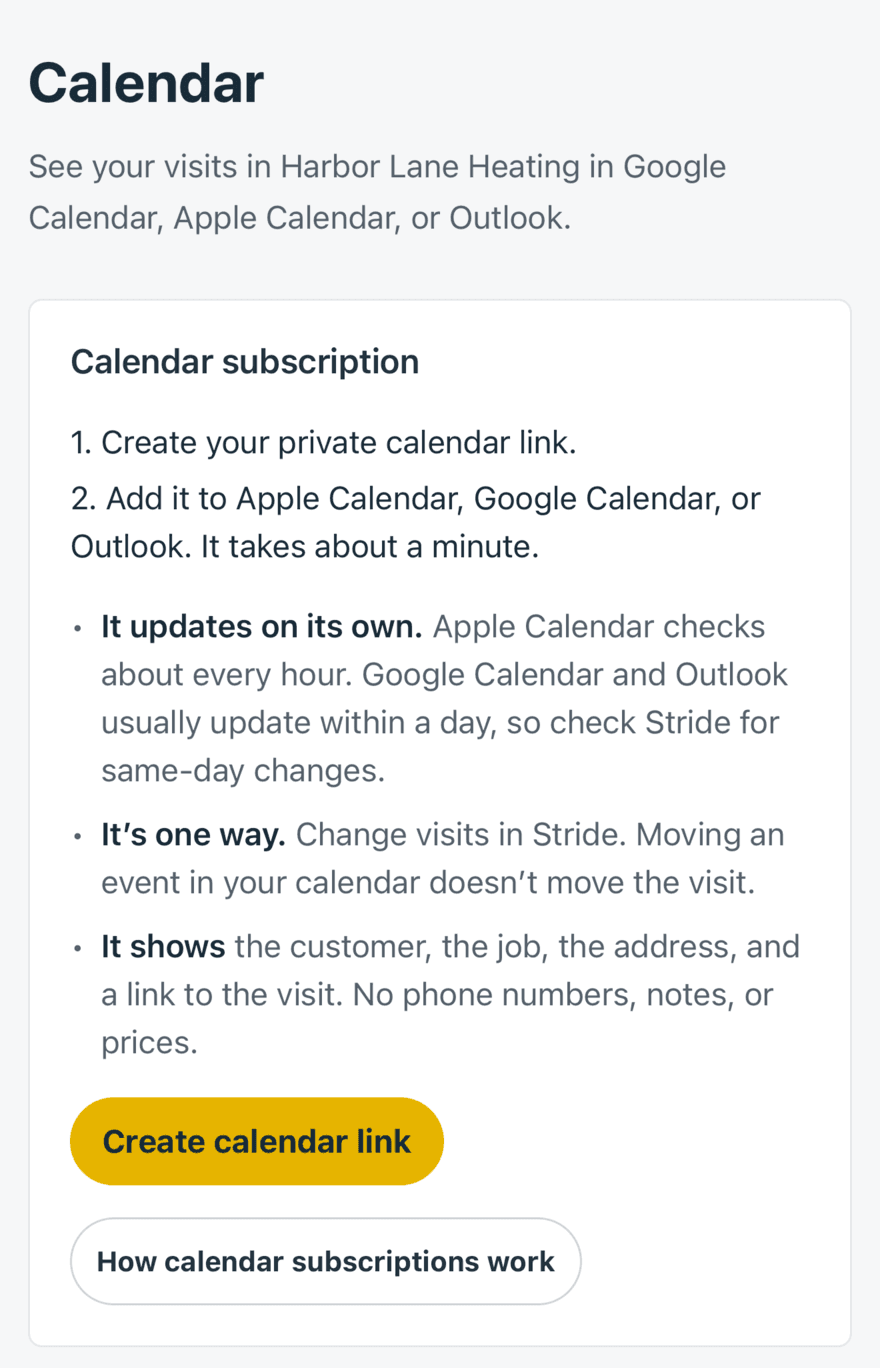
- Every visit you’re the assigned technician on, from 30 days ago to six months ahead.
- Each event shows the customer and job, the service address, and a link that opens the visit in Stride. Phone numbers, notes, and prices are never included.
- It’s one way. Move or change visits in Stride; moving an event in your calendar doesn’t move the visit.
- Your calendar app decides how often it checks: Apple Calendar about every hour; Google Calendar and Outlook usually within a day. For same-day changes, check Stride.
Anyone on the schedule can set it up. If the page says you aren’t on the schedule, ask an Owner or Administrator to add you on the Team page.
Create your calendar link
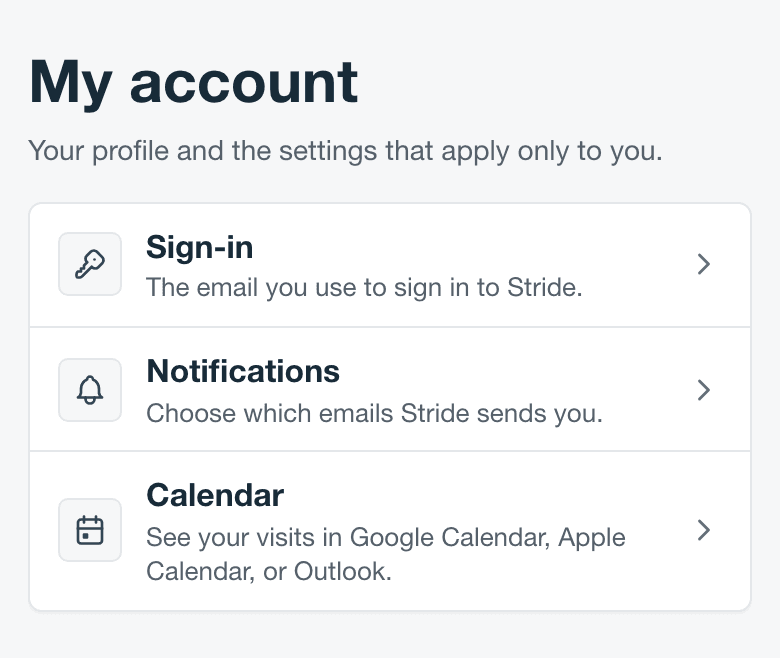
- Open My account. In the app or on a phone, select the account button at the top of Command (your picture, or a person icon in a phone browser), then My account. On a computer, select your business name at the top of the sidebar, then My account. You can also search for “calendar subscription”.
- Select Calendar.
- Select Create calendar link.
Add it to your calendar
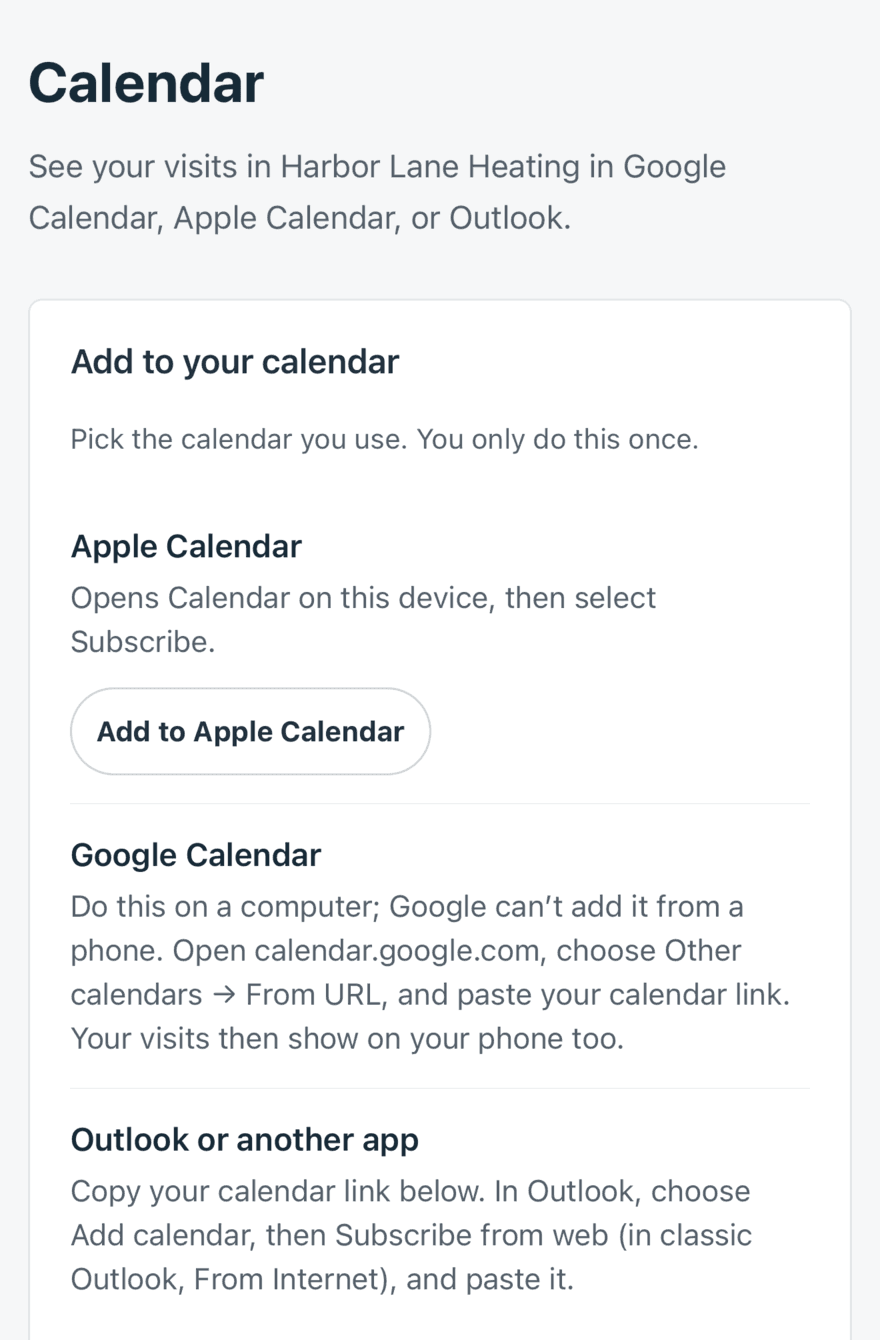
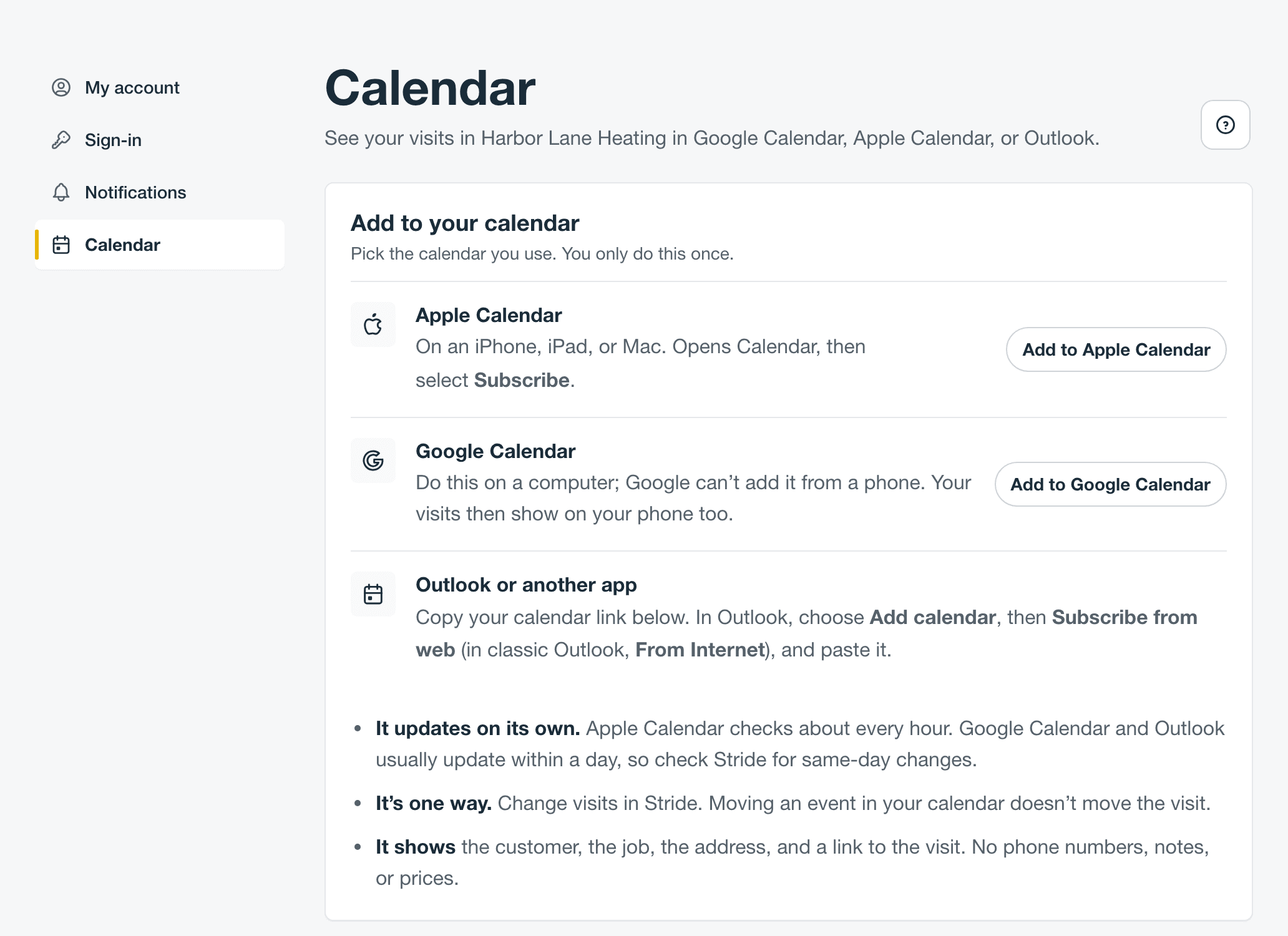
Once you have a link, Add to your calendar shows one row for each calendar app. Pick the one you use.
Apple Calendar (iPhone, iPad, or Mac)
- On Calendar in My account, select Add to Apple Calendar.
- Calendar opens and asks whether to subscribe. On an iPhone or iPad, select Subscribe, then Add. On a Mac, select Subscribe, choose iCloud as the location so your iPhone gets it too, then select OK.
Google Calendar
- On a computer, sign in to Stride and open My account, then Calendar.
- Select Add to Google Calendar. Google Calendar opens in a new tab with your link filled in.
- Select Add. Your visits appear under Other calendars.
If you’d rather paste the link yourself: in Google Calendar, next to Other calendars select +, then From URL, paste your calendar link, and select Add calendar.
Outlook or another calendar app
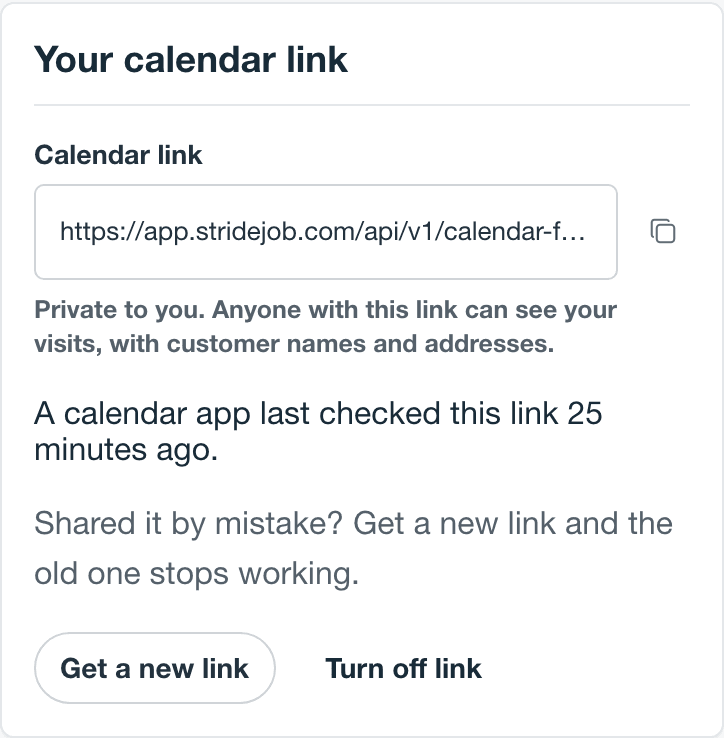
- Under Your calendar link, select the copy button next to the link.
- In Outlook, choose Add calendar, then Subscribe from web. Paste the link, name it, and select Import. In classic Outlook for Windows, choose Add Calendar, then From Internet.
Most other calendar apps have a similar option, often called subscribe, add by URL, or add internet calendar.
Keep your link private
Anyone who has your link can see your visits, including customer names and addresses. Don’t share it or post it anywhere.
- Get a new link if you shared it by mistake. The old link stops working right away, and calendars using it empty out at their next check. Add the new link where you want your visits.
- Turn off link to stop the subscription. Calendars subscribed to it empty out at their next check. You can create a new link at any time.
- If you leave the business, your link stops showing visits on its own.
If something looks wrong
- A visit I just changed hasn’t moved. Your calendar app hasn’t checked yet. Apple Calendar checks about every hour; Google Calendar and Outlook usually within a day. Stride always has the current schedule.
- Add to Apple Calendar does nothing. That button works on an iPhone, iPad, or Mac. On other devices, use Google Calendar from a computer or copy the link.
- My calendar is empty. Check that you’re the assigned technician on upcoming visits, and that you added your newest link. If you selected Get a new link, the old link no longer shows visits. The calendar also stays empty while your business’s Stride plan doesn’t include scheduling.
- Still stuck? Contact support.