When to merge
Merge when two contacts are the same person, for example:
- A manager who handles several stores was added once under each store.
- Someone was added again with a different spelling of their name or a new phone number.
- A contact was imported and then added by hand.
Find possible duplicates
Open Contacts and select Review duplicates. On a phone, it’s in the More contact actions menu. Stride groups active contacts that share an email address or a mobile phone, or have the same name under one customer, and shows why each group matched.
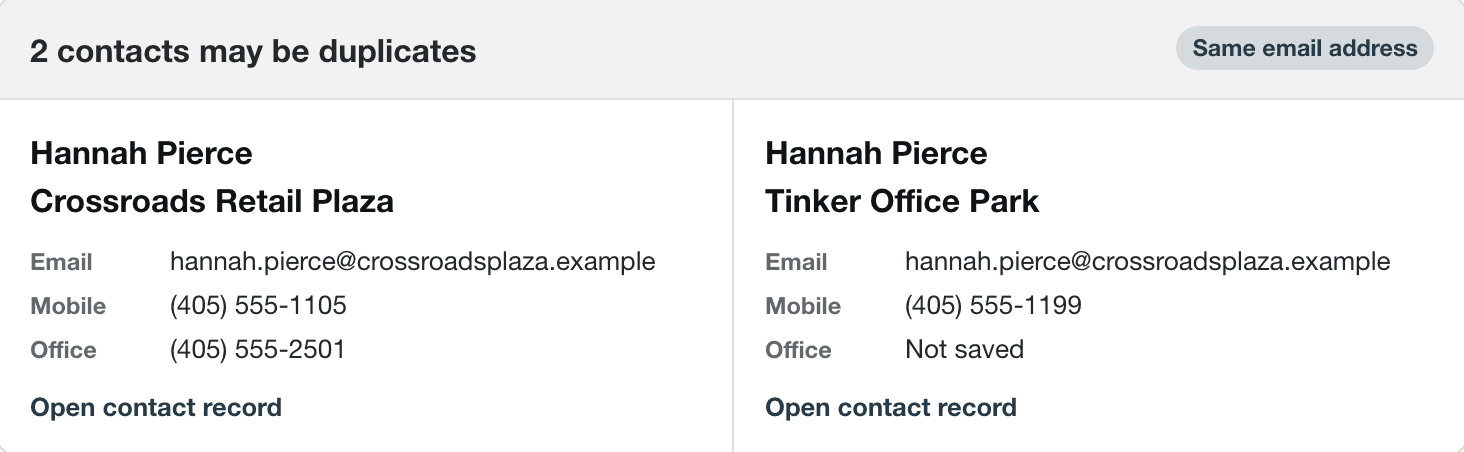
This review checks a bounded sample, so it may not find every possible duplicate. If it reaches a sample or match-signal limit, Stride warns that more groups or matching contacts may exist. Large groups can also show only a bounded contact preview, so the group count may not be exact.
The review only points out possible duplicates. It never merges or changes anything. Open a contact from a group to look closer, and merge from that contact if they really are the same person.
Merge two contacts
Owners, administrators, and schedulers can merge contacts. Start from the contact you want to keep. You’ll choose the duplicate in the next step.
- Open the contact you want to keep.
- Select the More actions menu (⋮) next to their name, then Merge contact.
- Stride starts by searching for contacts with the same name and shows up to 25 results. If the duplicate isn’t listed, search by their email, phone, or customer name to narrow the results; change the search if they use a different name. Choose them under Duplicate contact. Each match shows its email, phone, and customers to help you tell contacts apart.
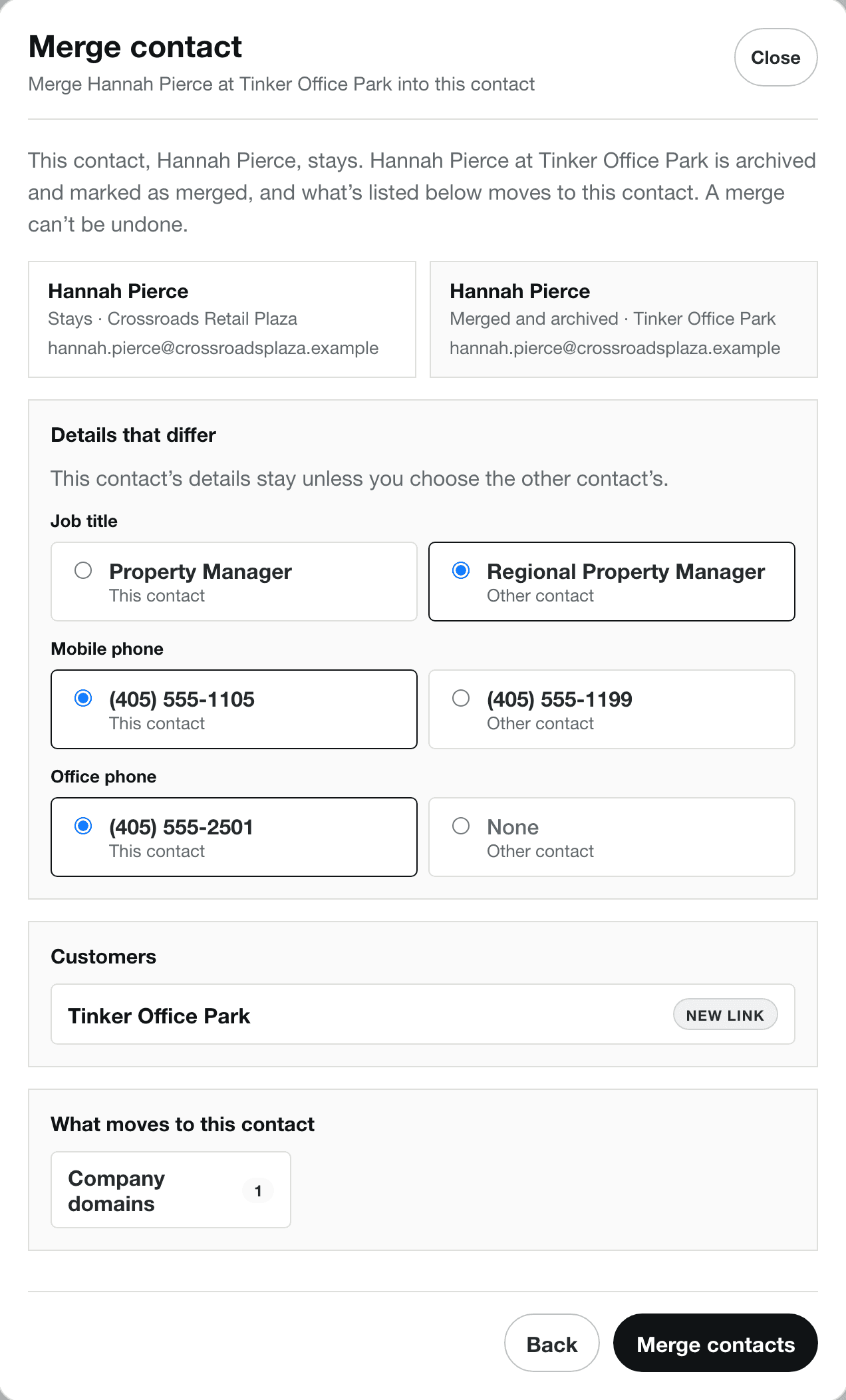
- Select Review merge. Stride checks both contacts and lists what the merge will do.
- Under Details that differ, choose which name, job title, phones, and email to keep. If you choose Other contact for a different email, prepared follow-ups for the kept contact move to Needs attention, and queued customer notifications for the kept contact are canceled. Review affected messages and resend any that should still go out. The merge also cancels queued arrival notifications for the duplicate, regardless of which email you keep. Send a replacement if one should still go out.
- Check Customers and What moves to this contact, then select Merge contacts.
A contact whose own status is Archived, or one that has already been merged, can’t be selected as a duplicate. Reactivate an archived contact itself first. A contact can also appear in the Archived directory when all its linked customers are archived, even if the contact’s own status is active. An owner or administrator must reactivate at least one linked customer; then open the contact from the active directory to merge it.
Choose which details to keep
Details that differ lists only the fields where the two contacts don’t match: Name, Job title, Mobile phone, Office phone, and Email. Each field starts on the kept contact’s value, marked This contact. Choose Other contact for any field where the duplicate has the better value.
For example, keep this contact’s mobile phone but take the other contact’s job title if it’s more recent. A blank value shows as None. If every field already matches, nothing needs to be chosen.
Sometimes a field can’t be changed, and a note under it explains why:
- If the other contact’s customer portal access moves over and only the other contact has an email, that email is kept so they can still sign in.
- If the kept contact belongs to an archived person customer, its name, phones, and email stay as they are. Reactivate the customer to change them.
What moves to the contact you keep
Customers lists every customer the other contact works with. Each one is marked New link or Already linked, and any roles it adds are listed too, such as Adds Billing contact. After the merge, the kept contact is linked to all of them with the other contact’s roles.
What moves to this contact counts the records that named the other contact. The preview’s counts depend on your permissions: without billing access, invoice and invoice email counts are omitted; schedulers see counts only for note types they can view. Those records still move even when their counts aren’t shown. The review lists what will move:
- Jobs, estimates, invoices, and invoice emails
- Opportunities, service plans, job drafts, and scheduled follow-ups
- Notes, tags, and custom property values the kept contact doesn’t have yet, if the property is active and the value still meets its rules. Archived properties and values that no longer pass validation stay on the archived contact.
- Customer portal access and estimates viewed in the portal
- Company domains and import references
Sent communications and follow-up emails stay associated with the archived contact. The kept contact’s history can show selected sent emails and follow-ups, but it doesn’t include portal sign-ins or every event counted in the merge preview.
Also changes lists any opt-outs the kept contact picks up. If the other contact had customer notifications turned off or follow-up emails stopped, the same applies to the kept contact, so nobody starts getting emails they asked to stop. When this newly turns off notifications, queued arrival notifications for the kept contact are canceled; a newly applied follow-up suppression skips its pending follow-up emails. Review affected messages and send replacements if they should still go out.
After the merge
The other contact is archived and marked as merged. It no longer appears in searches, the contact pickers, or the duplicate review, and new jobs, estimates, and invoices can’t use it.
Old links to the merged contact still work. They open a page that says Merged into and the kept contact’s name, with a button to open the kept contact.
If a merge is blocked
If something would be lost, the review shows Resolve these first and Merge contacts is unavailable. Fix the problem, then open the merge again.
| Message | What to do |
|---|---|
| Archived contact | Reactivate the contact you’re keeping, then merge. |
| Contact already merged | Open the contact it was merged into and merge from there. |
| Other contact already merged | Use an old link to the selected contact to see its Merged into destination. Then start from the contact you want to keep, select that destination, and merge the two remaining contacts. |
| Person customer’s own contact | The other contact belongs to a person customer, so it has to be the one you keep. Use the link in the message to open it and merge from there. If both contacts belong to person customers, they can’t be merged. |
| Customer portal access at different customers | Each contact has portal access at a different customer, and a contact can have it at only one. An owner or administrator must turn off one contact’s portal access in Settings first. If you’re a scheduler, ask one of them to do it. |
| Signed-in portal access at another customer | The kept contact’s turned-off portal access has been used to sign in, so it stays where it is. To merge anyway, an owner or administrator must turn off the other contact’s portal access in Settings first. If you’re a scheduler, ask one of them to do it. |
| Customer portal email | If neither contact has an email and portal access is moving, add an email to one. If the kept contact is an archived person customer’s own contact and only the duplicate has the needed email, an owner or administrator must reactivate that customer before changing the kept contact’s email. If you’re a scheduler, ask one of them to reactivate it. |
| Prepared follow-ups | Follow-up emails are already written to the other contact. Send or cancel them first. |
How Stride checks for an existing contact when you add one
Most duplicates come from adding the same person again. To catch that, the Add contact form checks the email address when you select Save contact. This happens wherever you add a contact: on a customer, on the new-job form, or when editing a job.
- The check looks for the same email on your active contacts and on your customers. Capital letters and extra spaces don’t matter.
- It runs only when you enter an email. Names and phone numbers aren’t checked here; use Review duplicates to find those.
- Archived and merged contacts aren’t matched.
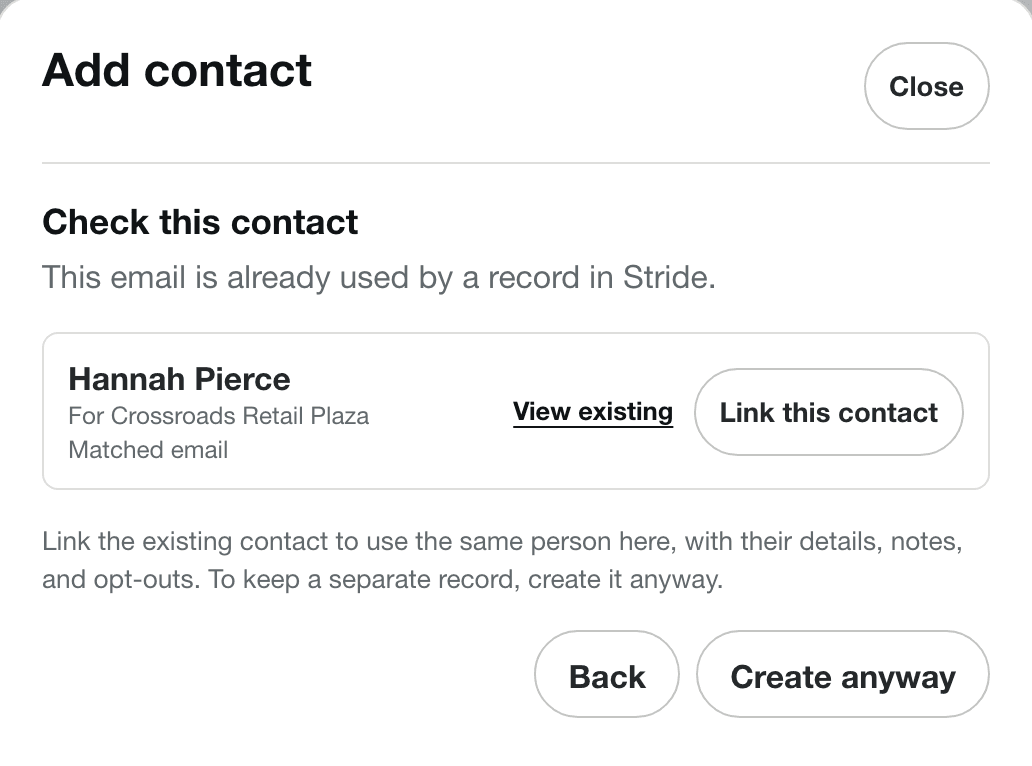
If the email is already in use, Check this contact shows up to ten matches, with the customers they’re linked to and Matched email. A match already linked to this customer says Already a contact for the customer. If you don’t see the person you expected, use Search contacts on the Contacts page before choosing Create anyway; the list may not include every match.
| Choice | What it does |
|---|---|
| Link this contact | This option appears when the match is a contact who isn’t linked to this customer yet, including one who works with other customers, or a person customer’s own contact. It isn’t offered when the match is an organization customer or a contact already linked to this customer. When available, it links the existing contact here with their details, notes, and opt-outs. Nothing new is created. Any role tags you chose, such as Billing contact or On-site, become their roles at this customer. The other details you typed aren’t saved, so edit the contact afterward if something has changed. |
| View existing | Opens the matching record in a new tab so you can check it’s the same person. |
| Create anyway | Saves a separate contact with the details you entered. Use it when two different people share the email. |
| Back | Returns to the form with what you entered. |
Use one contact for several customers
You can also link someone to another customer directly. On the customer, select Add in the Contacts card, then Existing contact. On the contact, select Add in the Customers card, then Existing customer. See Customer, location, or contact for when someone should be a contact.
Not sure whether two contacts are the same person? Email us and we’ll help.