How it works
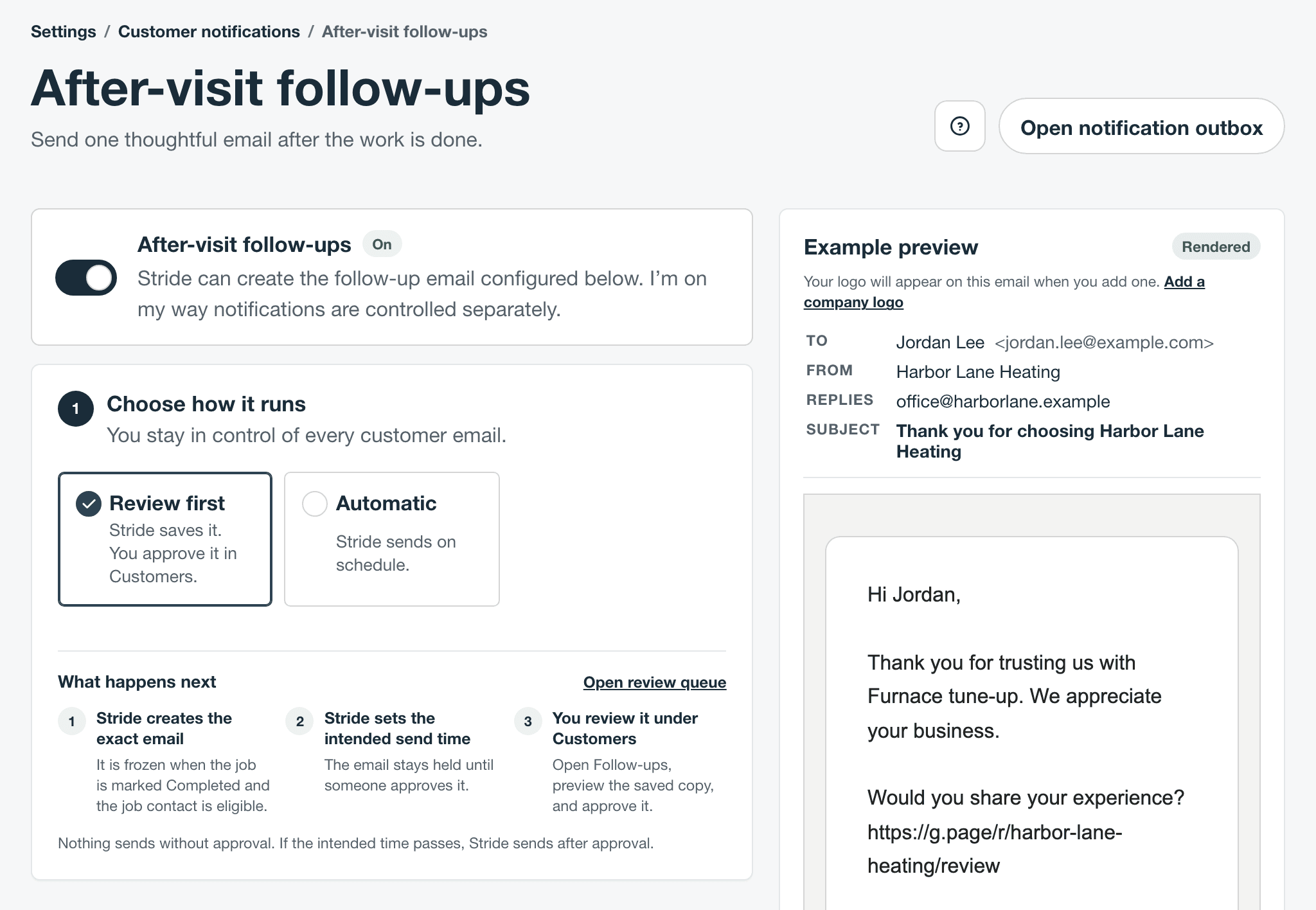
- It starts when a job moves to a Completed status. Ready to invoice isn’t Completed, and neither is Mark job finished, which moves a job to Ready to invoice. The follow-up waits until someone moves the job to Completed.
- Stride writes the exact email straight away, from the job and its contact, and sets the send time from your timing.
- With Review first, the email waits in the Notification outbox until someone approves it. With Automatic, it goes out at the send time.
- Each time a job moves into Completed, it gets one follow-up. If the job is reopened before the email goes out, Stride cancels it. Moving the job back to Completed starts a new one, even if an earlier follow-up was already sent.
- Jobs completed before you turned follow-ups on don’t get one.
Turn it on
- Open Settings, then Customer notifications, and check that Email is on.
- Select Configure on After-visit follow-ups.
- Turn on After-visit follow-ups.
- Under Choose how it runs, pick Review first or Automatic. Start with Review first until you like how the emails read.
- Set the timing and write the email, as below, then select Save follow-ups.
Only owners and administrators can change these settings, and your sign-in email must be verified to turn follow-ups on or to approve them. Schedulers can look at the settings and approve follow-ups.
Choose when it sends
Under Set the timing, choose how long to Wait after the job is marked Completed (0 to 90 days), whether to Count business days or calendar days, and the time to Send at. Business days skip Saturdays and Sundays, but not holidays. Times use your company’s time zone from Company profile.
For example, with a wait of 1 business day at 9:00 AM, a job completed on Friday afternoon gets its email on Monday at 9:00 AM. With a wait of 0, it goes out at the next Send at time (the next business day’s, if you count business days).
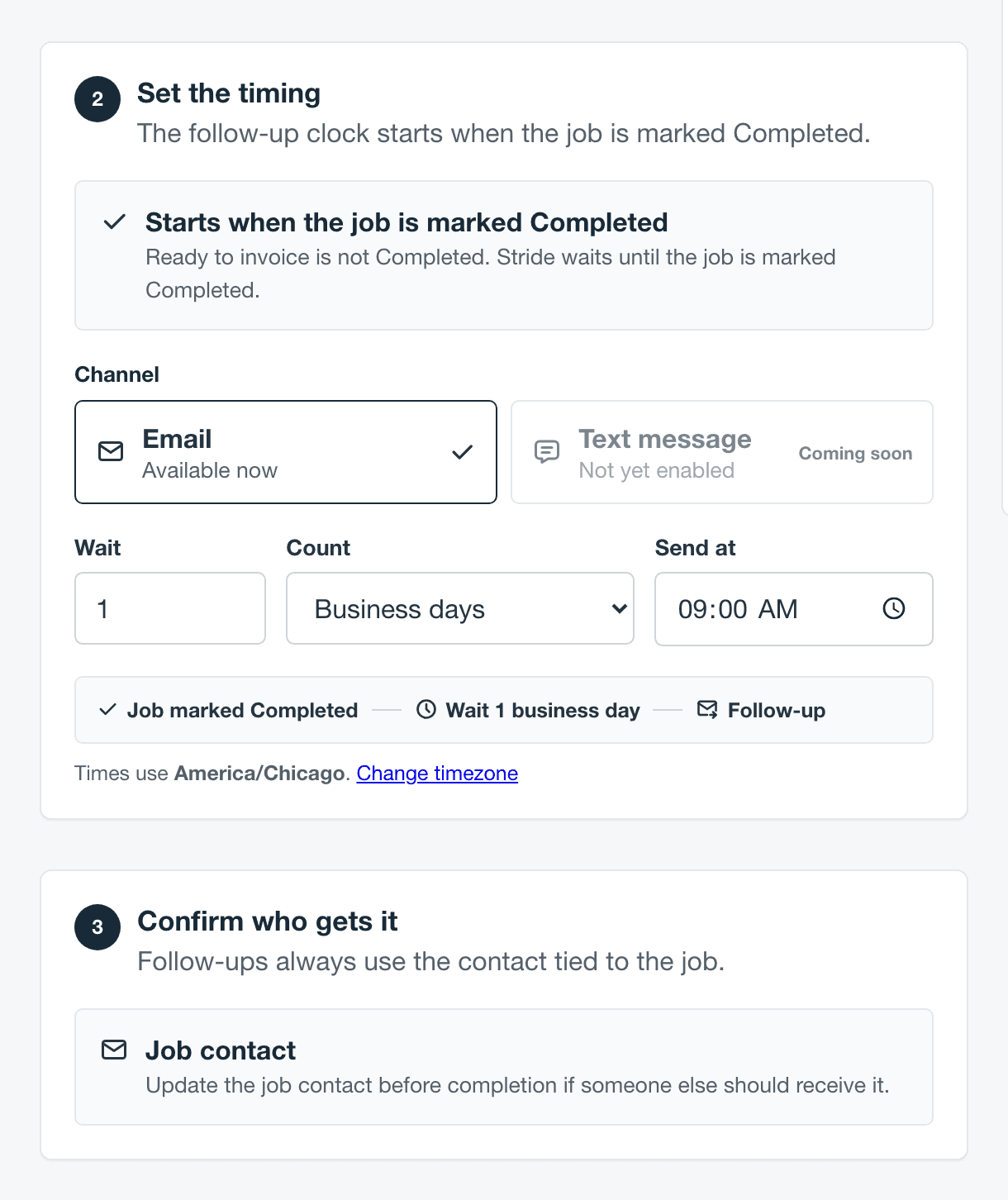
Under Confirm who gets it, follow-ups always go to the job’s contact. If someone else should get it, change the job contact before the job is marked Completed.
Write the email
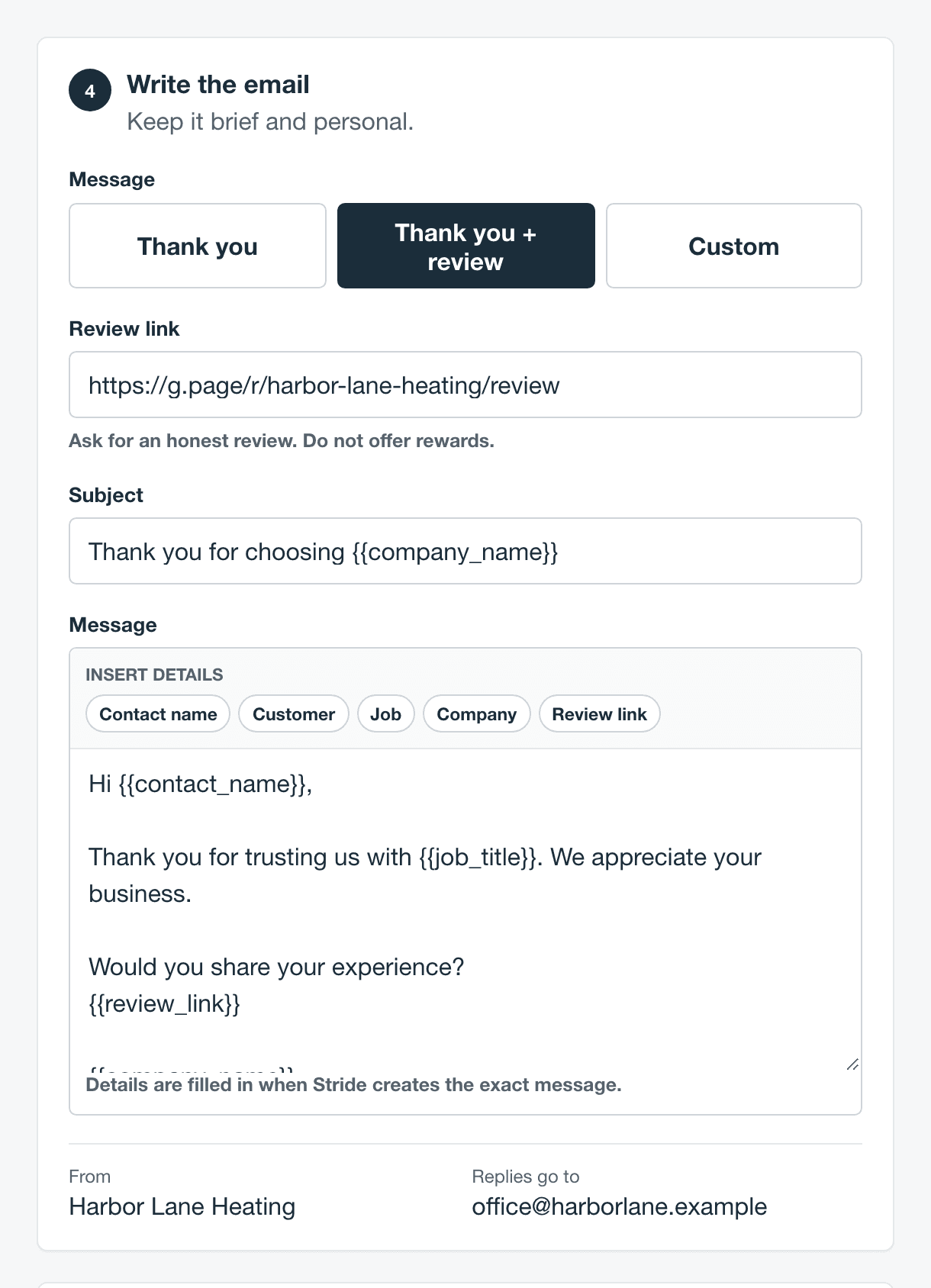
Under Write the email, pick Thank you, Thank you + review, or Custom. For a review request, paste your Review link, such as your Google review link. It has to start with https://. Ask for an honest review, and don’t offer rewards for one.
Use Insert details to add the contact’s name, the customer, the job, your company, or the review link. When the email includes your review link, it also gets a Share feedback button.
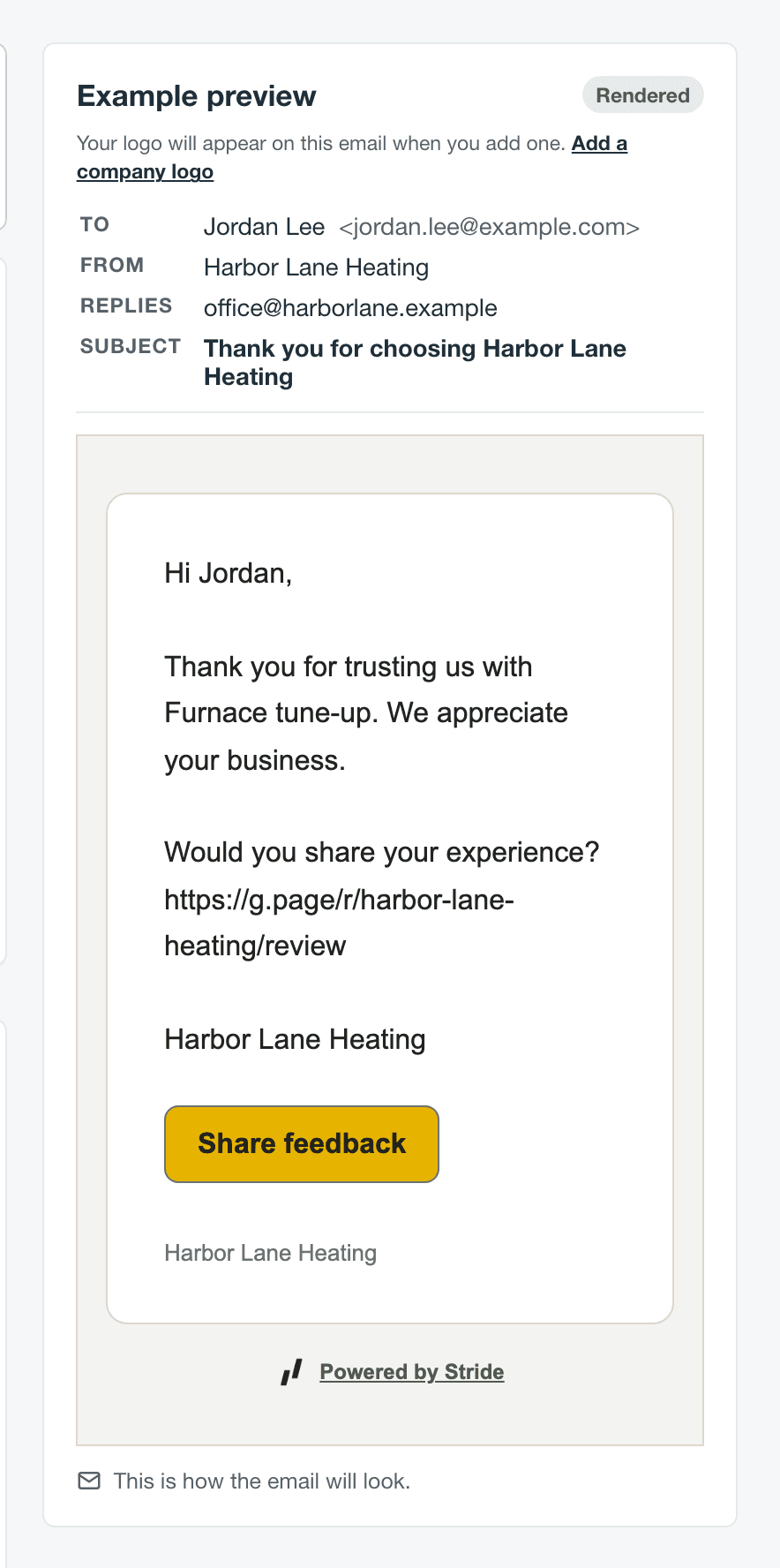
Select Send test to me to get a copy in your own inbox. The email comes from your company name, and replies go to the company email in Company profile.
Review and approve
With Review first, a banner across Stride says when follow-ups are ready, and Customers in the sidebar shows how many. Select Review follow-ups to open the Needs attention tab of the Notification outbox.

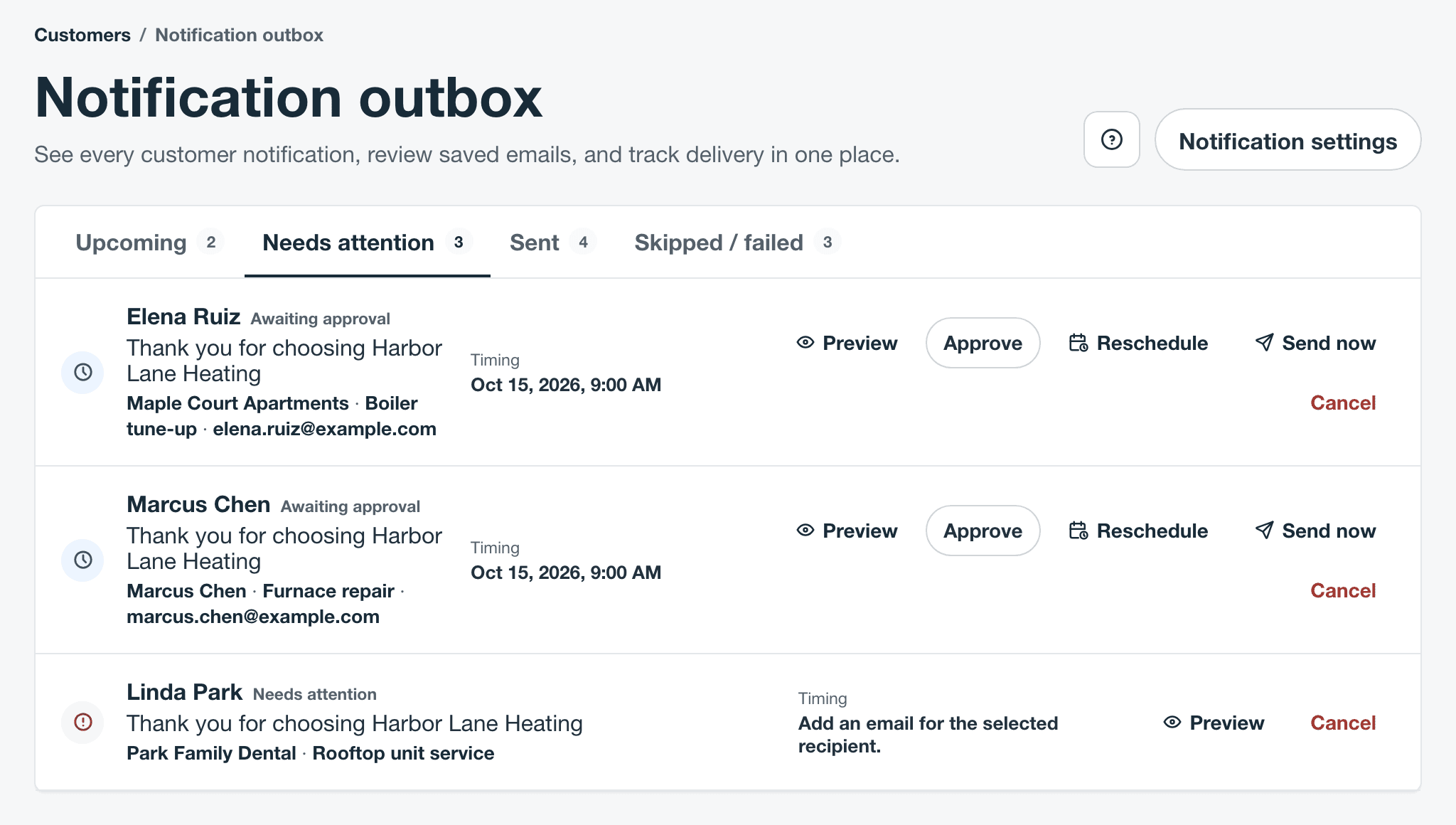
- Preview shows the exact email and its history. Approve sends it at its planned time, or straight away if that time has passed.
- Reschedule picks a new send time for the same email. Send now sends it right away.
- Cancel stops that email. You can’t edit a single email; change the settings for future ones instead.
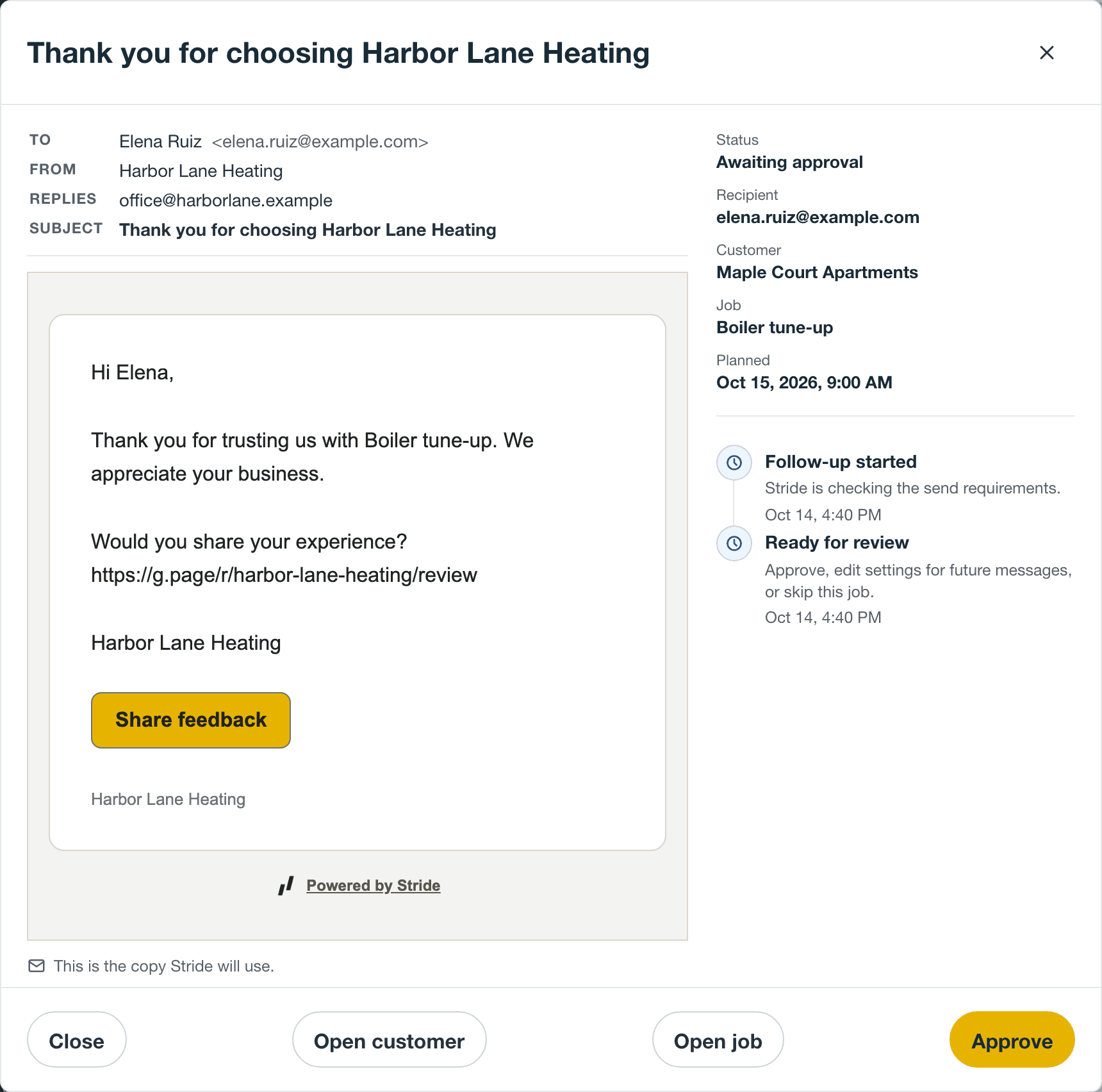
Owners, administrators, and schedulers can approve, reschedule, send, and cancel follow-ups. Technicians can’t see them.
Skip one job
When you invoice the job, Review invoice has a Follow-up email switch under who the invoice goes to. Turn it off (Off for this job) to skip that job’s follow-up. In the Stride app, the invoice has Skip follow-up for this job.
To stop follow-ups to one person for good, turn off their notifications. See Stop emails to one contact.
See what was sent
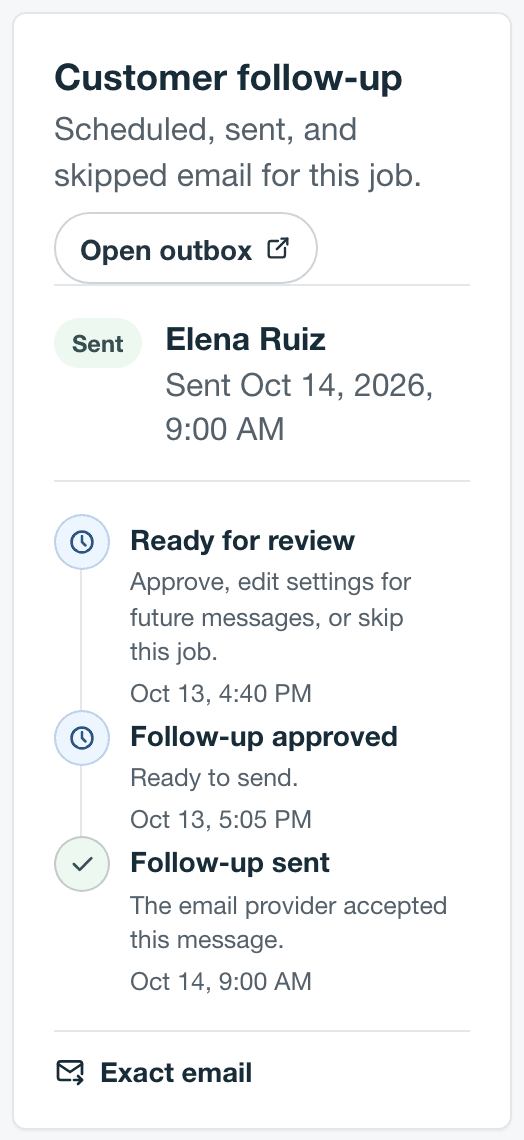
On the job, Customer follow-up shows the email’s status, who it went to, its history, and the Exact email. Open outbox takes you to the full list. Sent follow-ups also show on the contact’s Activities.
When a follow-up doesn’t send
The outbox gives the reason on each follow-up. The common ones:
| The outbox says | What it means |
|---|---|
| Add an email for the selected recipient. | The job contact has no email address. It waits in Needs attention. |
| Customer email is off in workflow settings. | Email is off in Customer notifications. The follow-up waits and continues when you turn it back on. |
| The selected recipient changed after this message was prepared. | The job contact or their email changed after the email was written. It can’t be sent as written, so cancel it. |
| This contact does not receive follow-up email. | Notifications are off for that contact, so it was skipped. |
| Skipped for this job. | Someone turned off the follow-up for that job. |
| The job was reopened or changed. | The job left Completed before the email went out, so it was canceled. |
| Customer follow-ups are off. | Follow-ups were turned off, which cancels every follow-up that hasn’t started sending. |
| Stride could not deliver this follow-up after multiple attempts. | The email provider didn’t accept it after five tries. |
How customer notifications work covers the whole outbox.
Still stuck? Contact support.