What Stride sends
| When it goes out | Plans | |
|---|---|---|
| I’m on my way | Only when the assigned technician taps the I’m on my way button on the visit. Never automatically. | Essentials and Operations |
| After-visit follow-up | After a job is marked Completed, at the time you choose. With Review first, only once someone approves it. | Operations |
| Invoice and estimate emails | When someone sends the invoice or estimate, and a confirmation when a customer accepts an estimate. | Essentials and Operations |
Stride doesn’t send appointment confirmations, appointment reminders, or overdue-invoice reminders. Text messages aren’t available yet; wherever they appear, they’re marked Coming soon or Not yet enabled.
- Send I’m on my way emails covers arrival emails.
- Set up after-visit follow-up emails covers follow-ups.
Turn them on
Open Settings, then Customer notifications. Email under Account-wide email and text messages is the main switch for automatic customer email. Then turn on each email under Choose what Stride sends: select Configure on I’m on my way or After-visit follow-ups.
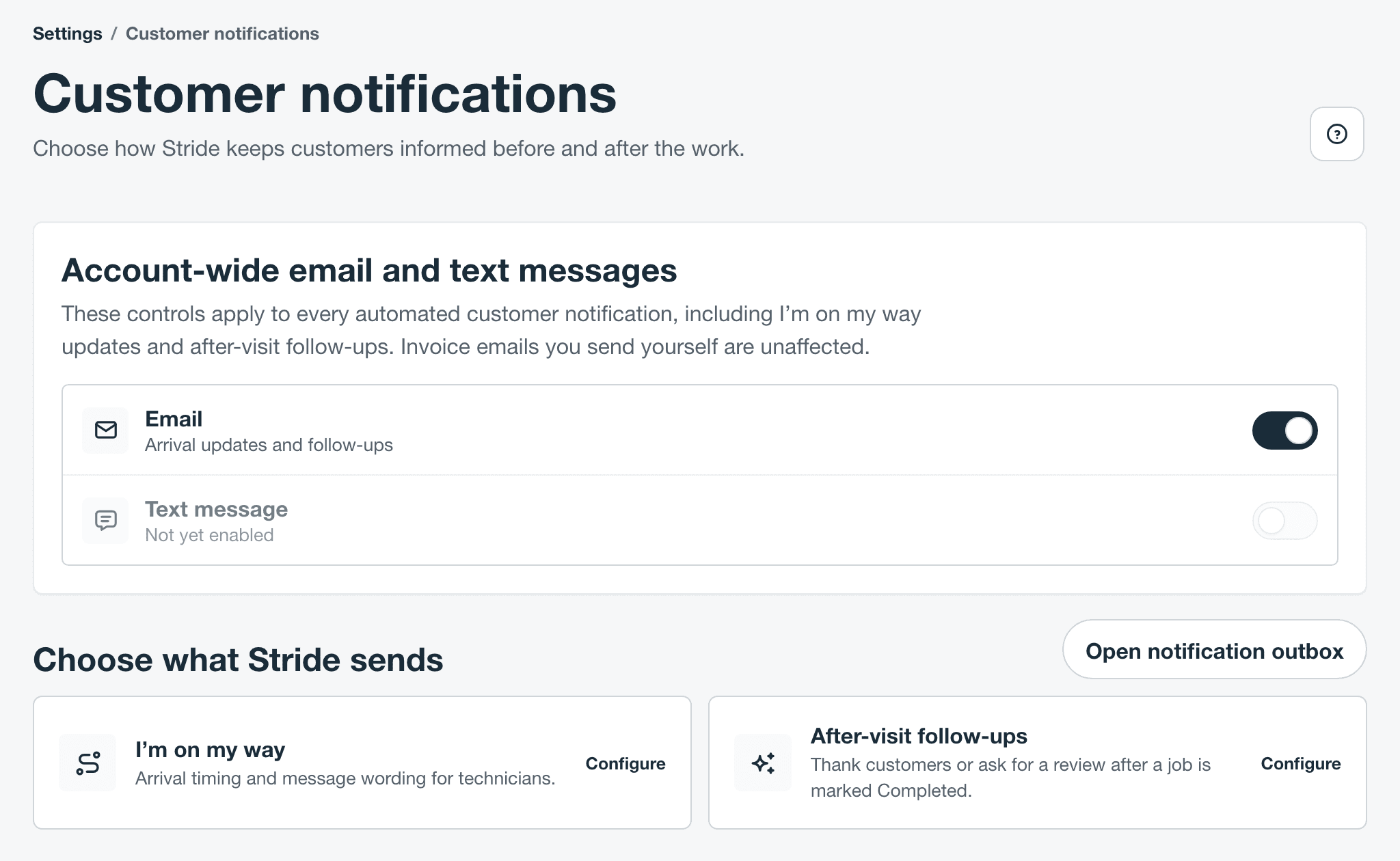
- Turning Email off stops both. I’m on my way emails that haven’t gone out are canceled, and technicians can’t send new ones. Follow-ups wait in Needs attention and carry on when you turn email back on.
- Only owners and administrators can change these settings. Schedulers can look at them.
What customers see
- Emails go to the job’s contact. To reach someone else, change the job contact.
- They come from your company name, and replies go to the company email in Company profile, so customers can answer you directly.
- They show your logo and brand colors once you’ve added them, with a small “Powered by Stride” line at the bottom.
- There’s no unsubscribe link. If a customer asks you to stop, turn off their notifications as below.
Stop emails to one contact
- Open the contact, for example from the customer’s Contacts.
- Next to the call and email buttons, turn off the bell switch. Its label is Customer notifications on.
- Confirm. Waiting follow-ups and future I’m on my way emails to this contact are skipped.
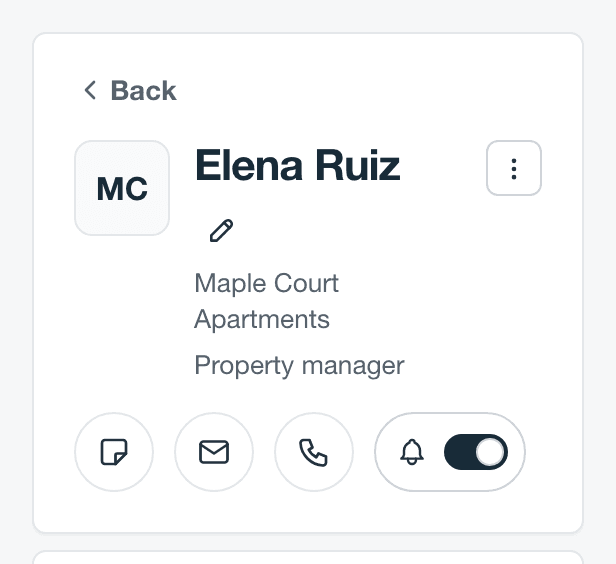
Only owners and administrators can change it, and it shows while customer email is on. An email that’s already sending may still arrive. The switch doesn’t affect invoices or estimates you send yourself.
The Notification outbox
The Notification outbox lists every I’m on my way email and after-visit follow-up: what’s coming up, what needs you, what went out, and what didn’t. Open it from Follow-up outbox on Customers (the envelope icon on a computer, or the More customer actions menu on a phone), from Open notification outbox in Settings, or from the review banner. Owners, administrators, and schedulers can see it.
| Tab | What’s in it |
|---|---|
| Upcoming | Follow-ups waiting for their send time and I’m on my way emails being sent. |
| Needs attention | Follow-ups waiting for approval or for a fix, such as a missing email address. |
| Sent | Everything the email provider accepted. |
| Skipped / failed | Skipped, canceled, and failed emails, each with the reason. |
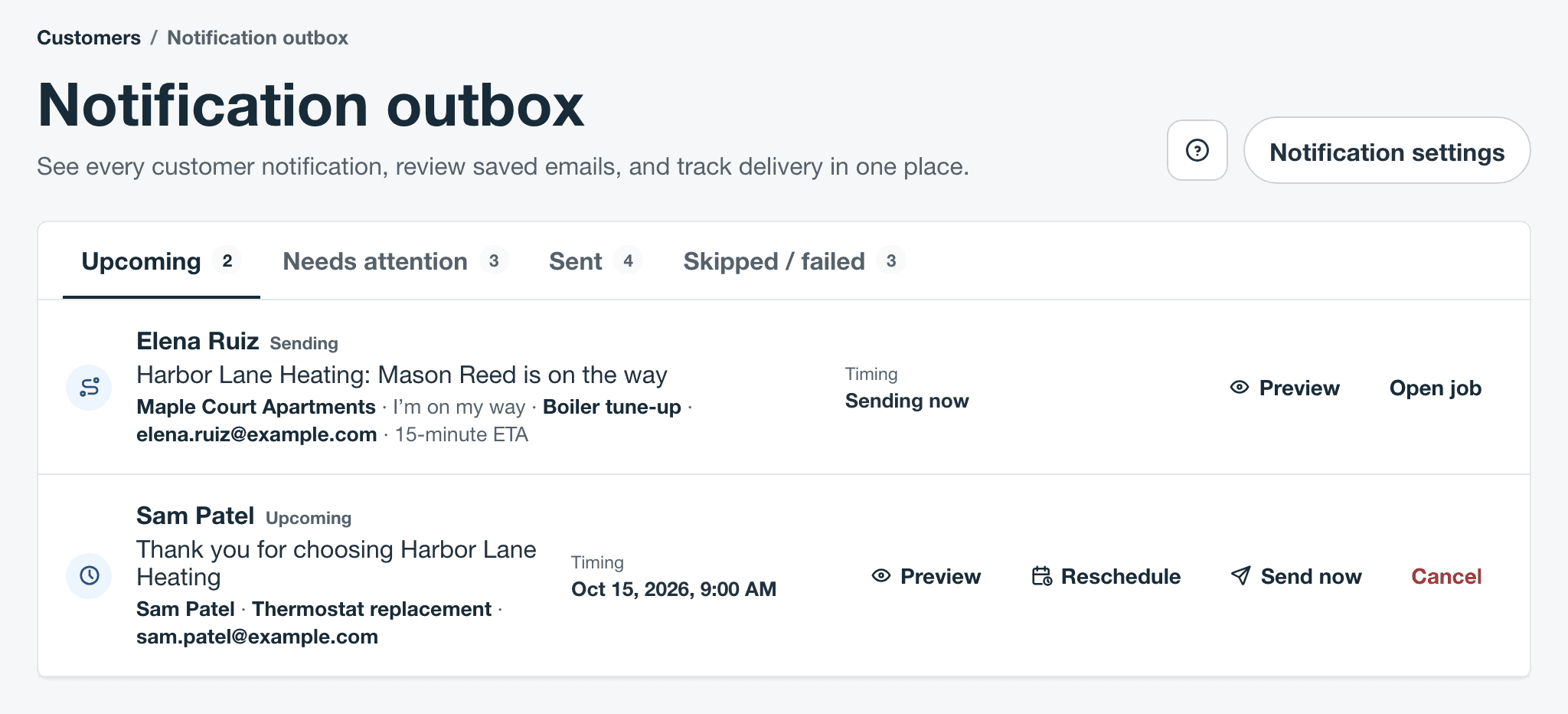
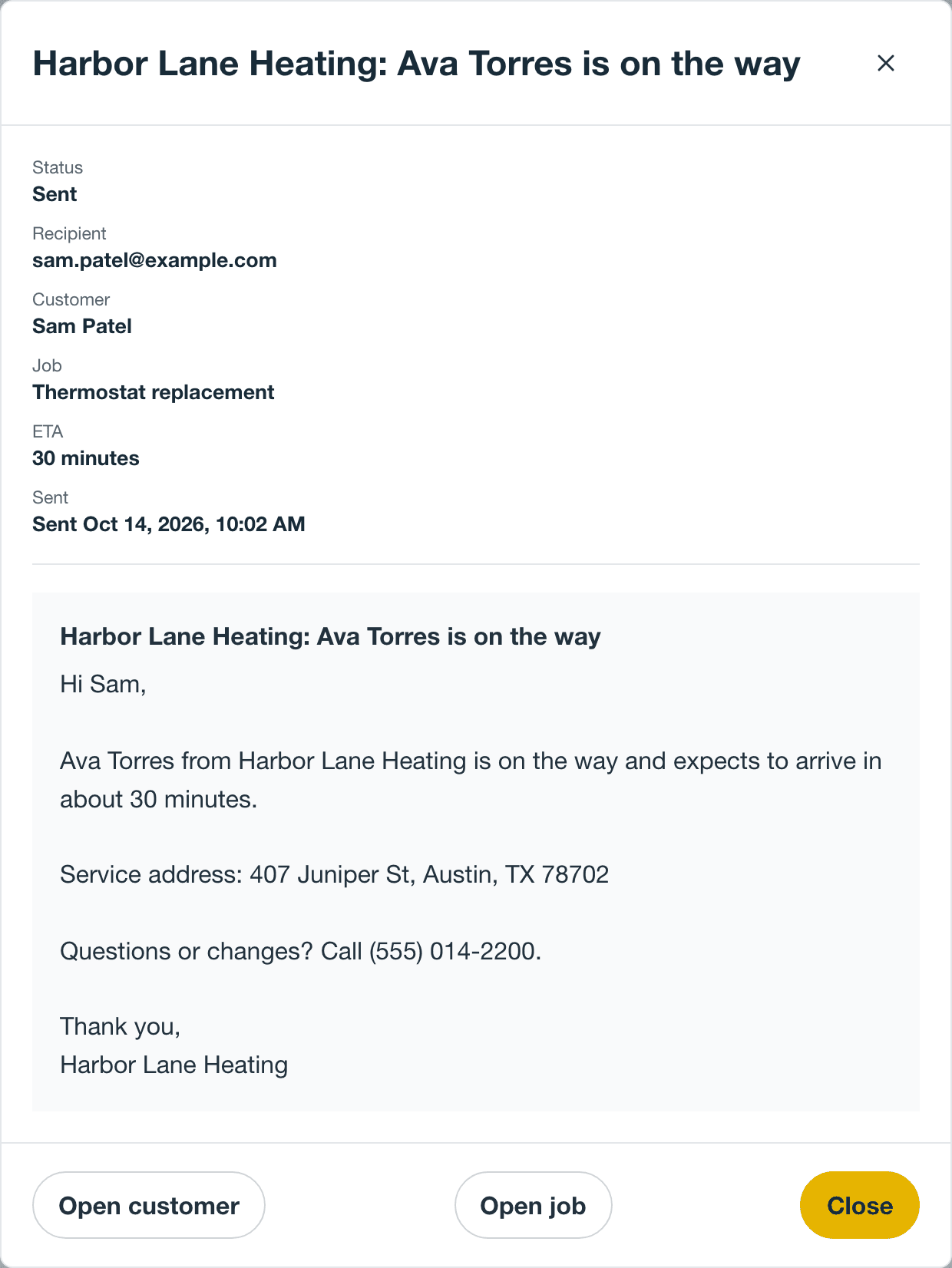
- Each row shows who it’s to, its status, the subject, the customer, and the job. Select Preview to see the exact email.
- Follow-ups can be approved, rescheduled, sent now, or canceled. I’m on my way emails can only be previewed or opened on the job.
- The outbox updates on its own while it’s open.
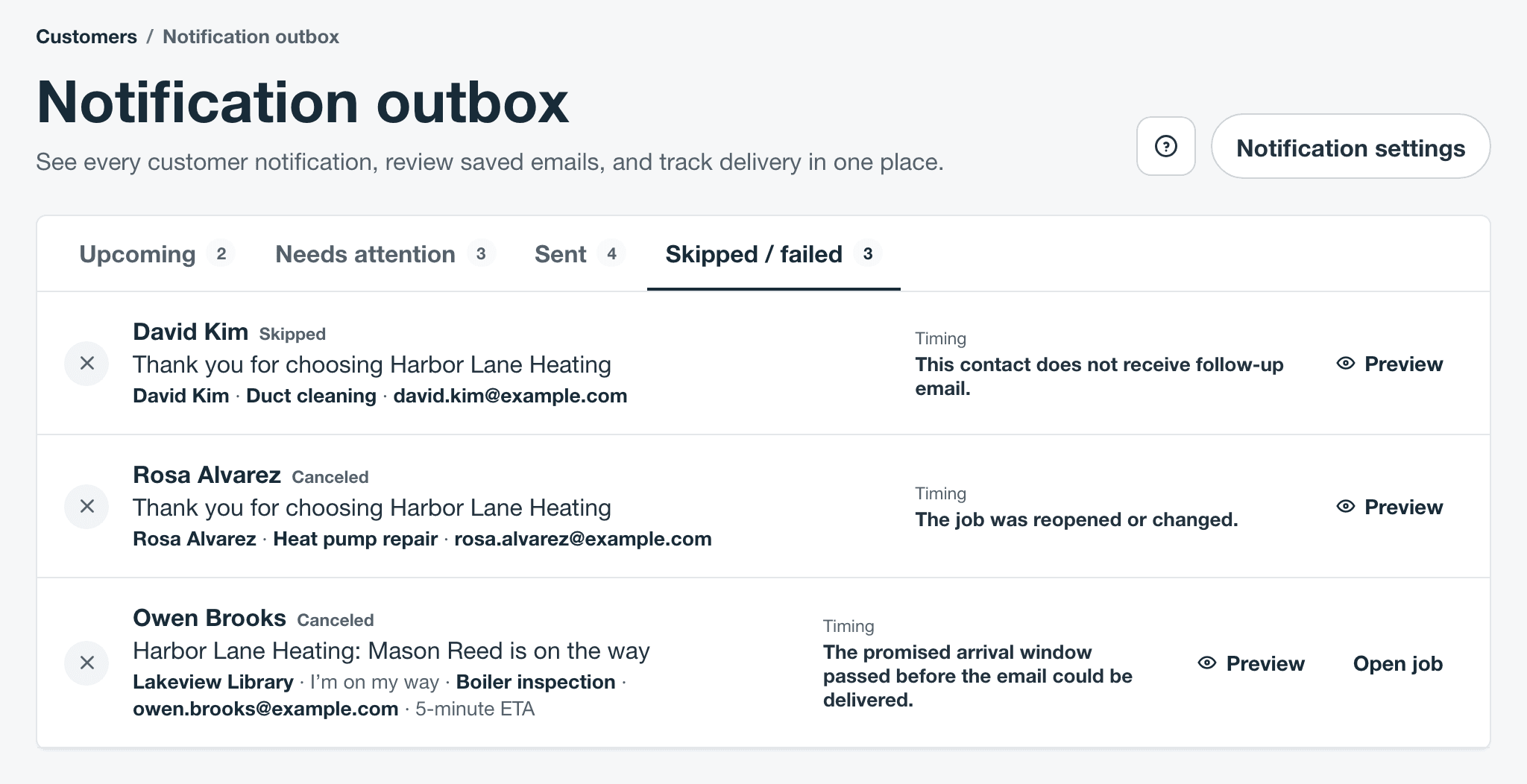
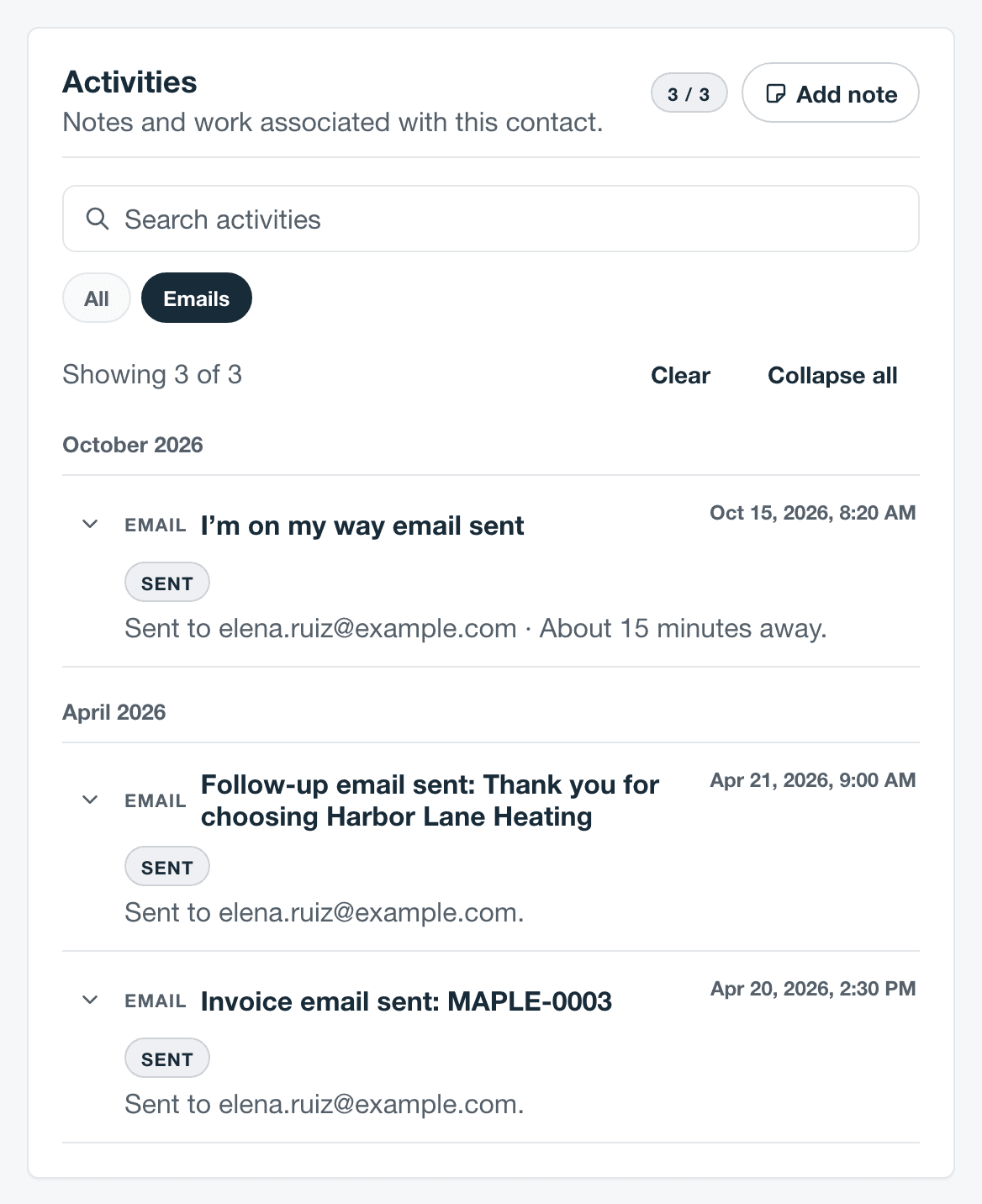
Links to the outbox show on the Operations plan, which includes follow-ups. On any plan, a contact’s Activities show the I’m on my way, follow-up, and invoice emails they were sent.
A contact’s email history
On a contact, Activities lists the I’m on my way emails, follow-ups, and invoice emails that went to them. Select Emails to see only those.
If something looks wrong
- I’m on my way is on, but nothing shows in the outbox. Nobody has tapped the button yet. It never sends by itself. See Send it from the visit.
- No follow-ups are being created. Follow-ups start when a job is moved to Completed. Jobs in Ready to invoice, including ones marked with Mark job finished, don’t get one until they’re moved to Completed.
- A follow-up is stuck in Needs attention. It’s waiting for approval, or the outbox says what to fix, such as a missing email address.
- A customer says they didn’t get it. Check the Sent tab. If it’s there, ask them to check spam and confirm the email on their contact is right.
- Still stuck? Contact support.