Start a conversation
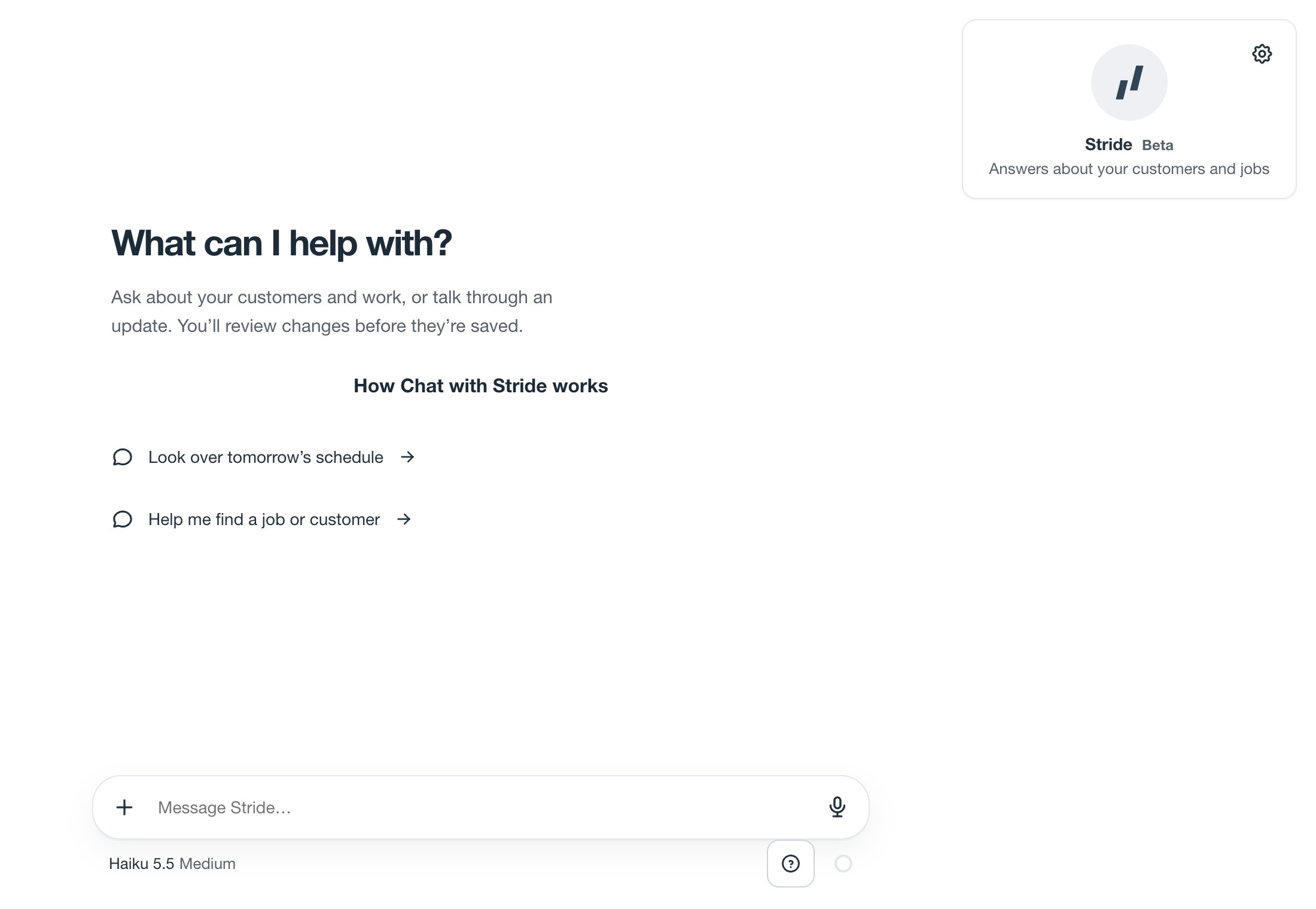
- Open Chat with Stride in the web app’s navigation. On a narrow screen, look in the account navigation. If it is missing, ask your account owner to check your access.
- Type a request or choose a suggested starting point. Type @ to choose a specific record when names could be ambiguous. Ask Stride actions on supported records bring that context into the chat.
- Send the message and wait for the reply. Open linked record names or the records shown in the answer to check the details. Suggested next steps send a follow-up request when you select them.
Try one request at a time when the work is complicated. You can add missing details in your next message; you do not need to repeat the whole conversation.
Useful things to ask
| Goal | Try asking |
|---|---|
| Understand a job | “Summarize the open work for Bluestem Dental and tell me what still needs attention.” |
| Check the schedule | “Who is free tomorrow afternoon for a two-hour visit?” |
| Prepare a note | “Draft a note on this job: replaced the disconnect and tested the unit. Make it visible to the office.” |
| Prepare an estimate | “Draft an estimate for this customer with repair and replacement options. Ask me for the prices you need.” |
| Prepare billing | “Prepare an invoice for this job and show me what will be included.” |
| Work from a receipt | “Read this receipt photo and prepare it for the job I tagged.” |
| Understand a spreadsheet | “Inspect this customer spreadsheet and show me how you would bring it into Stride.” |
Available actions depend on your role, account features, and the records you can access. A request does not grant extra permissions. If Stride cannot do something, use the relevant record screen or ask an owner or administrator.
Review changes before saving
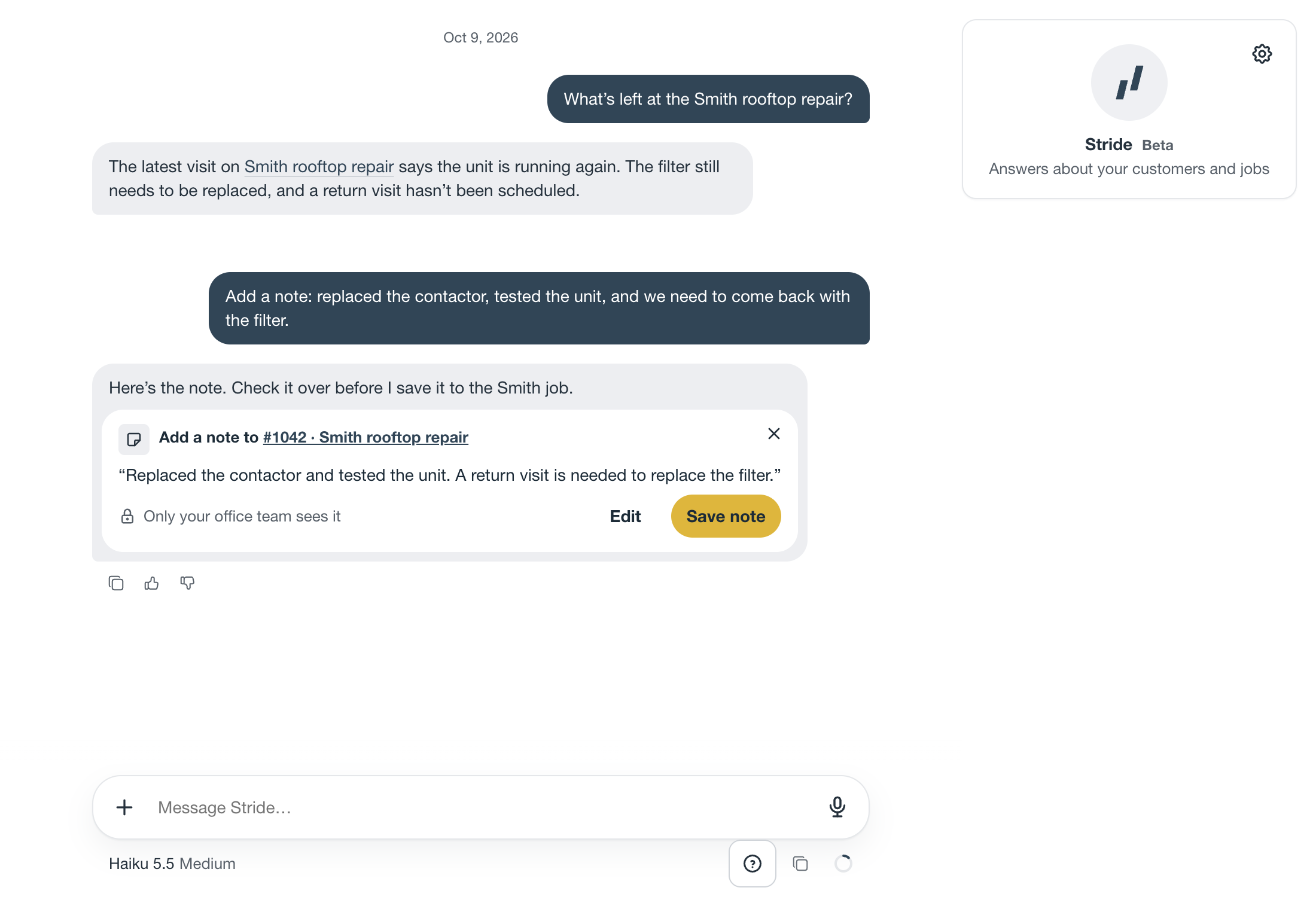
- Read each proposed change. Check the target record, dates, people, amounts, and exact wording. A chat reply describing a change is not proof it was saved.
- Use the review card’s edit controls when offered, or ask Stride to correct the proposal. Apply or save only when the review matches what you want. Grouped changes may offer Apply all; review the whole group first.
- Wait for the saved confirmation and open the resulting record if you need to verify it. If a review reports that the record changed, have Stride prepare it again from the current record.
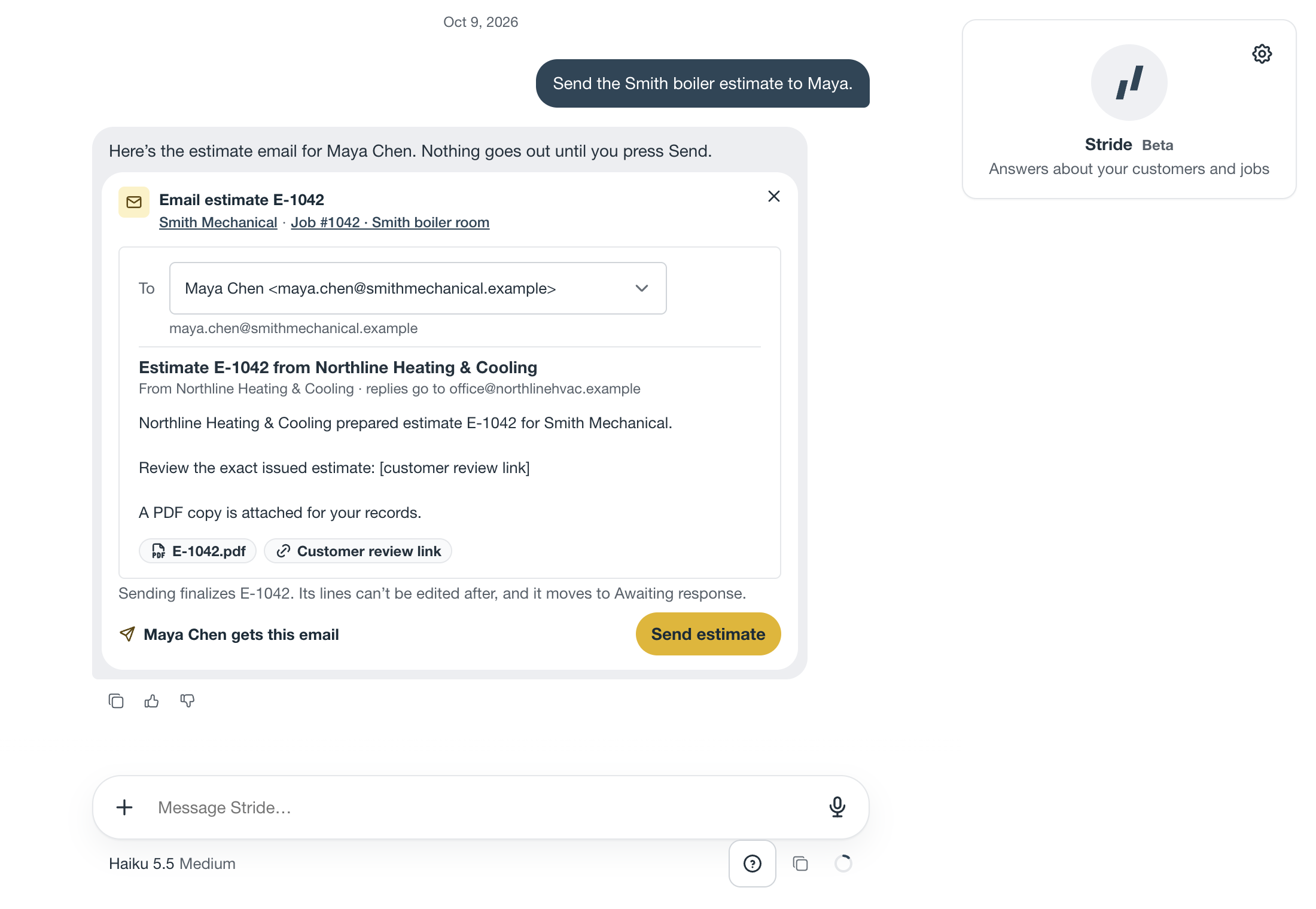
Sending an estimate or invoice is a separate review. Check the recipients, subject, message, and document before using the send action. Applying a draft does not send its email. For customer acceptance, see Send estimates for signature.
Add files or speak your request
- Images: use the attachment control, or paste or drop a supported image. Explain what it shows and tag the relevant job. Wait for upload completion; retry or remove a failed upload before sending.
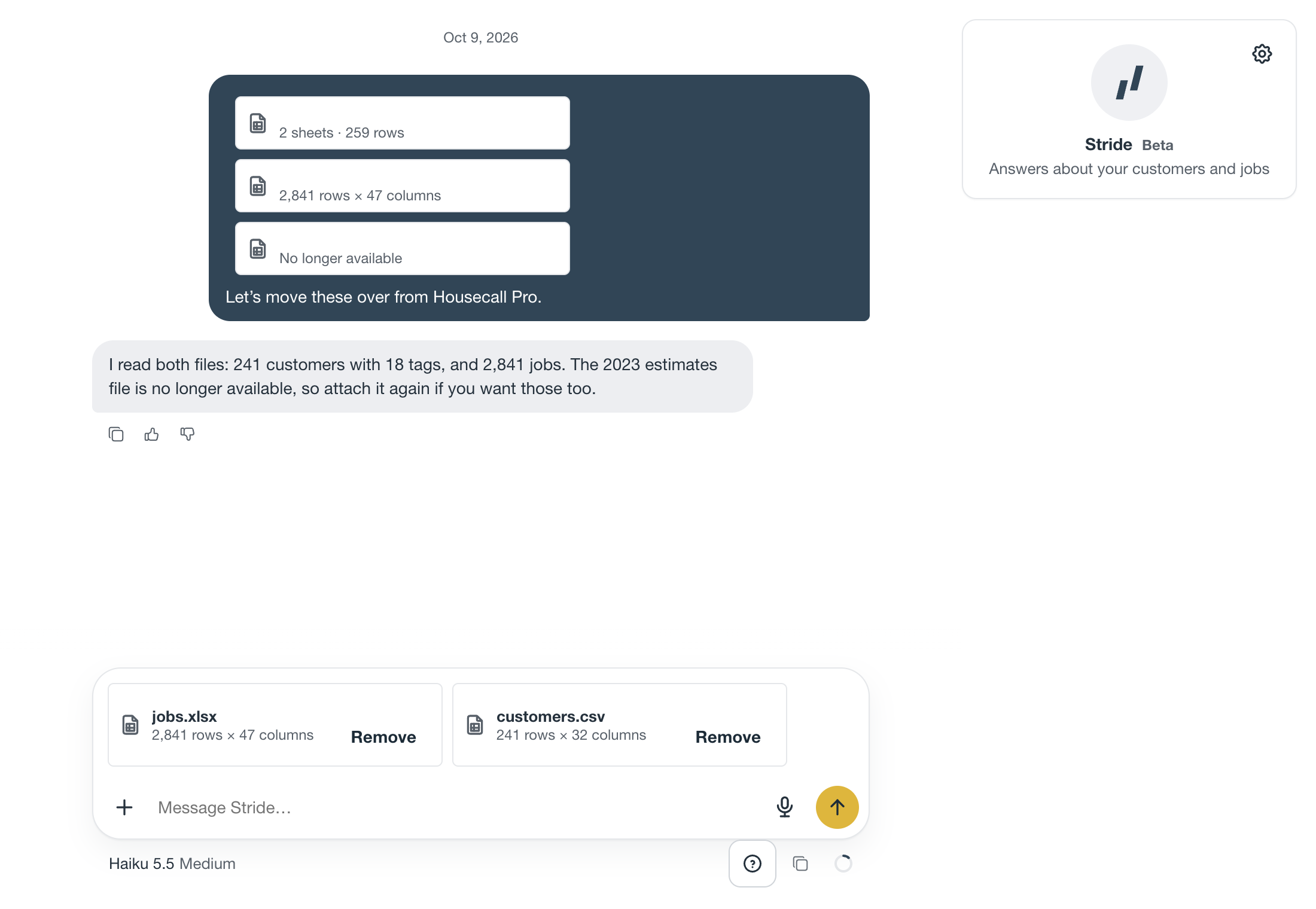
- Spreadsheets: attach a supported spreadsheet and say what you want to understand or import. Inspect the proposed mapping and review before applying any changes. See Bring in records from another system.
- Dictation: use the microphone to turn speech into a message. Allow microphone access, check the transcription, and send it when ready.
- Call Stride: when available, start a voice conversation from the chat. After the call, return to chat and review any prepared work. A call does not remove the review step for saving changes or sending emails.
The controls shown in your account determine which input types are available. If Stride rejects a file, read the message, use a supported format, or describe the relevant information in text.
Manage memories and conversation history
Open Stride settings from the chat to reach your Stride AI preferences. Memories let Stride retain useful preferences, such as how you want notes written. You can review and manage saved memories there. Turning memory off stops their use but does not delete the saved memories.
When Stride saves, updates, or forgets a memory, the reply shows the change with an Undo action. Memories are separate from changes to your customer and job records. Check them if a preference is wrong or no longer applies.
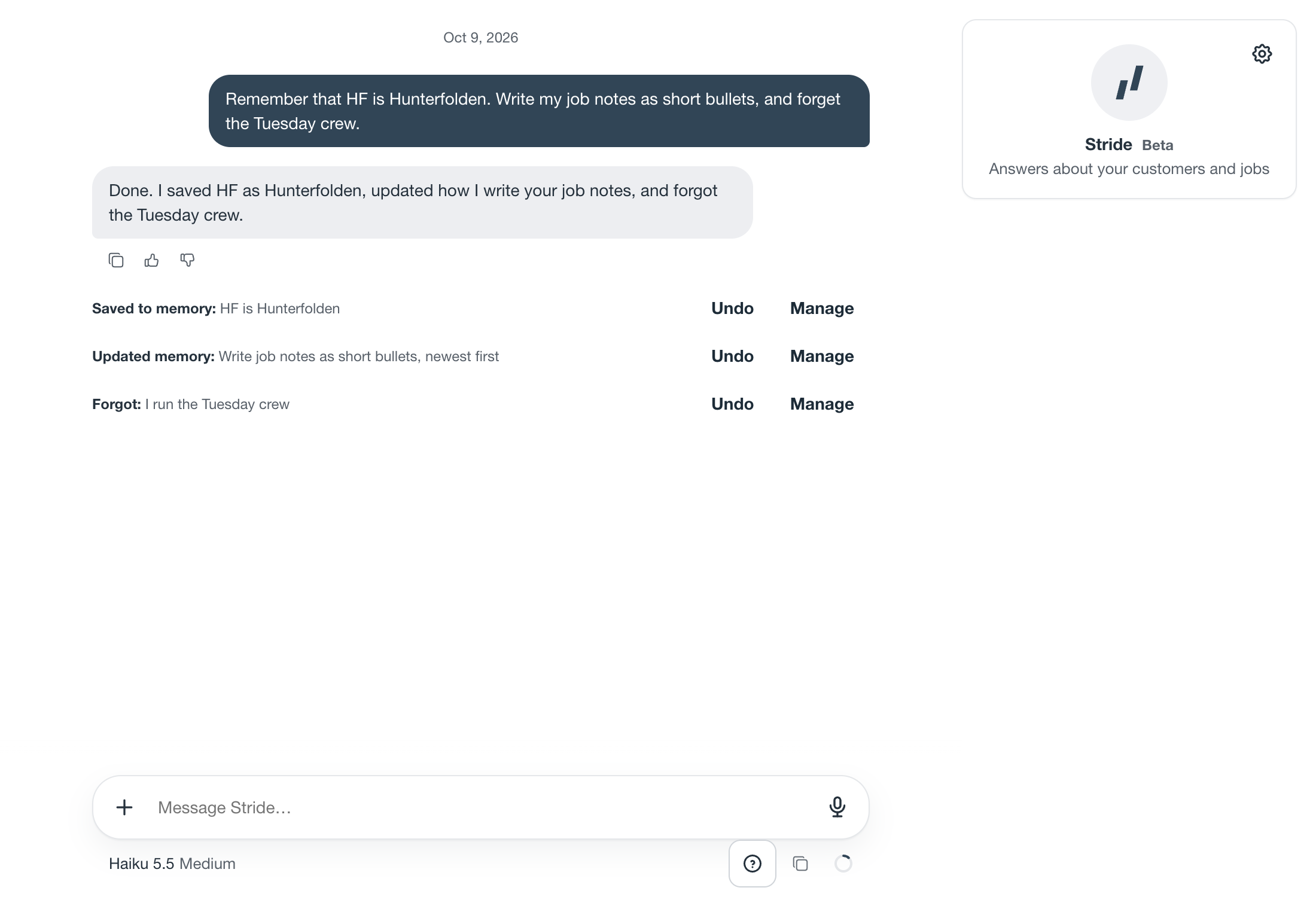
Use Show last conversation when offered to bring earlier work back into view. Copy conversation copies the conversation currently shown; load earlier messages first if you need them included.
Get a useful answer or recover from an error
- Wrong customer or job: tag the exact record with @, explain the mistake, and ask for a corrected answer or proposal before applying anything.
- Conversation will not load: use the retry action. If you change accounts, make sure you are in the account that contains the work.
- A reply stops or fails: read the displayed error and use the offered retry. Check any saved or sent confirmations before asking for the same action again.
- A change will not apply: check the review error. Permissions or record details may have changed since it was prepared; open the record or ask Stride to prepare a fresh review.
- A usage limit appears: read the usage indicator and limit message. Wait for the stated reset or ask the owner to review account usage; repeatedly sending the same request will not remove the limit.
- Microphone will not work: check browser or device microphone permission and the message beside the control. You can type the request while resolving it.
- An answer is wrong or unhelpful: use Bad under the reply and explain what went wrong. To report a harmful reply, choose Harmful or offensive and submit the feedback.