Set up online signing
- An owner or administrator opens Settings → Services and billing → Estimate terms. If the page isn’t available for your account, ask your account owner to check access.
- Edit Work authorization and Terms and conditions. Use the customer preview to read them together with the included Stride signing protections. Check both Wide and Phone previews.
- Complete the required acknowledgement and select Publish terms. Saving draft wording alone does not publish it. Later edits use Publish changes.
- Open Settings → Estimate signing and turn on Online signing. If the switch is unavailable, read the explanation below it; you may need to publish terms first or have an owner or administrator make the change.
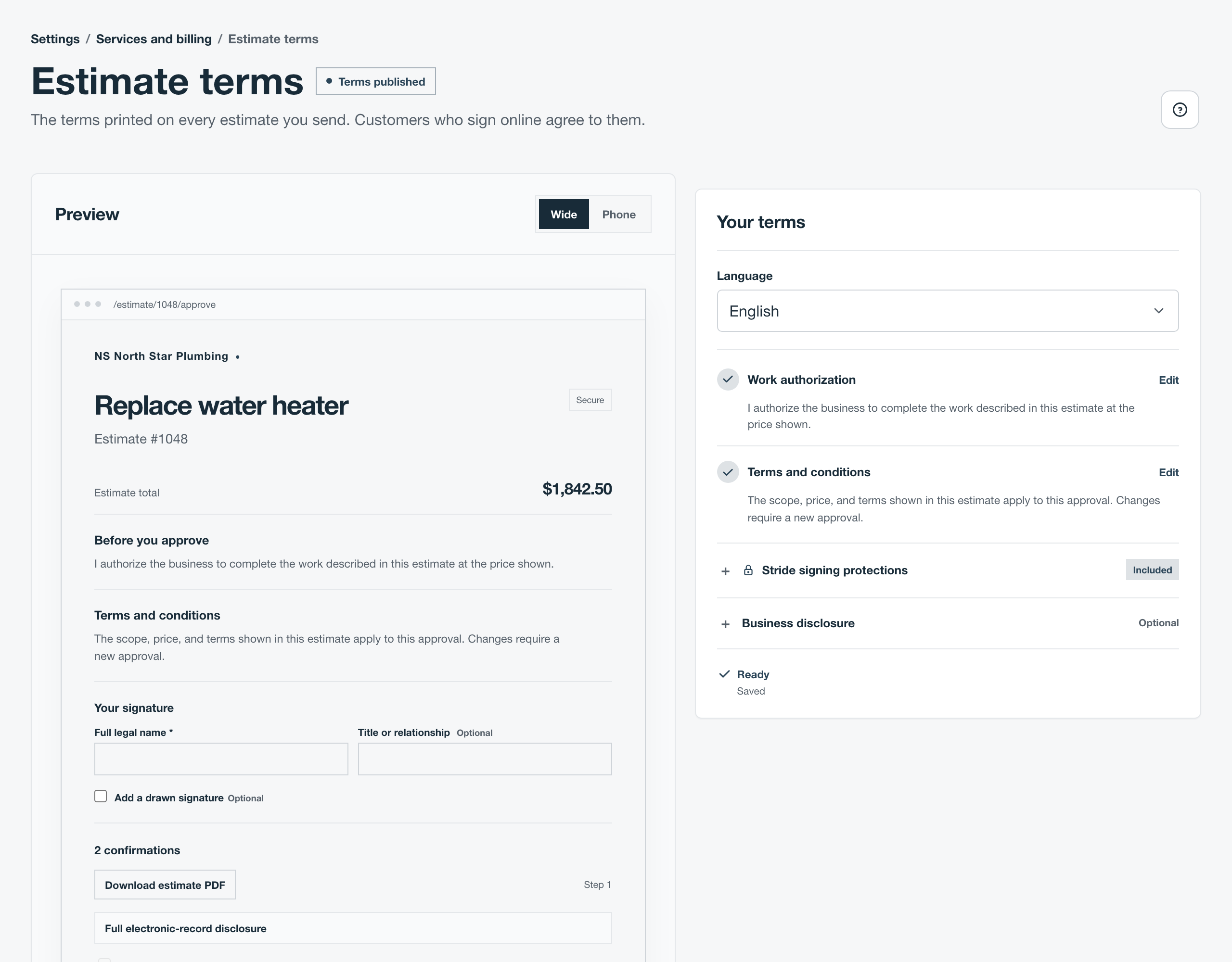
Published terms are versioned. Updating your wording does not rewrite an agreement a customer already signed. A customer link keeps the signing access it had when sent: turning signing on later does not upgrade an old view-only email. If the estimate says to resend it, send a new email. A version sent before your terms were published cannot be signed online; open a revision draft and send it to collect a signature. When a customer says yes by phone, in person, or in writing, record it from Customer response on any sent estimate, with or without published terms.
Prepare and send an estimate
- Open Estimates and select Create estimate, or open an existing draft. Choose the customer and check the contact, service location, subject, scope, and dates.
- Add the work and prices. Use separate options for alternative approaches; optional add-ons are extras within an option. Check taxes, discounts, fees, payment terms, and any deposit requirement.
- Select Review and send. Check the customer preview, recipient email, and online signing setting. Resolve any setup message before sending for signature.
- Select Send estimate when the estimate and email are ready. Review alone sends nothing. On an already issued estimate, the send action can read Send for approval.
You can also ask Chat with Stride to prepare an estimate. Review the draft first, then review the separate email before sending.
What your customer sees: options and price
Open the estimate link in the email and review the scope, photos, terms, and prices. When there are multiple options, choose one; select any optional add-ons before continuing.
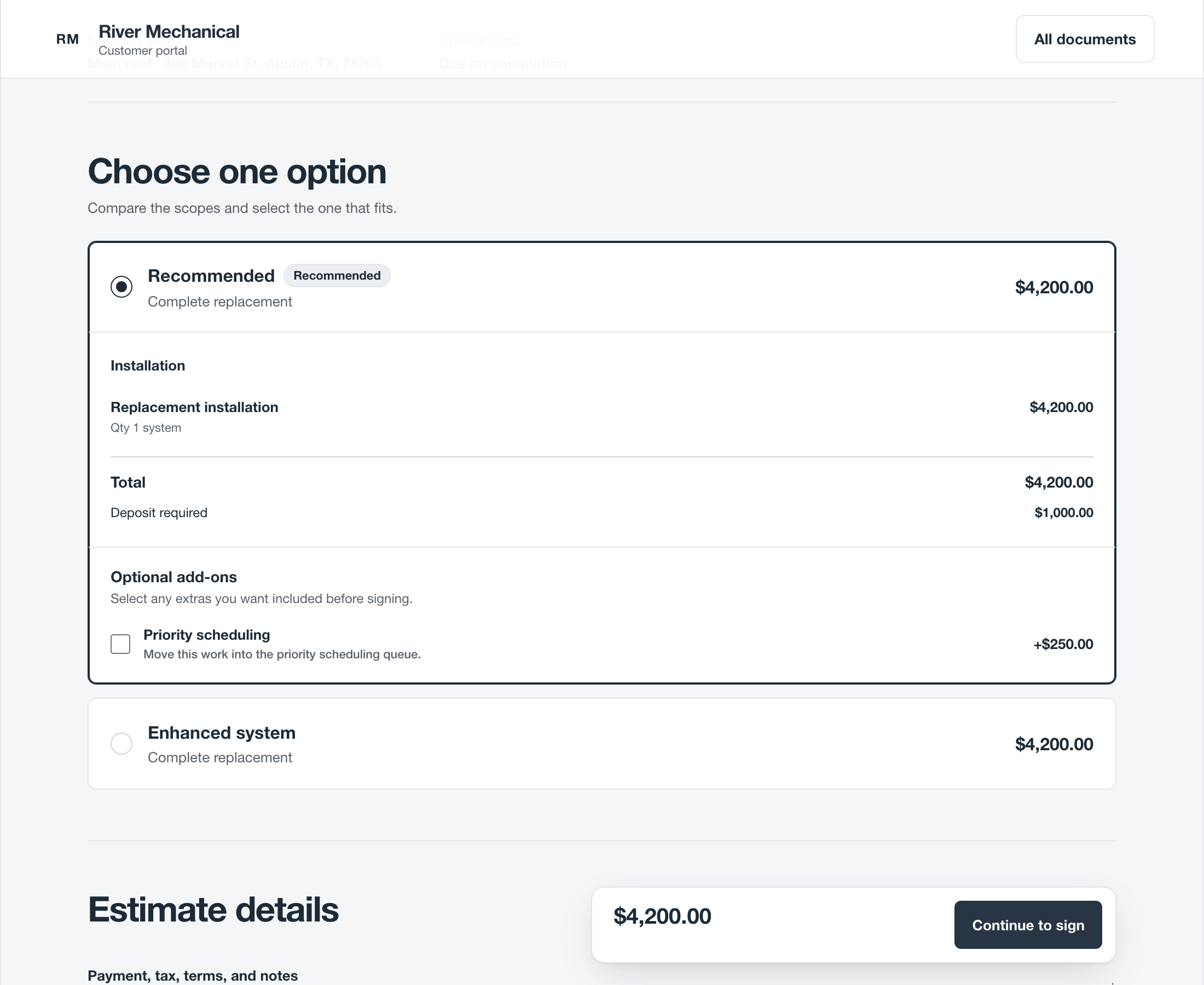
Select Continue to sign and check the final total and any deposit shown separately. Use Change selection if the option or extras need changing.
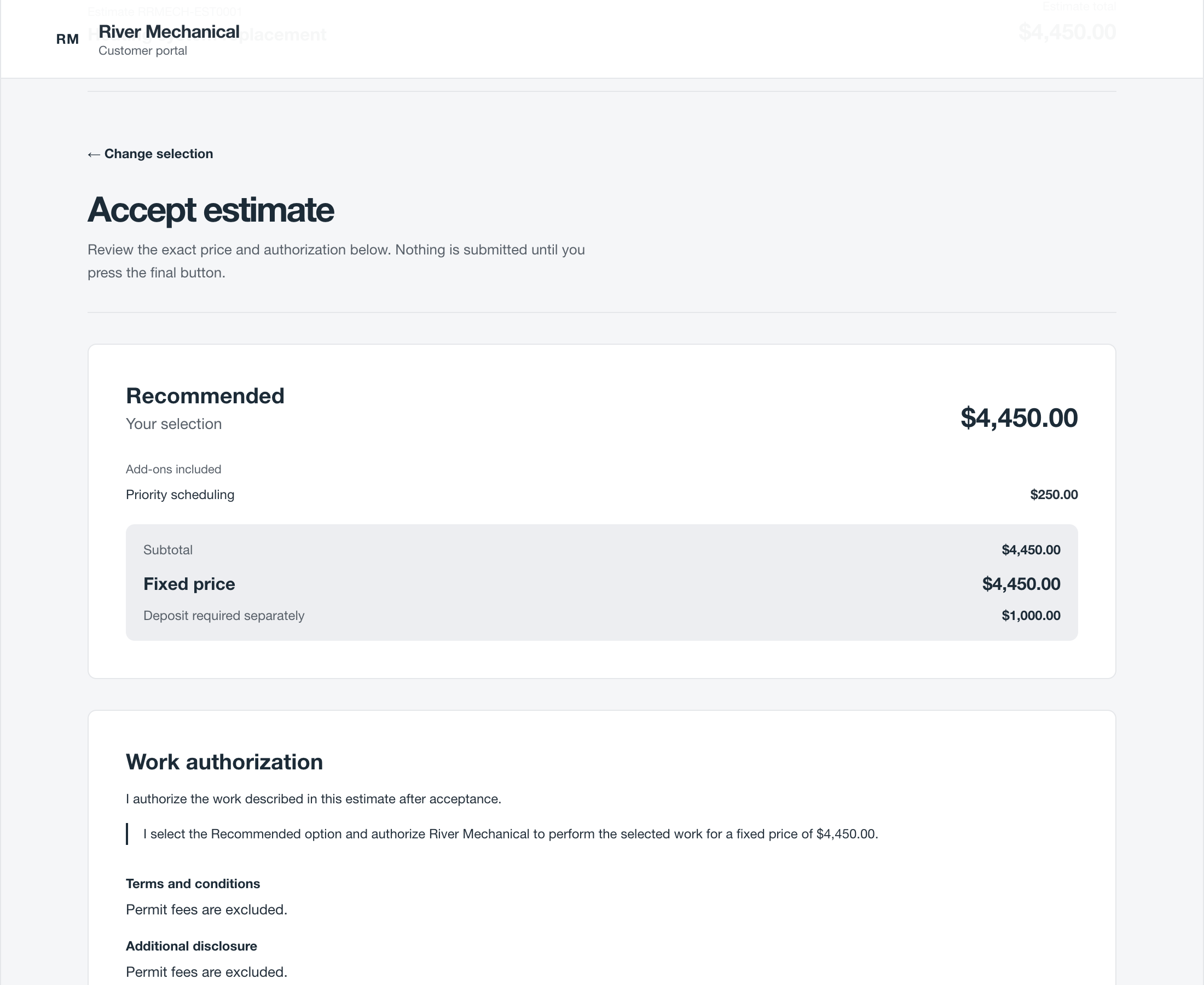
Enter the signature and confirm
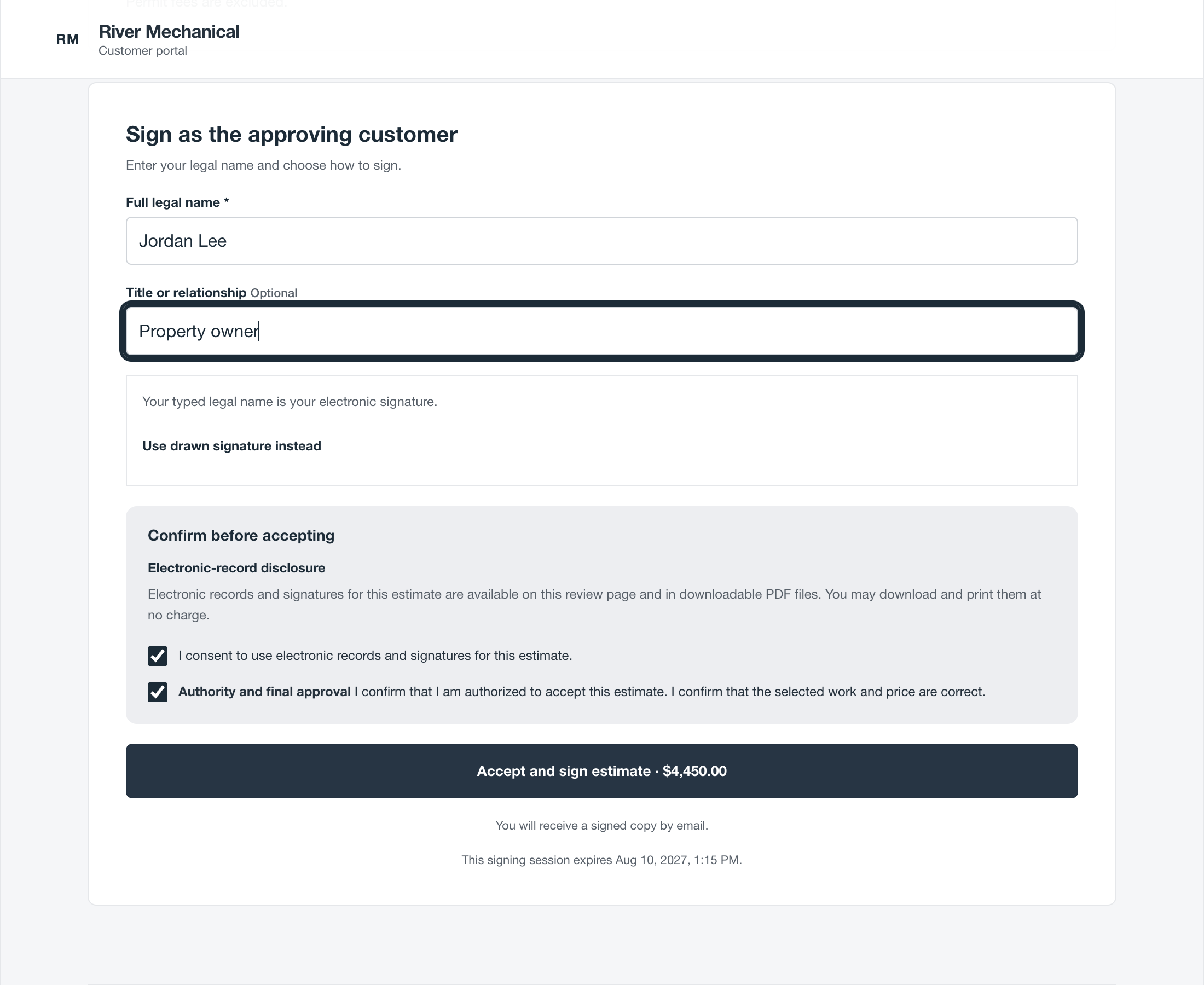
- Enter Full legal name and, if useful, Title or relationship. Draw a signature or select Use typed signature instead to use the legal name as the electronic signature.
- Read and complete the required electronic-record and authority confirmations, then select Accept and sign estimate. Until that final action, the estimate has not been accepted.
After acceptance, select Download signed copy to keep the agreement. Stride also sends the signed copy by email.
Only the intended signing recipient can sign where the customer portal identifies a specific signer. Someone else may see Waiting for approval. Ask the business to check the recipient rather than signing as another person.
Find the signed agreement
Open Estimates, find the accepted estimate, and open it. The record preserves the customer’s chosen option and add-ons, accepted total, and acceptance details. Select Download signed agreement for an online signature. An acceptance recorded by staff uses Download acceptance record instead.
Acceptance establishes the fixed-price agreement. For an estimate linked to a job, that agreement is the job’s fixed-price billing basis. Sending or viewing an estimate alone does not change job billing. A deposit shown on the estimate is a payment requirement; signing does not collect it or subtract it from the full accepted price.
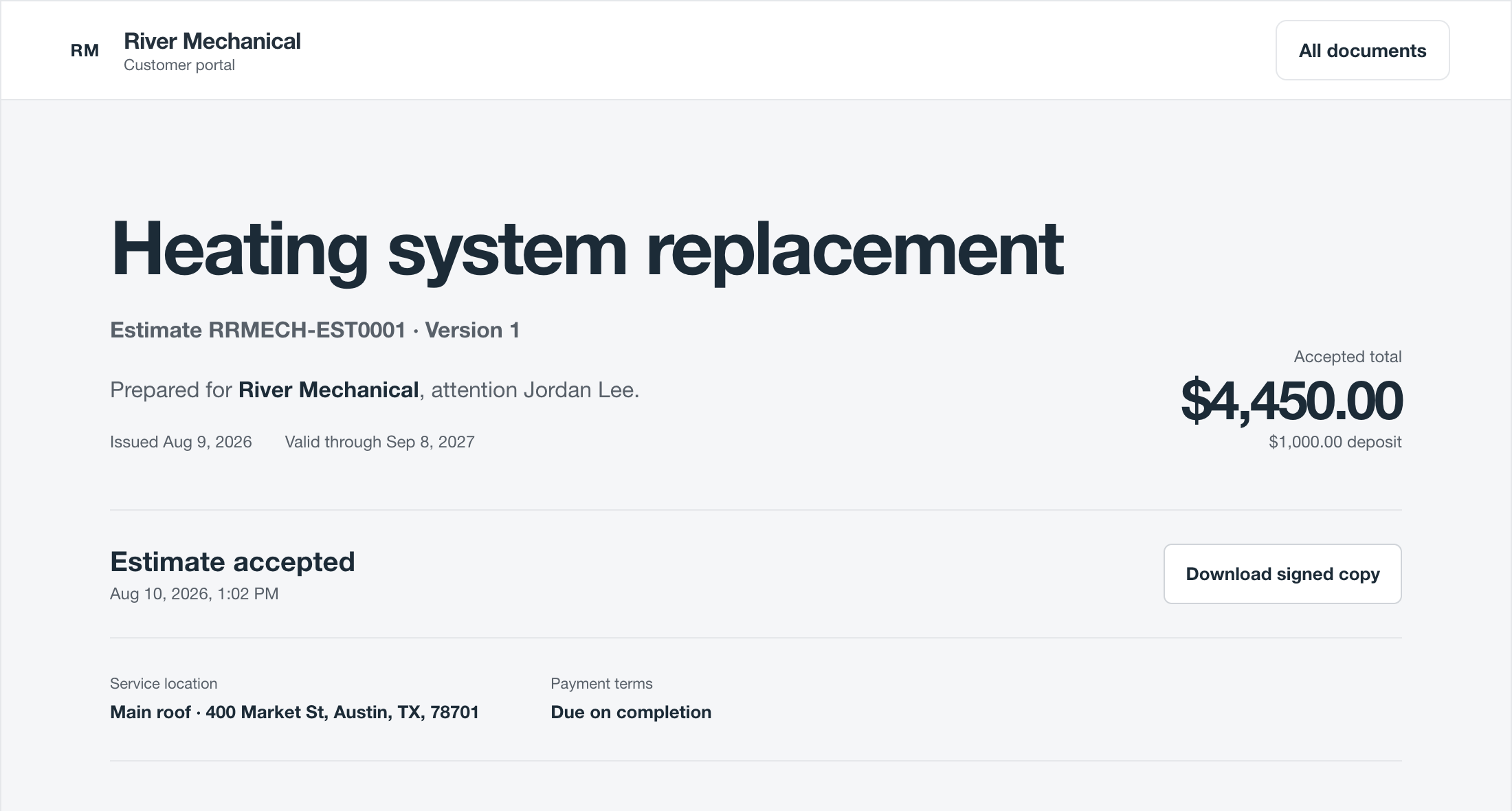
When something isn’t working
| What you see | What to do |
|---|---|
| The customer can read but cannot sign | Check Settings → Estimate terms for published terms and Settings → Estimate signing for Online signing. Open the estimate and check its signing readiness and status before sending a new email. |
| The wrong person received the email | Check the contact and recipient on the estimate. Prepare the corrected delivery from the estimate; do not ask someone to sign another person’s name. |
| The final button is unavailable | Enter the legal name, add a drawn signature or choose typed signature, and complete every required confirmation. |
| The signing session expired | Reopen the estimate link and review the selection again. If the estimate itself is expired or withdrawn, contact the business for a current estimate. |
| The customer wants different work or prices | Have the office prepare the corrected offer before acceptance. The current customer signing flow does not include a decline or request-changes button. |
| An accepted estimate needs changing | Keep the signed agreement as the record of what was accepted. Do not treat editing a draft or sending another estimate as a change to that agreement. |
| The signed email hasn’t arrived | Check spam and open the accepted estimate to download the signed copy. If acceptance did not complete, reopen the link and check its status before trying again. |