How it works
- An owner or administrator turns on I’m on my way emails and, if they like, changes the wording. This only makes the email available to your technicians.
- When a technician leaves for a visit, they open the job and tap the truck button next to the service address.
- They pick how many minutes away they are and which number the customer should call, then tap Send email.
- Stride emails the job’s contact, usually within a minute.
Turn it on
- Open Settings, then Customer notifications. Check that Email is on under Account-wide email and text messages.
- Under Choose what Stride sends, select Configure on I’m on my way.
- Turn on I’m on my way emails, then select Save notification.
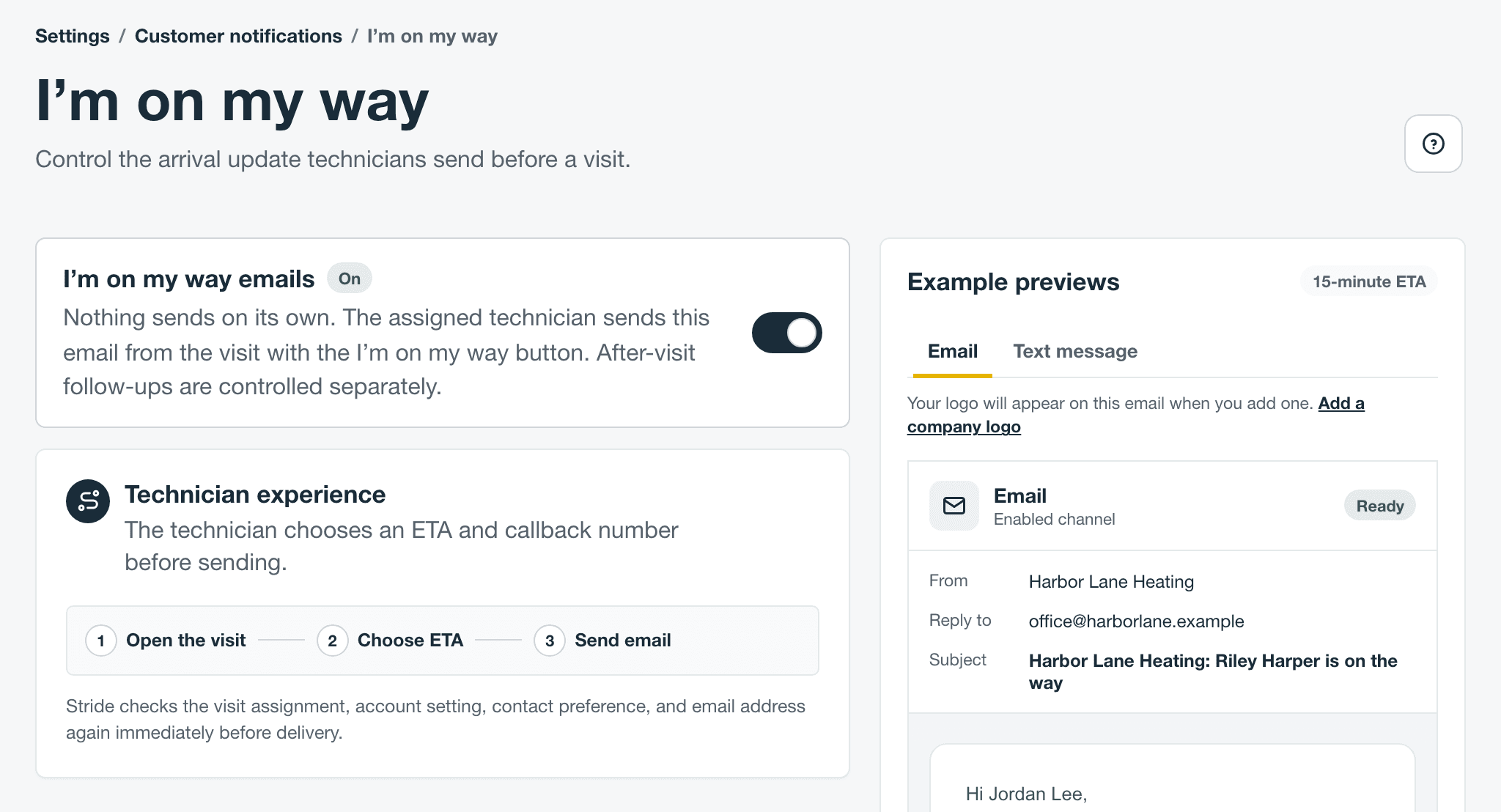
You need a company phone number first, so customers always have a number to call. If it’s missing, the page links to Add company phone in Company profile. While I’m on my way is on, the company phone can’t be removed.
Only owners and administrators can change these settings. Schedulers can look at them.
Change the wording
Under Write the notification, edit the Email subject and Email message. Use Insert details to add the contact’s name, the technician, your company, the ETA, the service address, or the callback phone. The message must include the ETA, so the customer gets the time the technician picked. Restore recommended wording puts the original text back.
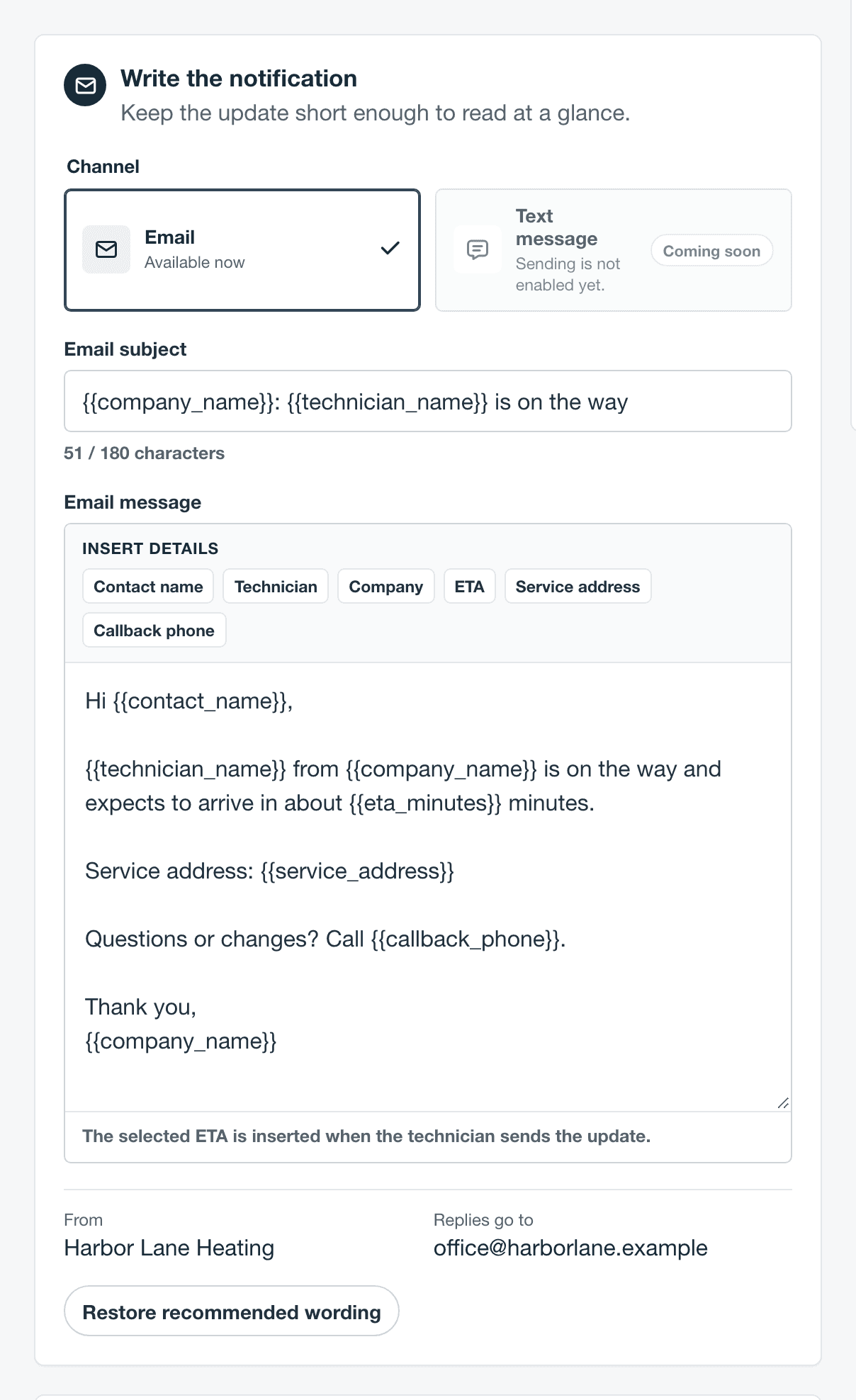
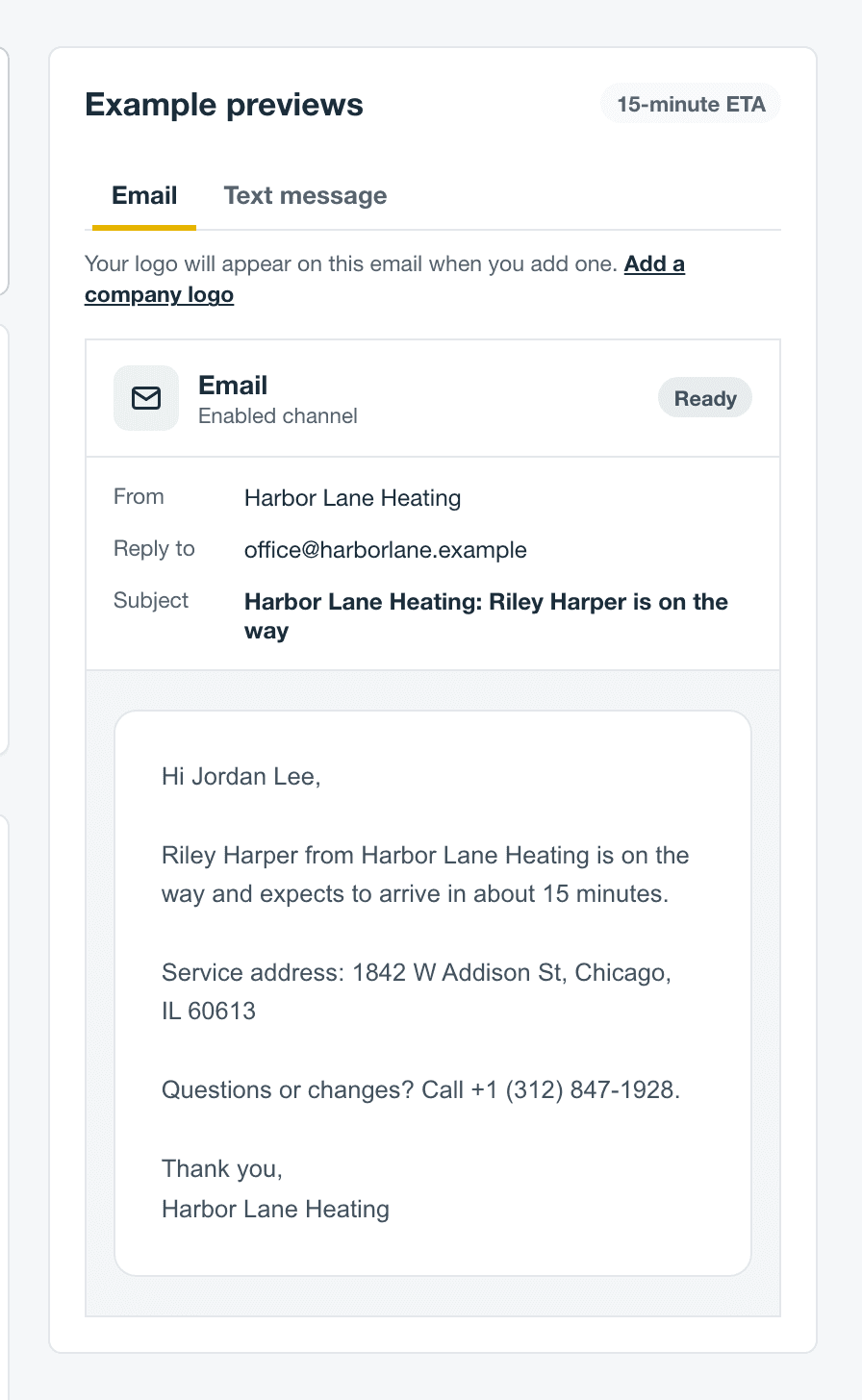
The email comes from your company name, and replies go to the company email in Company profile. It shows your logo and brand colors once you’ve added them. Example previews shows a sample with a 15-minute ETA.
Send it from the visit
This is the part your technicians do, in the Stride app or in a browser.
- Open the job for the visit you’re heading to.
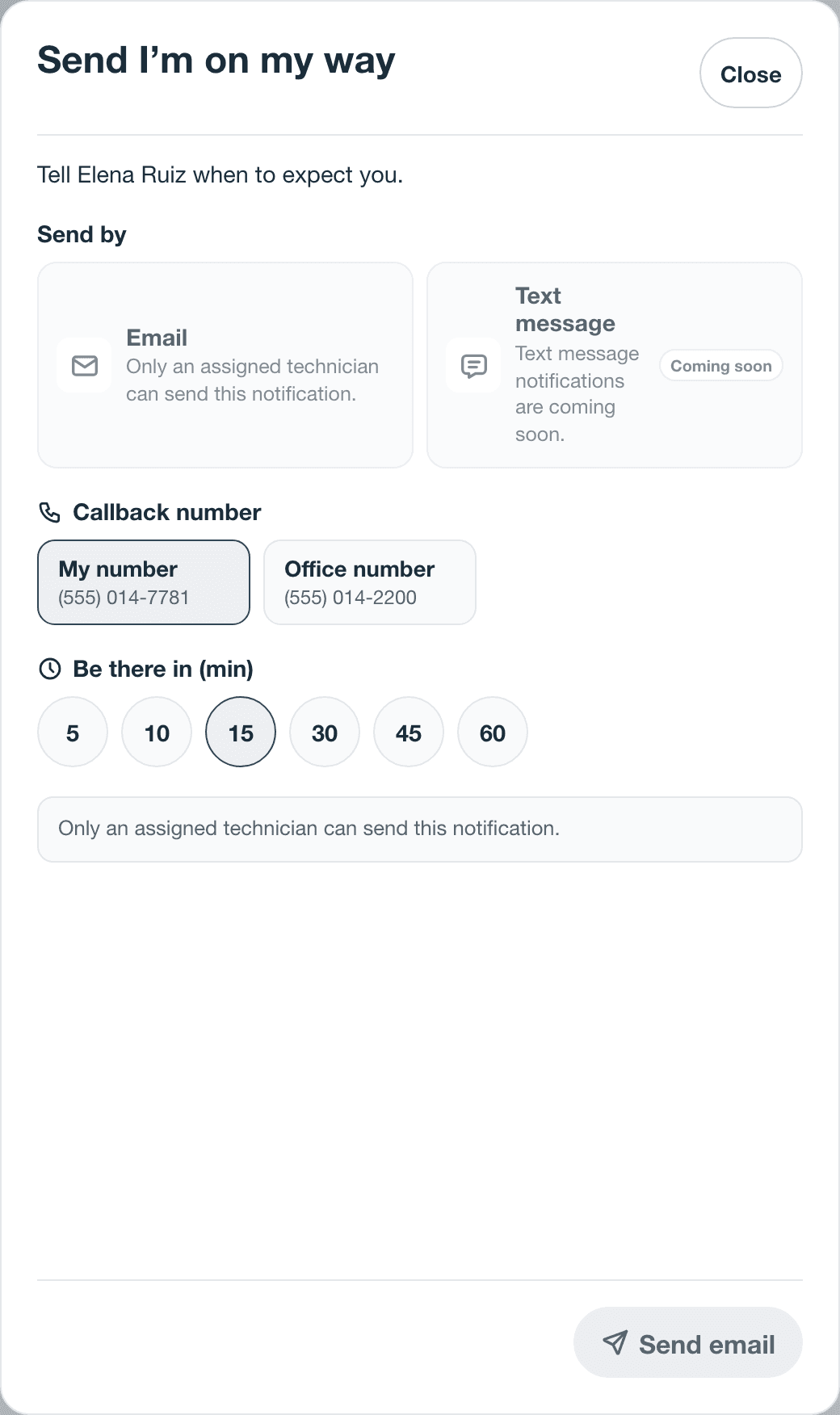
- Tap the truck button next to the service address. Its label is I’m on my way.
- Under Callback number, choose My number (if your phone is on your team record) or Office number.
- Under Be there in (min), pick 5, 10, 15, 30, 45, or 60.
- Tap Send email. Arrival update requested means Stride has it and will send it within a minute.

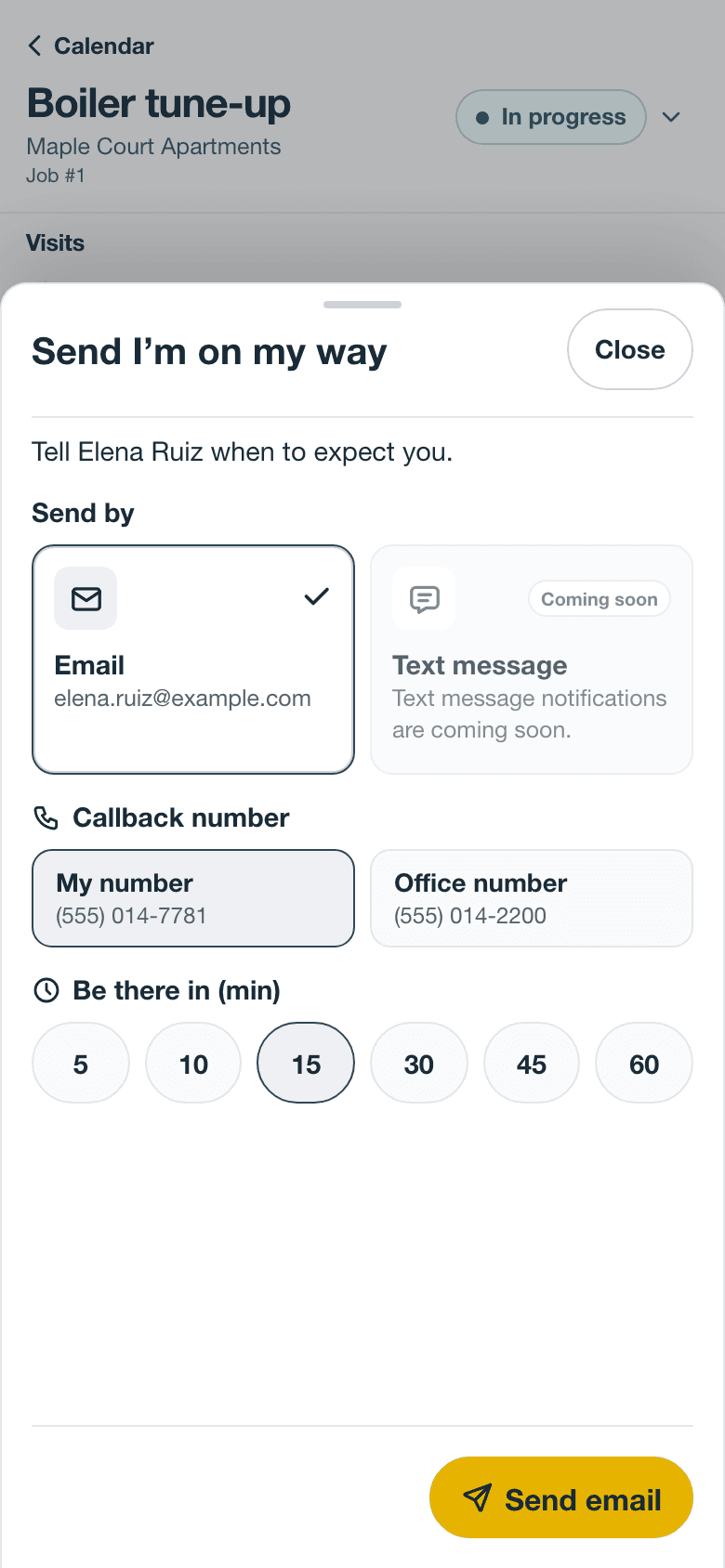
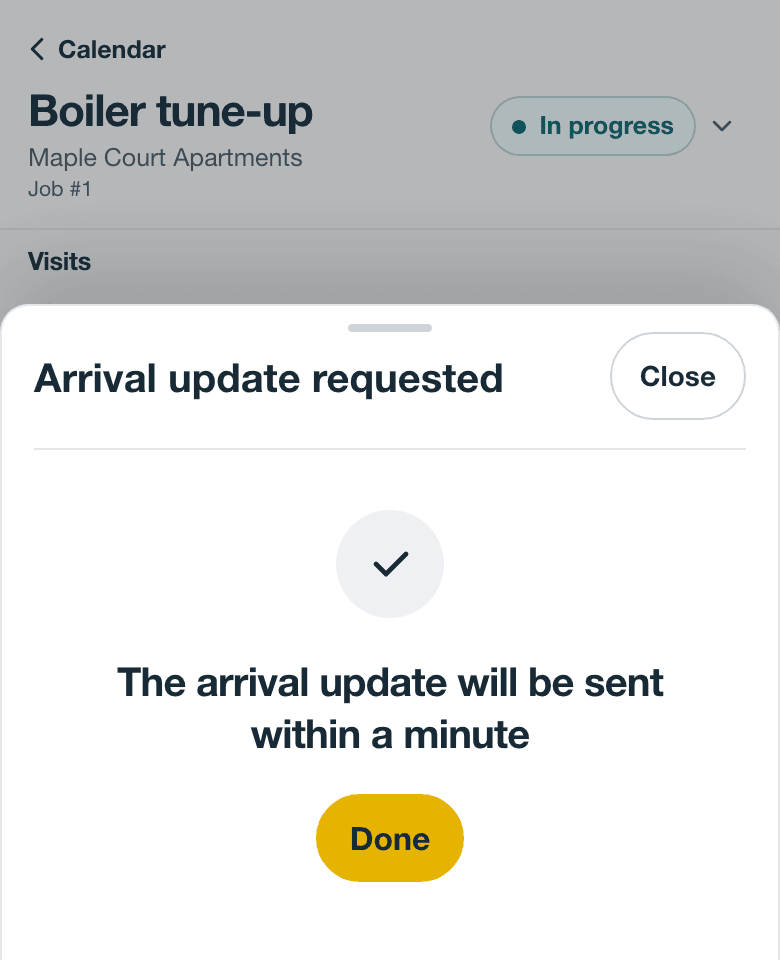
- The email goes to the job’s contact. To email someone else, change the job contact first.
- Running late? Send another one. The sheet shows when the last one was requested. A new one can’t be sent while the last one is still going out.
- Text messages show Coming soon. For now, I’m on my way is email only.
Who can send it
Only the technician assigned to the visit can send it, from their own sign-in. Owners and office staff see the truck button too, but unless they’re assigned to that visit, the sheet tells them why they can’t send.
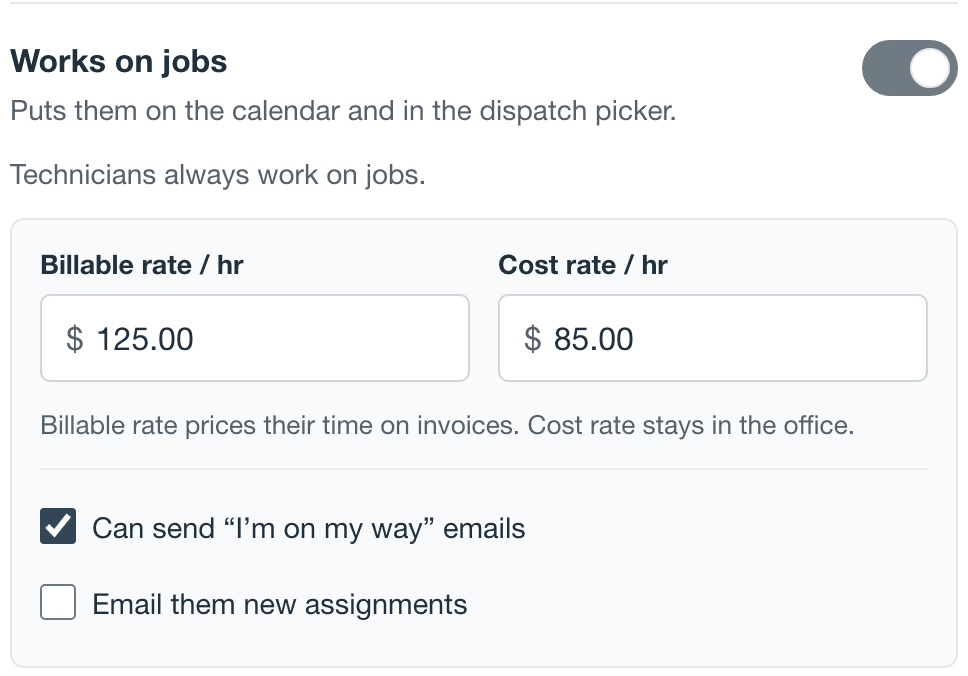
Each technician also needs Can send “I’m on my way” emails turned on. Open Settings, then Team and access, and select the person. The checkbox is under Works on jobs for people who sign in to Stride. New team members who work on jobs start with it on.
If it can’t be sent
Stride checks everything again right before it sends. When something stops it, the sheet says why.
| The sheet says | What to do |
|---|---|
| Only an assigned technician can send this notification. | Assign the person to the visit, or have the assigned technician send it. |
| Your user is not linked to a field technician. | Only people who work on jobs can send it. Turn on Works on jobs for them in Team and access, then assign them to the visit. |
| I’m on my way notifications are disabled for your technician profile. | Turn on Can send “I’m on my way” emails for that person. |
| I’m on my way notifications are disabled for this account. | Turn on I’m on my way emails in Settings. |
| Automated customer email notifications are disabled for this account. | Turn on Email in Settings → Customer notifications. |
| The selected customer contact does not have a valid email address. | Add an email to the job’s contact, or pick a contact who has one. |
| Choose an active customer contact before sending this notification. | Add or choose a contact for the job. |
| Automated customer notifications are disabled for this contact. | Notifications are off for this contact. See Stop emails to one contact. |
| Customer contact details are hidden for field technicians. | Turn on Show customer contact details in Settings → Field operations. |
| Work authorization is still pending for this job. | Get the customer’s approval on the job first. |
| I’m on my way notifications are only available for active jobs. | The job is Completed or Canceled. |
| I’m on my way notifications are only available for active visits. | The visit was canceled. Open the visit that’s still on the schedule, or add a new visit. |
| The previous arrival update is still being delivered or may already have arrived. Wait for its delivery status before sending another notification. | Wait a minute, then check the outbox. |
If the ETA passes before the email can go out, Stride cancels it rather than send an arrival time that’s already wrong.
Check that it went
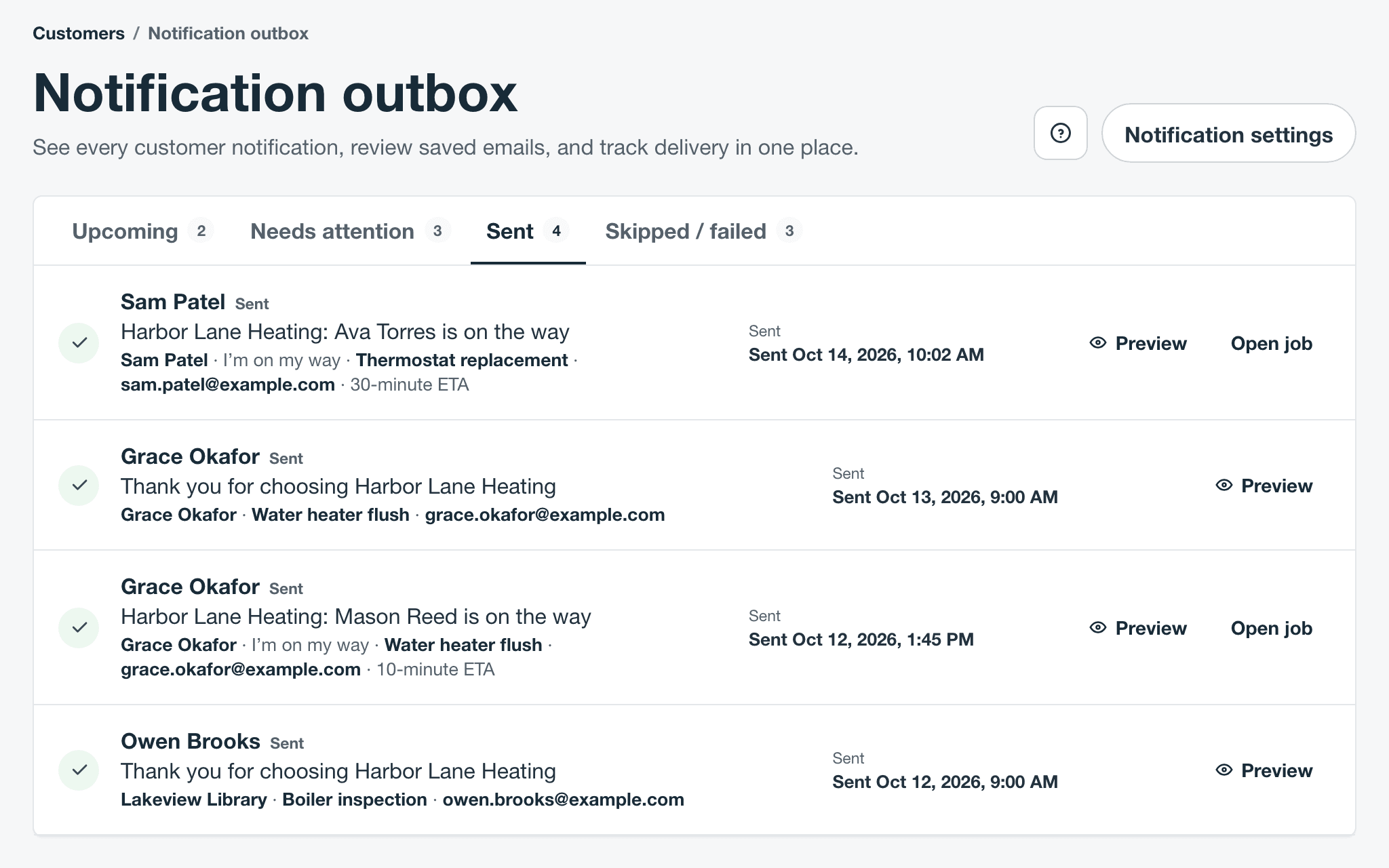
Every I’m on my way email is listed in the Notification outbox under Customers, marked I’m on my way with its ETA. It also shows on the contact’s Activities as I’m on my way email sent. On the Essentials plan the outbox links don’t show, so use the contact’s Activities. If you’re not sure your team is using it, this is the place to look.
How customer notifications work explains the outbox and every email Stride sends customers.
Still stuck? Contact support.