Customer stages
Field mappings do not decide who goes to QuickBooks. Blank records and leads stay out until they become customers. Already linked customers keep syncing at any stage. See Customer stages.
Open Field mappings
- Go to Settings, then Integrations, then QuickBooks.
- Under Field mappings, select Set up. Once you have mappings, the button reads Manage.
The page groups mappings by where the value lands: On QuickBooks invoices and On QuickBooks customers. Each mapping reads from left to right, from the Stride detail to the QuickBooks field, with its status. At the top, Send these fields to QuickBooks turns all of them on or off together.
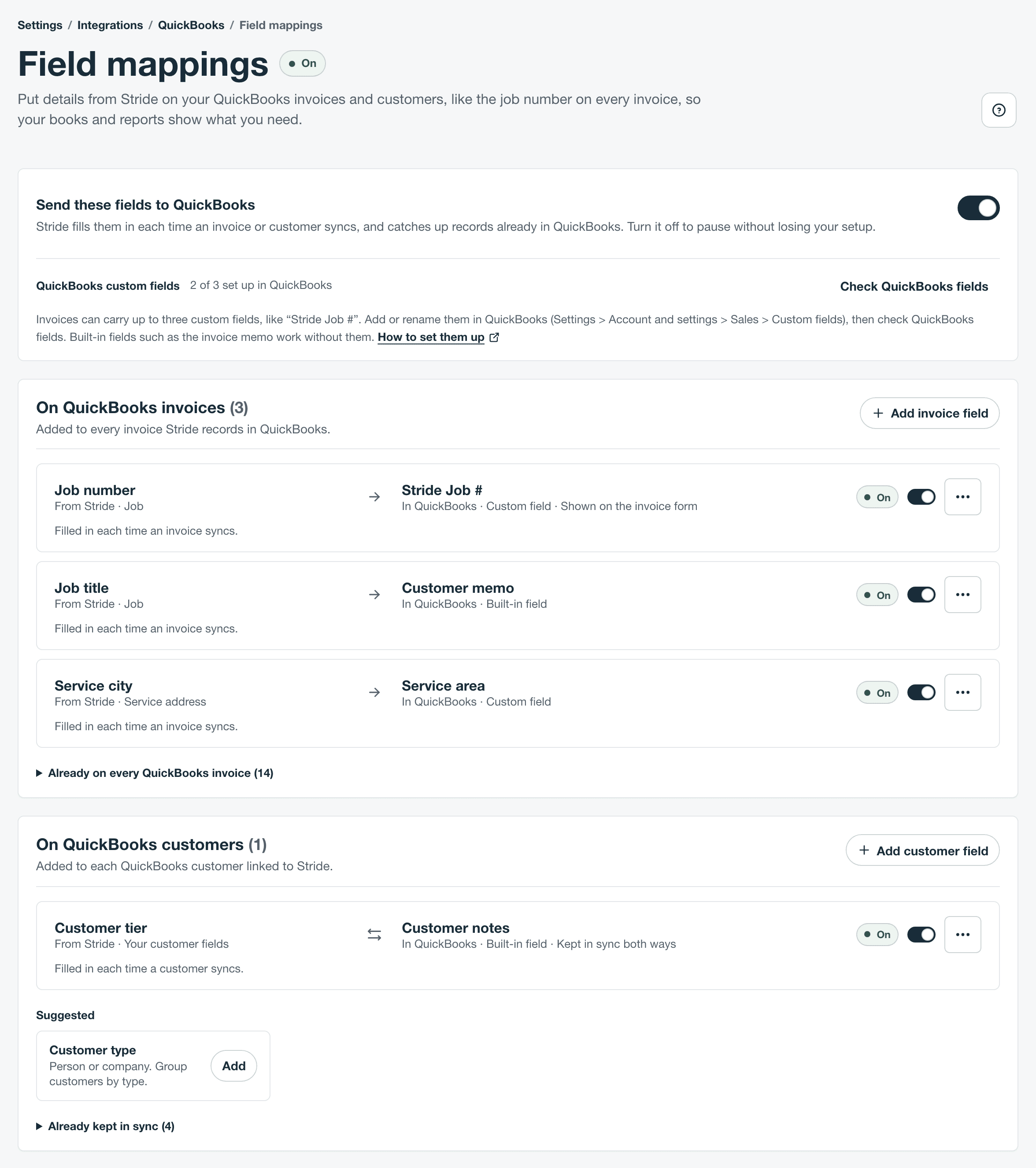
Only the account owner can add, change, or remove mappings. Administrators can open the page and see every mapping and its status, but can’t change anything; for them the button on the QuickBooks page reads View. Schedulers and technicians can’t open Field mappings.
What Stride already sends
You don’t need a mapping for the basics. Stride sends these every time an invoice or customer syncs.
| QuickBooks record | What Stride sends |
|---|---|
| Invoices | Invoice number, invoice date, due date, P.O. number, the customer, the lines, subtotal, tax, and total, the billing address, the service address as the shipping address, the customer’s email, and a Stride audit note with Stride’s invoice and job references |
| Customers | Name, primary email, primary phone, and billing address, kept the same in both |
On Field mappings, open Already on every QuickBooks invoice or Already kept in sync to see the full list. When you add a mapping, these details are tagged Already sent. You can still map one to a second place, such as a custom field, but you don’t need to.
What you can map
First you choose a Stride detail. They’re grouped under these headings.
| Group | Stride details | Can go on |
|---|---|---|
| Job | Job number, Job title, Job status, Job created date | Invoices |
| Service address | Service address line 1, Service address line 2, Service city, Service state, Service postal code, Service country code | Invoices |
| Invoice | Invoice subject, Invoice status, and the invoice’s number, dates, and P.O. number | Invoices |
| Customer | Customer name, Customer type, Primary email, Primary phone | Invoices and customers |
| Your customer fields | Fields you added to customers in Stride | Invoices and customers |
| Billing address | Billing address line 1, Billing address line 2, Billing city, Billing state, Billing postal code, Billing country code | Invoices and customers |
| Invoice contact | Invoice contact name, Invoice contact email, Invoice contact phone | Invoices |
| Your contact fields | Fields you added to contacts in Stride, taken from the invoice’s contact | Invoices |
| Technical references | Stride’s internal IDs, for other systems | Invoices, and the customer and billing address IDs on customers too |
Your own fields are listed when they’re active, Who can see it is set to All office roles, and they’re Single-line text, Email address, Phone number, Web address, Number, or Date fields. Multi-line text, Yes / no, Date and time, Dropdown select, and Multiple select fields aren’t offered.
Then you choose where the value goes, under In QuickBooks:
- A custom field you set up in QuickBooks: invoices only. Stride can fill up to three invoice custom fields, which you set up and name in QuickBooks. See Set up custom fields in QuickBooks.
- A built-in QuickBooks field: on invoices, Customer memo; on customers, Customer notes, Company name, Given name, Middle name, Family name, Title, Suffix, Mobile phone, Alternate phone, Fax, or Website. Stride replaces what’s already there.
Every QuickBooks field Stride can fill holds text. A date, such as Job created date or the invoice dates, or one of your own Number or Date fields, is listed but can’t be sent. The drawer says so when you choose one.
Invoice mappings go one way, from Stride to QuickBooks. Customer mappings go one way too, unless you keep one of your own customer fields in sync both ways.
Set up custom fields in QuickBooks
To give a Stride detail its own box on QuickBooks invoices, such as a “Stride Job #” field, set up the field in QuickBooks first. Stride doesn’t create QuickBooks fields. It fills the ones you set up. Customer memo and the built-in customer fields work without this.
- In QuickBooks, go to Settings, then Account and settings, then Sales, then Custom fields.
- Turn on a custom field and give it a name, such as Stride Job #. Stride can fill up to three.
- Back on Field mappings in Stride, select Check QuickBooks fields.
Next to QuickBooks custom fields, the page shows how many of the three are set up in QuickBooks, such as “1 of 3 set up in QuickBooks”. Stride reads them each time the page opens. Select Check QuickBooks fields after you add, rename, or turn off one in QuickBooks.
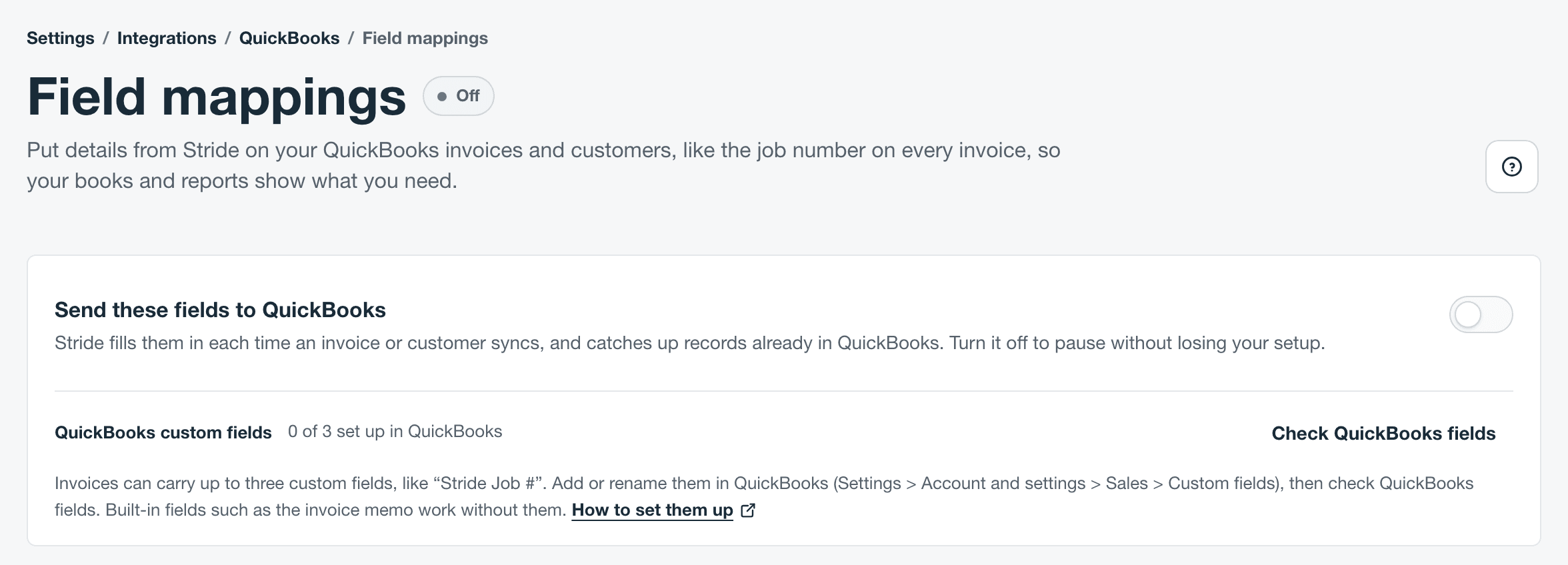
- Name the field “Stride Job #” if you want the job number in it. When you add a Job number mapping, Stride picks that field for you.
- Each custom field holds up to 30 characters. For longer text, such as a job title, use Customer memo.
- The count includes every invoice custom field in QuickBooks, not only the ones Stride fills. A field one mapping uses isn’t offered for another.
| What you see | What it means | What to do |
|---|---|---|
| 0 of 3 set up in QuickBooks after you added one | QuickBooks doesn’t show the field as turned on with a name. | Check that the field is turned on and has a name in QuickBooks, then select Check QuickBooks fields. |
| A Couldn’t check badge, or “Stride couldn’t check custom fields in QuickBooks. Check QuickBooks fields again.” | Stride couldn’t reach QuickBooks to read your custom fields. | Select Check QuickBooks fields again in a minute. Customer memo and the built-in customer fields still work. |
Add a mapping
This example puts the job number on every QuickBooks invoice, in a custom field named “Stride Job #” that’s set up in QuickBooks. Other mappings work the same way.
- Under On QuickBooks invoices, find Job number under Suggested and select Add. For any other detail, select Add invoice field or Add customer field.
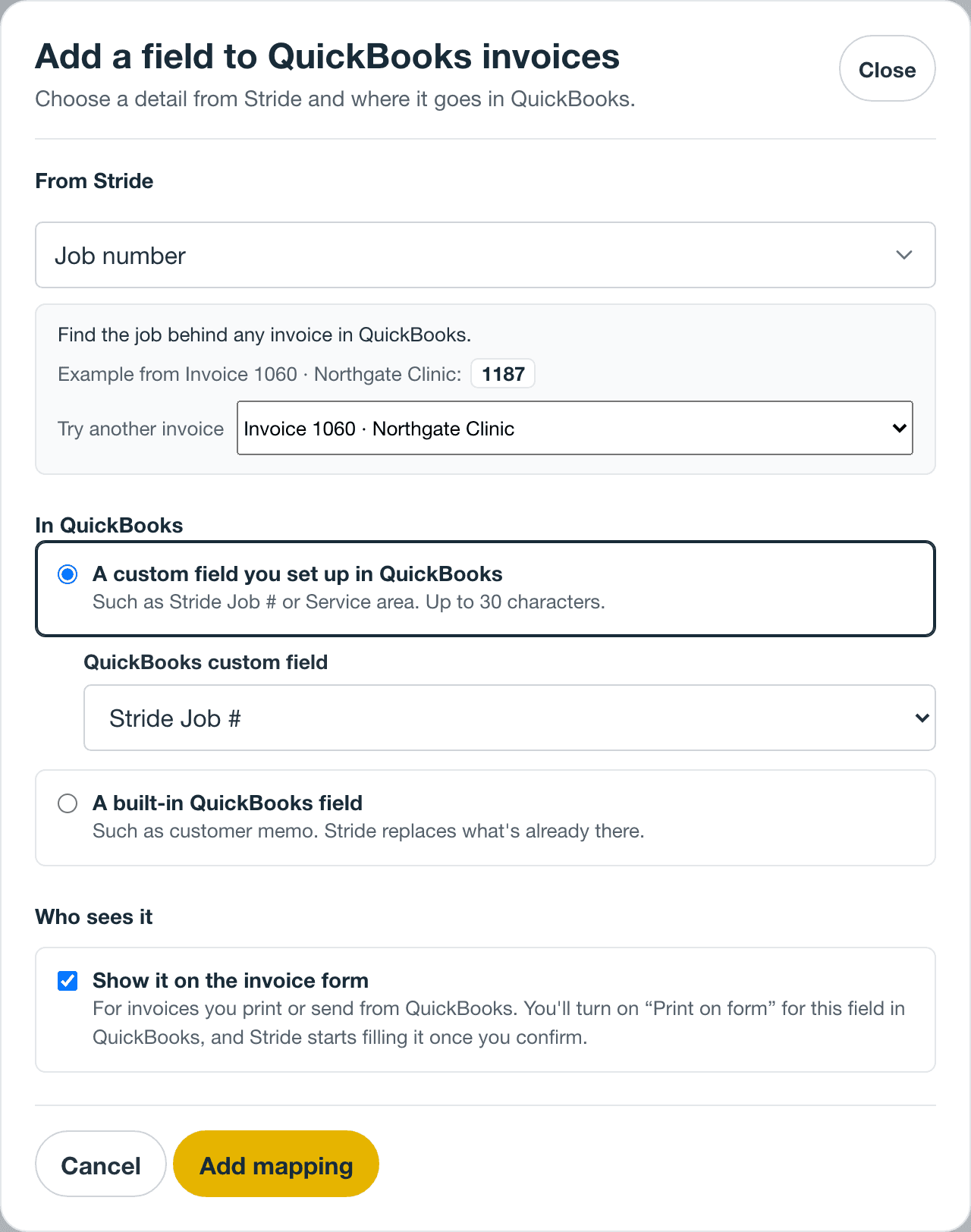
- Add a field to QuickBooks invoices opens. Under From Stride, Job number is chosen. To choose another detail, open the list and search for it.
- Check the example below it, taken from your newest invoice. To see another, choose one under Try another invoice. If it says there’s no value, the QuickBooks field stays blank for that invoice.
- Under In QuickBooks, A custom field you set up in QuickBooks is chosen, with Stride Job # under QuickBooks custom field. To use another field, choose it there, or choose A built-in QuickBooks field.
- If you chose a custom field, under Who sees it, tick Show it on the invoice form if your customer should see it on invoices you print or send from QuickBooks. See Show a field on the invoice your customer sees.
- Select Add mapping.
If Send these fields to QuickBooks is off, the new mapping reads Paused until you turn on sending.
- Stride picks a field for you. It chooses a custom field named like its suggestion, such as Stride Job # for Job number. Otherwise it chooses Customer memo on invoices, or the first built-in field on customers. If Customer memo is taken, it chooses a free custom field.
- To use a built-in field, choose A built-in QuickBooks field, then the field under Built-in field, such as Customer memo for Job title.
- For customers, only built-in fields are offered. Suggestions include Customer type and your own customer fields. For one of your own fields, When it changes lets you choose Send from Stride only or Keep in sync both ways.
- If no custom field is offered, none is set up in QuickBooks, or each one already holds a mapping. The drawer asks if you want this in its own box on the invoice. Set up a custom field in QuickBooks, then select Check QuickBooks fields.
| What the drawer says | What to do |
|---|---|
| “This Stride detail already has a mapping here.” | Each detail can be mapped once on invoices and once on customers. Choose another detail, or remove the other mapping first. |
| “That QuickBooks field already holds another mapping. Choose a different one.” | Choose another QuickBooks field. |
| “The QuickBooks fields Stride can fill hold text, so this detail can’t be sent.” | The detail is a date or number. Choose a text detail instead. |
| “No QuickBooks field is free for this detail.” | Customer memo is taken, and no custom field is free. Set up another custom field in QuickBooks, or remove a mapping you don’t need. |
| “No built-in QuickBooks customer field fits this detail.” | Each built-in customer field that fits already holds a mapping. Remove one you don’t need, or choose another detail. |
| “Stride couldn’t reach your QuickBooks custom fields.”, with Check again | Select Check again. If it still can’t check, try again in a minute. Your choices are kept if they still fit. Customer memo still works meanwhile. |
Show a field on the invoice your customer sees
QuickBooks puts a custom field on the invoice form only when its Print on form setting is on. That matters for invoices you print or send from QuickBooks. Stride can’t turn it on or check it, so a mapping with Show it on the invoice form ticked reads Waiting for you until you confirm.
- On the mapping, under Turn on “Print on form” in QuickBooks, select Open QuickBooks custom fields. QuickBooks opens in a new tab.
- Edit the field, such as Stride Job #, and turn on Print on form.
- Come back to Field mappings and select I turned it on.
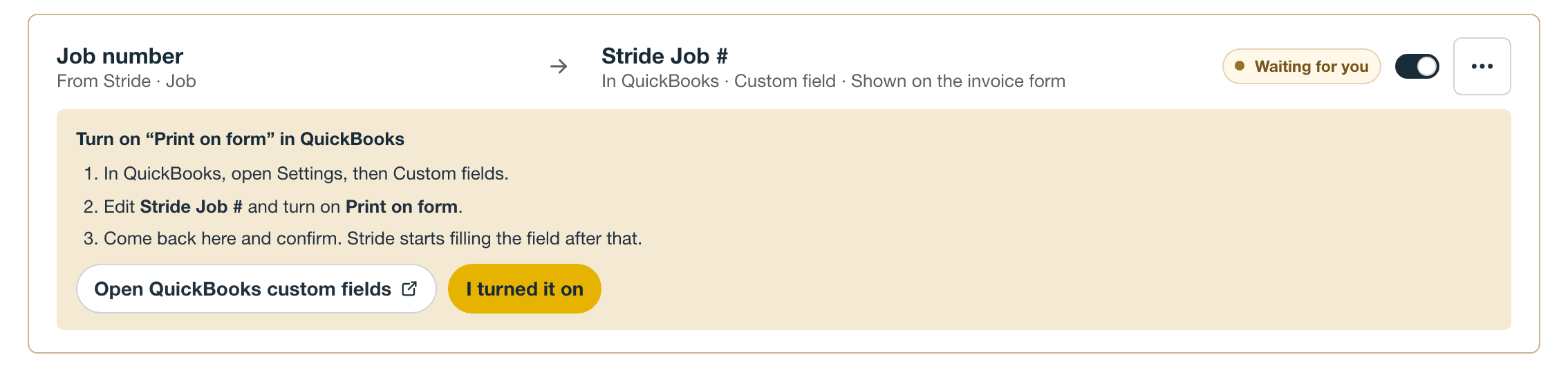
Stride starts filling the field once you confirm. The mapping then reads On, or Paused if sending is off, or Off if its own switch is off. Until then, Stride doesn’t fill it, and the page’s badge reads Needs attention. Administrators see the steps, but only the account owner can confirm.
Turn on sending
Nothing goes into your mapped QuickBooks fields until Send these fields to QuickBooks is on. It’s off at first. The one switch covers every mapping, on invoices and customers, built-in and custom.
- At the top of Field mappings, turn on Send these fields to QuickBooks.
- Stride asks Start sending these fields to QuickBooks? Select Start sending.

First, Stride checks the mapped values on the invoices and customers already in QuickBooks. If a value won’t fit, such as text too long for its field, sending stays off and Stride shows the problem. Fix it and turn sending on again.
Then Stride catches up the records already in QuickBooks:
- Invoices that aren’t paid, void, or uncollectible get every invoice mapping.
- Paid, void, and uncollectible invoices get only an Invoice status mapping, if you have one.
- Customers linked to QuickBooks get every customer mapping, except archived customers.
After that, Stride fills the fields each time an invoice or customer syncs. When a mapped customer detail changes in Stride, Stride updates the draft and open invoices for that customer. A job title or job status change also updates open invoices. A service address change updates only draft invoices, because open invoices keep the service address they had when they were finalized.
To pause everything, turn Send these fields to QuickBooks off. It saves right away. Mappings read Paused, nothing in QuickBooks is deleted, and your setup is kept. Turning it back on checks and catches up again.
Keep a customer field in sync both ways
Most mappings go one way: Stride’s value always wins, and the next time Stride updates the record, it replaces an edit made in QuickBooks. One of your own customer fields can instead be kept in sync both ways, so an edit made in QuickBooks comes back to Stride. For example, keep a “Customer tier” field in Stride the same as Customer notes in QuickBooks.
Both ways works for a customer mapping whose Stride detail is one of your own customer fields that:
- Has All office roles under both Who can see it and Who can edit it.
- Doesn’t require a unique value.
- Isn’t an Email address or Web address field.
- Has no minimum or maximum set.
Invoice mappings, and Stride’s own customer details such as the name, email, phone, and address, go one way. The customer’s name, email, phone, and billing address already stay the same in both through customer sync.
- When you add the mapping, under When it changes, choose Keep in sync both ways.
- For a mapping you already have, open its menu (…) and select Keep in sync both ways. To go back, select Send from Stride only.

If the field changed only in QuickBooks, Stride takes the QuickBooks value. If it changed in both places since the last sync, Stride stops syncing that customer until the account owner chooses Keep Stride or Use QuickBooks under Records on the QuickBooks page. See When a customer changes in both places.
Turn off, change, or remove a mapping
- Turn one mapping off or on: use the switch on its row. While it’s off, it reads Off, and Stride keeps the setup but doesn’t fill the field. Turning it back on checks the values again and, if sending is on, catches up the records already in QuickBooks.
- Change the direction: open the row’s menu (…) and select Keep in sync both ways or Send from Stride only. Only some customer mappings have this choice.
- Change anything else: a mapping can’t be edited. To use a different detail or QuickBooks field, or to change Show it on the invoice form, remove the mapping and add it again.
- Remove a mapping: open the row’s menu (…), select Remove mapping, and confirm with Remove mapping.
None of these delete anything in QuickBooks. Values already there stay where they are; Stride just stops updating them. Your QuickBooks custom fields stay too. Turn one off in QuickBooks if you no longer want it.
What each status means
The badge beside the Field mappings title reads On when sending is on and Off when it’s off. It reads Needs attention when any mapping needs attention or is waiting for you.
| Status | What it means | What to do |
|---|---|---|
| On | Stride fills the field each time an invoice or customer syncs. | Nothing. |
| Paused | Send these fields to QuickBooks is off. | Turn on sending. |
| Off | This mapping is switched off. Stride keeps the setup but doesn’t fill the field. | Use the switch on its row to turn it back on. |
| Waiting for you | It’s set to show on the invoice form, and Print on form isn’t confirmed yet. | Follow the steps on the row, then select I turned it on. |
| Needs attention | Something changed in QuickBooks or Stride. The row says what. | See the next table. |
| What the row says | Why | What to do |
|---|---|---|
| “The Stride field changed or was removed. Remove this mapping and add it again.” | One of your own Stride fields was archived, changed type, or no longer has All office roles under Who can see it. For a two-way mapping, it may no longer be editable by all office roles. | Select Remove mapping, then add the mapping again. |
| “The QuickBooks custom field was turned off or removed. Turn it back on in QuickBooks, then check QuickBooks fields again.” | In QuickBooks, the invoice custom field was turned off or its name was cleared. | Turn the field back on and name it in QuickBooks, then select Check QuickBooks fields. Or remove the mapping. |

A mapping can’t be switched back on while it needs attention. Fix the cause and select Check QuickBooks fields first; fixed mappings go back to normal on their own.
| What you see | What it means | What to do |
|---|---|---|
| Connect QuickBooks first | QuickBooks isn’t connected, setup isn’t finished, QuickBooks signed Stride out, or the account lost the Operations plan. | Select Go to QuickBooks settings and finish setup or reconnect. Your mappings are kept. |
| Field mappings are paused | Billing access is restricted, or the plan doesn’t include QuickBooks. QuickBooks is included with the Operations plan. | Restore billing access. Your mappings come back as they were. |
| Field mappings aren’t open to you | Only the account owner and administrators can see field mappings. | Ask the account owner. |
| QuickBooks fields couldn’t load | The page didn’t load. | Select Try again. |
| “Owner permissions could not be checked.” under the switch | Stride couldn’t confirm you’re the account owner. | Reload the page. |
After you reconnect QuickBooks
When you reconnect QuickBooks, for example after QuickBooks signed Stride out, Stride keeps your mappings but turns Send these fields to QuickBooks off. Every switched-on mapping reads Paused.
- Open Field mappings.
- If any mapping uses a QuickBooks custom field, select Check QuickBooks fields. Any mapping that reads Needs attention afterwards needs its field turned back on in QuickBooks, or turned off in Stride.
- Turn on Send these fields to QuickBooks and select Start sending.
If a switched-on mapping still reads Needs attention when sending is on, invoices (or customers) stop syncing to QuickBooks. Fix it or turn it off first.
After a full disconnect, you set up QuickBooks again. If you connect the same company, your mappings are still there, with sending off. If you choose a different QuickBooks company, setup starts over and your field mappings are removed. You’d match records and add mappings again. See Reconnect, cancel setup, or disconnect.
Limits and good to know
| QuickBooks field | Characters |
|---|---|
| Custom text field | 30 |
| Customer memo on invoices | 1,000 |
| Customer notes | 4,000 |
| Company name, Given name, Middle name, Family name, Title, Suffix | 100 |
| Mobile phone, Alternate phone, Fax | 21 |
| Website | 255 |
- Nothing is cut short. A value that’s too long is refused. If a new invoice has one, it can’t sync: it shows Needs attention, and Records › Invoices lists it under Can’t sync. Shorten the value in Stride, then select Retry. For longer text, such as a job title, use Customer memo instead of a custom field.
- Built-in fields are replaced. Stride writes over whatever is in the field. If the Stride value is empty, Stride clears the field the next time that invoice or customer is updated.
- Three custom fields, on invoices only. Stride can fill up to three invoice custom fields, and each holds one mapping. Customers use built-in fields.
- Values go as Stride stores them. The job number is its digits, such as 1047. Invoice status is sent as draft, open, paid, void, or uncollectible. Customer type is sent as person or organization.
- One mapping per detail and per field. Each Stride detail can be mapped once on invoices and once on customers, and each QuickBooks field holds one mapping.
- Renaming in QuickBooks is fine. Stride fills the field by its place in QuickBooks’ list of three, so the mapping keeps working. After Check QuickBooks fields, the mapping shows the new name. If you reuse the field for something else, remove the mapping.
- Very large catch-ups. One change can process only so many records: about 250 invoices or linked customers for one mapping, fewer with more mappings. Over that, Stride changes nothing and asks you to contact support. Email support.
- Mappings belong to one QuickBooks company. Connecting a different company removes them.
- Only the QuickBooks copy changes. The invoice Stride emails your customer stays the same.
Questions
Do I need custom fields? Only to give a detail its own box on QuickBooks invoices. Customer memo on invoices, and built-in fields like Customer notes on customers, work without them.
Why can’t Stride create the custom field for me? Stride fills the invoice custom fields you set up in QuickBooks, and doesn’t add fields of its own. Set one up under Settings › Account and settings › Sales › Custom fields in QuickBooks, then select Check QuickBooks fields.
Can I put a custom field on QuickBooks customers? No. Customer mappings use built-in fields such as Customer notes or Company name.
Will my customer see the job number? In a custom field, only on invoices you print or send from QuickBooks, and only if you ticked Show it on the invoice form and turned on Print on form in QuickBooks. In Customer memo, it shows as the message on invoices you print or send from QuickBooks. The invoice Stride emails doesn’t change.
Do mappings fill invoices already in QuickBooks? Yes. When you turn on sending, Stride fills the invoices already in QuickBooks that aren’t paid, void, or uncollectible, and every linked customer.
Can an administrator set up mappings? No. Administrators can see every mapping and its status. Only the account owner can change them.
Why does the page say Needs attention when nothing is broken? A mapping that’s waiting for you to confirm Print on form counts. Confirm it with I turned it on.
What if I turn off the field in QuickBooks? Select Check QuickBooks fields, and the mapping reads Needs attention. While sending is on, remove the mapping or turn it off so invoices keep syncing.
Do edits in QuickBooks come back to Stride? Only for your own customer fields kept in sync both ways.
Does removing a mapping delete anything in QuickBooks? No. Values already there stay, and so do your custom fields.
Want help choosing what to map? Email us.