Before you start
- The account owner. Only the owner can connect QuickBooks, match records, choose the accounting defaults, and turn sync on. On the Intuit side, sign in as an admin of the QuickBooks company.
- The Operations plan. QuickBooks is included with Operations, and you can connect during the free trial. Essentials doesn’t connect to QuickBooks.
- One QuickBooks company. Each Stride account connects one QuickBooks company, and a QuickBooks company can be connected to only one Stride account at a time.
- A tidy QuickBooks. Stride reads your active customers and products and services once, when setup starts. Merge duplicates, fix names, and make records you no longer use inactive before you connect. Changes you make in QuickBooks after that don’t show up in setup.
- Sales tax set up in QuickBooks, if you charge it. Stride calculates the tax, and QuickBooks records it with one of its tax groups. Sales tax syncs for US QuickBooks companies only.
- Time to finish. Keep the setup page open while Stride reads your records. Your choices are saved as you go, so you can come back to them.
If you don’t charge sales tax, you can keep invoicing during setup. Invoices you finalize or send wait as Waiting for QuickBooks and go to QuickBooks when you turn on sync. Until then, they can’t be marked paid or voided.
Administrators can see the QuickBooks page, its records, field mappings, and activity, and can retry an invoice that couldn’t sync. They can open the setup page, but anything they change there is refused with “You do not have permission to do that.” Schedulers and technicians can’t open QuickBooks pages.
What moves between Stride and QuickBooks
| Record | Direction | What happens |
|---|---|---|
| Customers | Both ways | Name, billing email, phone, and billing address stay the same in both. A customer added in Stride without a stage goes to QuickBooks at its first job, invoice or approved estimate, or right away if given a Customer stage, and one added in QuickBooks comes into Stride on its own. A possible duplicate waits in Records for you. |
| Invoices | To QuickBooks | Each invoice you finalize or send gets an accounting copy in QuickBooks. Stride emails your customer; QuickBooks doesn’t send a second email. |
| Estimates | From QuickBooks | Estimates you write in QuickBooks show on the customer in Stride, read-only. Stride reads them once sync is on and keeps them up to date. Pick one on a Stride invoice to bill it, and Stride marks it Closed in QuickBooks. See Use your QuickBooks estimates in Stride. |
| Products and services | Linked once | Each is linked to the QuickBooks item with the same name, or created in QuickBooks the first time it’s on an invoice. Later changes to a name or price don’t sync either way. |
| Payments | Both ways | Mark an invoice paid in Stride, and Stride records the payment in QuickBooks with the method and reference you chose. Record a payment in QuickBooks, and Stride marks the invoice paid. See Payments. |
| Jobs and visits | Stay in Stride | Scheduling and field work never leave Stride. |
Archiving a customer in Stride, or making one inactive in QuickBooks, changes only the system where you did it. QuickBooks needs every name to be unique across customers, vendors, and employees, including inactive ones. If a name is taken, Stride asks you for a different name to use in QuickBooks.
Step 1: Connect
- Go to Settings, then Integrations, then QuickBooks, and select Set up QuickBooks. You can also select QuickBooks setup on Getting started.
- On Set up QuickBooks, select Connect QuickBooks.
- Sign in with Intuit and choose the company to connect. Stride never sees your QuickBooks password.
- Intuit sends you back to Set up QuickBooks, and Stride starts reading your records.
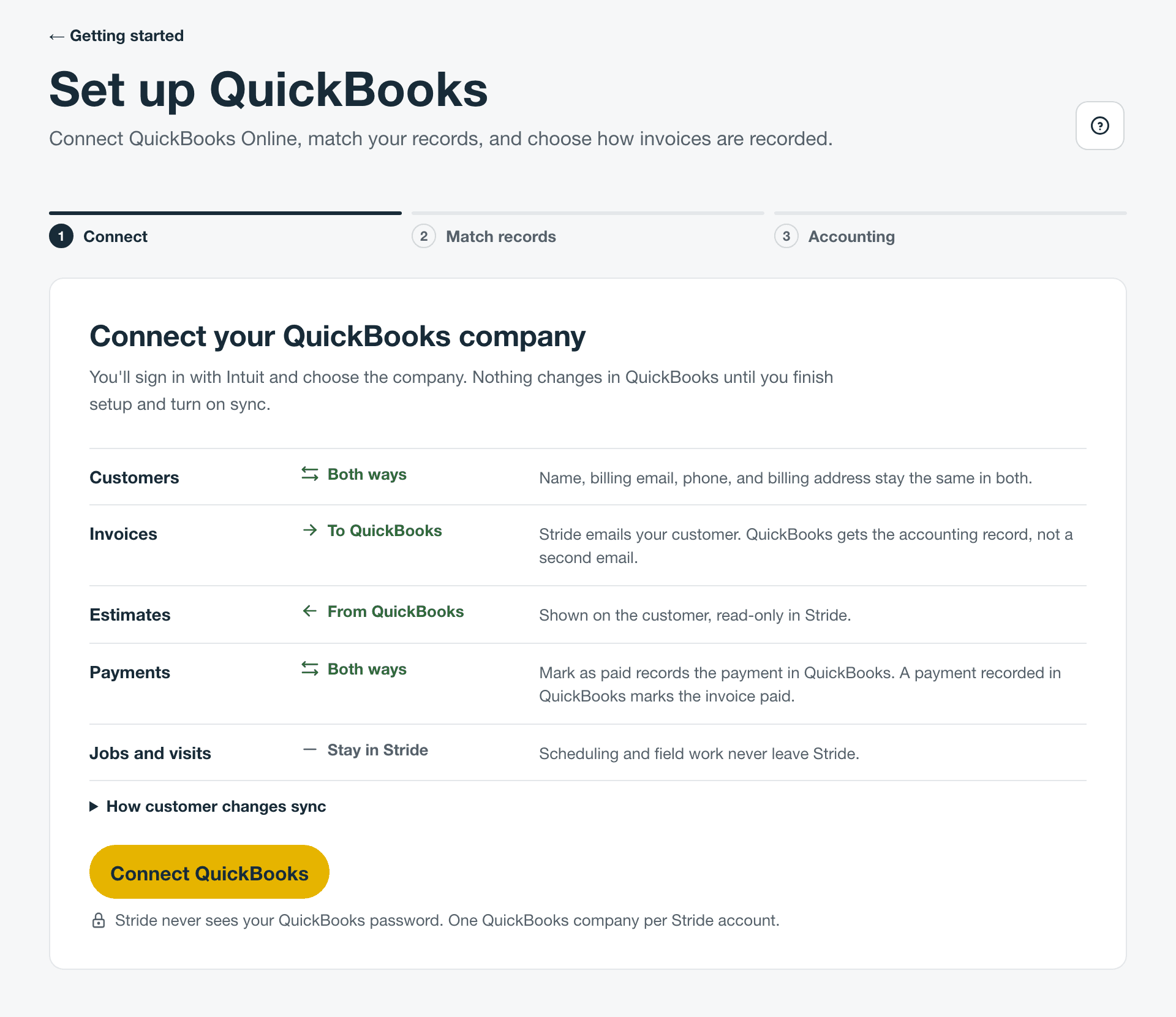
- Back on Connect with no message? The sign-in didn’t finish. It was cancelled, took more than 10 minutes, or chose a company that’s already connected to another Stride account. Select Connect QuickBooks to try again. The QuickBooks page in Settings shows “QuickBooks connection could not be completed.” after a sign-in that failed.
- Connect QuickBooks is greyed out, or the page says setup is unavailable? QuickBooks needs the Operations plan and billing in good standing. Check Settings, then Billing.
Stride reads your QuickBooks records
Stride reads every active customer and product or service in the company, 100 at a time, and shows how far it has got. It only reads; nothing in QuickBooks changes. Inactive records aren’t read.
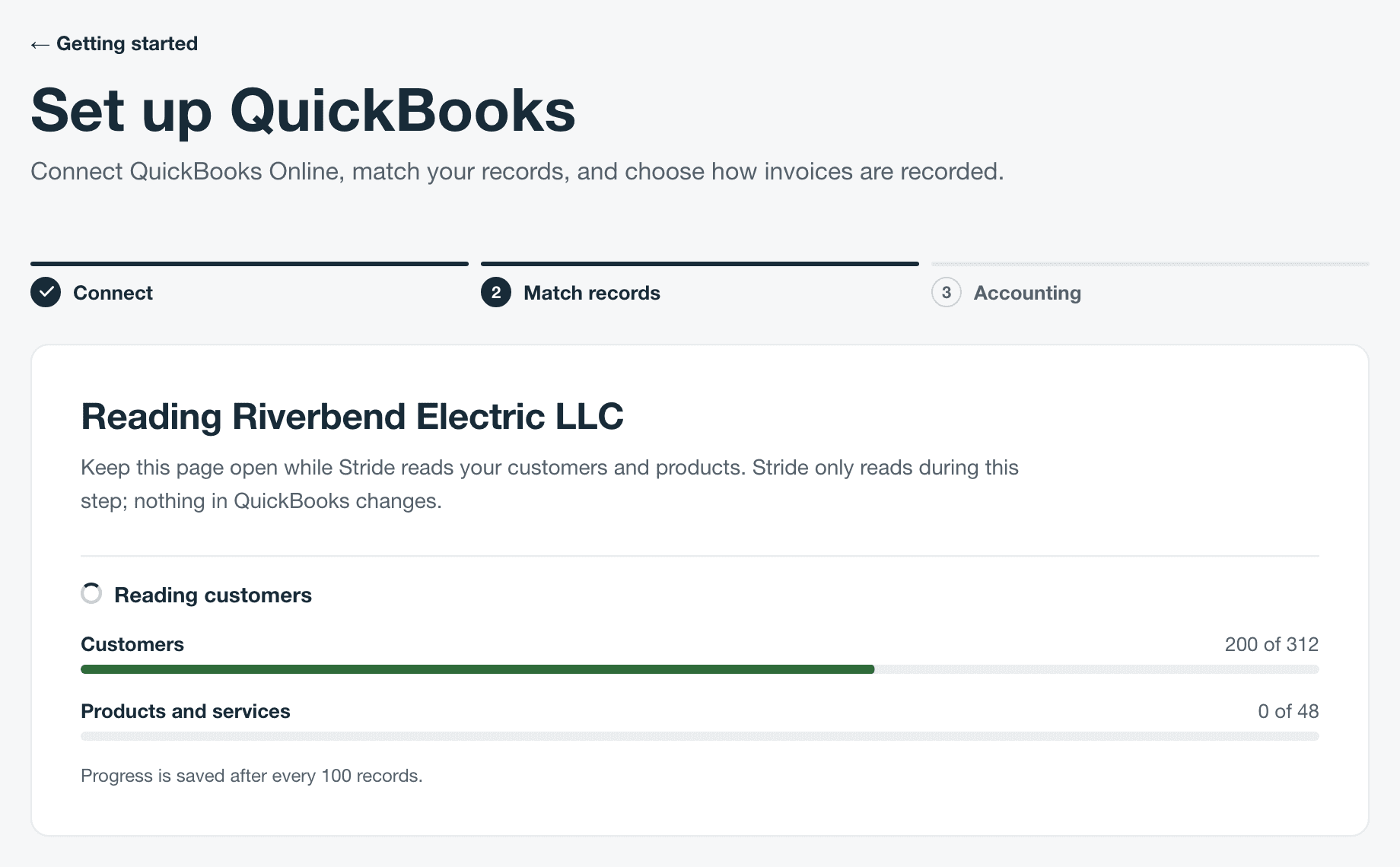
- Keep the page open. Reading runs while Set up QuickBooks is open, and pauses if you leave. To pick up where it stopped, open the QuickBooks page in Settings and select Continue setup.
- If it stops, The import paused appears. Select Resume import. Nothing already read is read again.
- If Stride read the records but couldn’t show them, select Try again.
- If a message says the QuickBooks connection or company changed, do what it says: resume, or cancel setup and start again.
- Setup reads QuickBooks once. Customers or products you add or fix in QuickBooks after this don’t appear in setup. Once sync is on, new QuickBooks customers come into Stride on their own; add products from Records. Or cancel setup and connect again so Stride reads the company from scratch.
Step 2: Match records
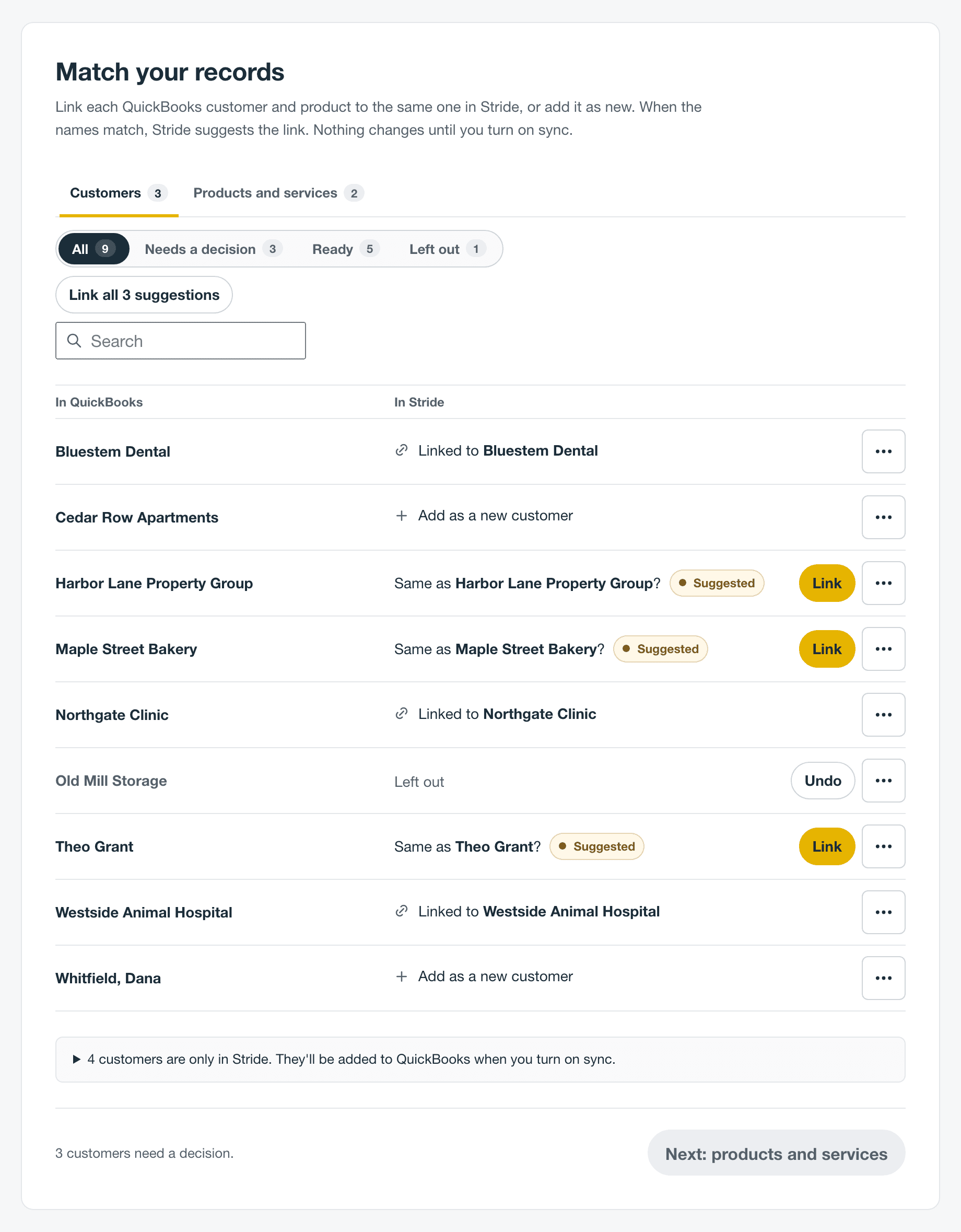
Decide what happens to each QuickBooks record. Customers are on the Customers tab and products and services on Products and services, each with a count of records that need a decision. Your choices are saved as you go, and nothing changes in Stride or QuickBooks until you turn on sync.
| The row says | What happens | To change it |
|---|---|---|
| Same as a Stride name, marked Suggested | A Stride record has the same name, ignoring capital letters and extra spaces. It needs your decision. | Select Link if it’s the same customer or product. If it isn’t, choose another option from the row’s menu. |
| Linked to a Stride name | The two records are linked. | Choose Change match from the row’s menu. |
| Add as a new customer or Add as a new product or service | Stride creates it from the QuickBooks record. It’s the starting choice when no Stride record has the same name. | If it’s already in Stride under another name, choose Find a Stride customer or Find a Stride product or service from the row’s menu. |
| Left out | Nothing is added or linked at setup. | Select Undo to go back to the earlier choice, or Include if there wasn’t one. |
| Choose a match or add it as new | Stride couldn’t make a starting choice, usually because another QuickBooks record has the same name. | Select Find match, or add it as new from the row’s menu. |
The row’s menu is the three dots at the end of the row. Leave out is there too.
- Link every suggestion at once. When a tab has two or more suggestions, select the Link all button, such as Link all 3 suggestions.
- Show some of the rows. Choose All, Needs a decision, Ready, or Left out. When a tab has more than 8 records, use Search to find one by name.
- Look for the same customer under two names. If a customer is Dana Whitfield in Stride and Whitfield, Dana in QuickBooks, Stride can’t suggest the link. Left as Add as a new customer, you’d end up with both in each system. Link them yourself.
- Customers only in Stride are listed below the rows, such as “4 customers are only in Stride.” Only Customer-stage records and already linked customers sync. Leads and blank records wait for their first job, invoice or approved estimate. Stride won’t replace a QuickBooks customer that already has the same name; it asks you for another name after setup.
- Products and services only in Stride aren’t sent at setup. The first invoice that uses one links it to the QuickBooks item with exactly the same name, or creates it in QuickBooks as a service. You can also send it from Records after setup.
To link a QuickBooks record to a different Stride record:
- Open the row’s menu and choose Choose a different match, Change match, or Find a Stride customer. On a row with no suggestion, select Find match.
- Search by name. Stride shows the first 40 matches; keep typing to narrow the list.
- Select the Stride record, then select Use this match.
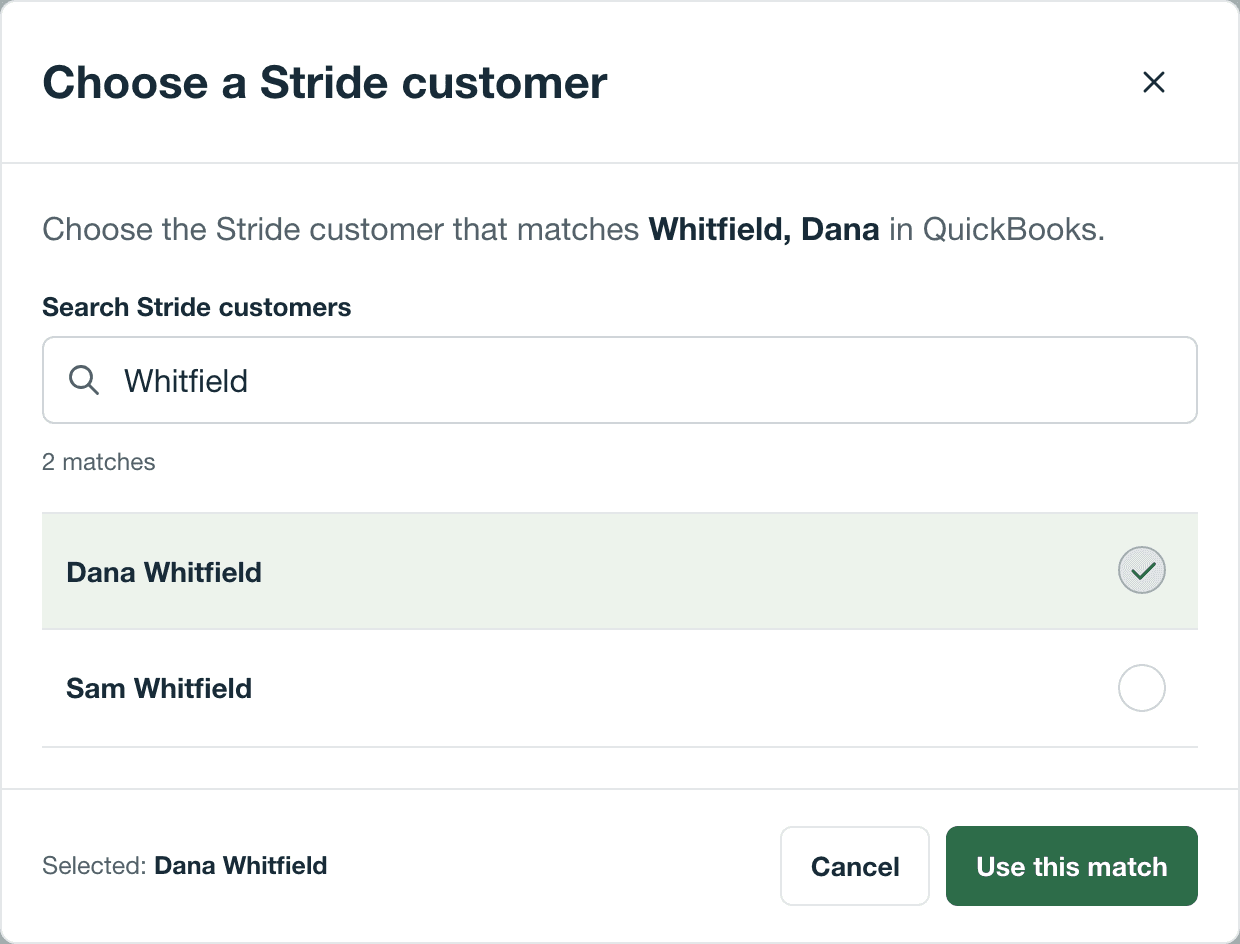
Each Stride record can be linked to only one QuickBooks record, so records already linked to another row aren’t offered.
When every row on a tab is ready or left out, the button at the bottom turns on: Next: products and services, Next: customers, or Continue once both tabs are done. Until then, the line beside it says how many records still need a decision.
Step 3: Accounting
Choose how Stride records invoices in QuickBooks. These choices don’t give Stride access to your bank accounts, and you can change them later. Not sure? Use what your bookkeeper uses for service revenue.
- Income account is used only when Stride creates a new product or service in QuickBooks. Products and services already in QuickBooks keep their own account.
- Item for one-off invoice lines is an existing QuickBooks service or non-inventory item. Invoice lines that aren’t from your Stride catalog are recorded under it, with their description and amount as written. If the list is empty, create a service item in QuickBooks, then select Load options.
- Sales tax is one setting for your whole Stride account, and it saves as soon as you choose. With sales tax on, Stride calculates the tax and QuickBooks records it with the QuickBooks tax group you choose.
- Choose the Income account and the Item for one-off invoice lines.
- Under Sales tax, choose Keep sales tax off or Turn on sales tax. If you turn it on, choose a QuickBooks tax group.
- Check When you turn on sync. It counts the customers and products that will be linked, added to Stride, sent to QuickBooks, or left out.
- Select the statement that begins “I understand Stride runs the work”, then select Turn on sync.
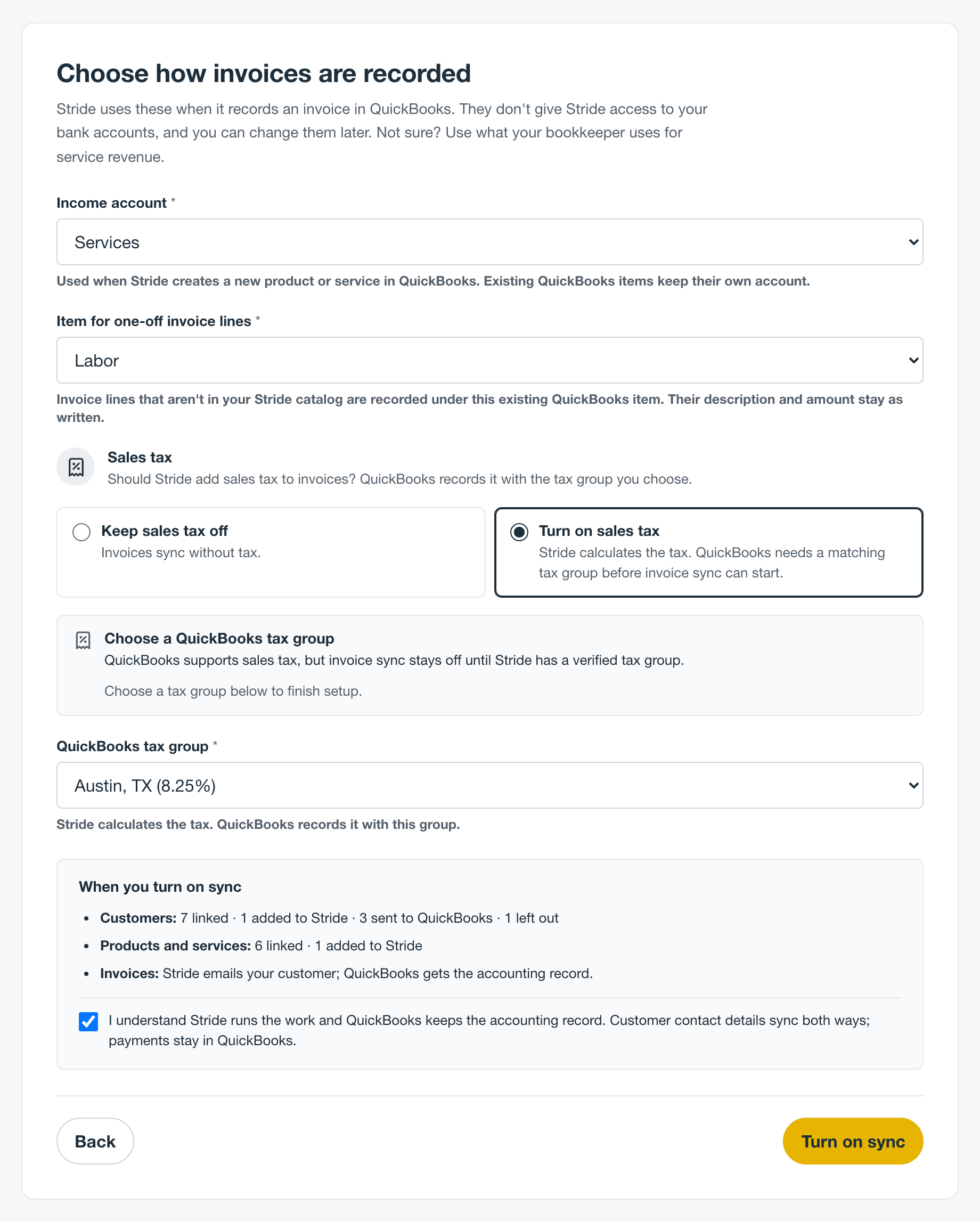
If Turn on sync is greyed out, the line beside it names what’s missing, such as “Choose a QuickBooks tax group.” If turning on sync fails, nothing is applied. Fix what the message names and try again; select Back to change a match.
| The panel says | What it means | What to do |
|---|---|---|
| Choose a QuickBooks tax group | QuickBooks supports sales tax. Invoice sync stays off until you choose a tax group. | Choose one under QuickBooks tax group. |
| Set up sales tax in QuickBooks | Sales tax isn’t set up in QuickBooks yet. | Set it up in QuickBooks, then select Check QuickBooks again. Or select Continue with sales tax off. |
| This QuickBooks company cannot use sales tax | QuickBooks can’t keep the tax record Stride needs. | Turn on sales tax in QuickBooks, or change your QuickBooks plan, then select Check QuickBooks again. Or select Continue with sales tax off. |
| QuickBooks tax sync is not available for this company | The QuickBooks company isn’t in the US. | Select Continue with sales tax off. While sales tax is on, no invoices sync. |
| Could not check QuickBooks sales-tax setup | Stride couldn’t confirm that QuickBooks can keep the tax record. | Select Check QuickBooks, or Continue with sales tax off. |
| QuickBooks didn’t return a tax group Stride can use | Sales tax is on in QuickBooks, but it has no tax group Stride can use. | Finish your tax rates in QuickBooks, then select Check QuickBooks again. |
During setup you can switch sales tax off at any time, unless a taxed invoice is already waiting for QuickBooks.
What happens when you turn on sync
- Records set to be added as new are created in Stride. Each new customer gets one location, Main, from its QuickBooks billing address, and Stride puts it on the map.
- Your links are saved.
- Customer-stage records only in Stride are sent to QuickBooks. Blank records and leads wait for work.
- Invoices Waiting for QuickBooks start syncing.
- Products and services only in Stride wait until an invoice uses them.
- Invoices finalized or sent before you connected stay Stride only. They aren’t sent.
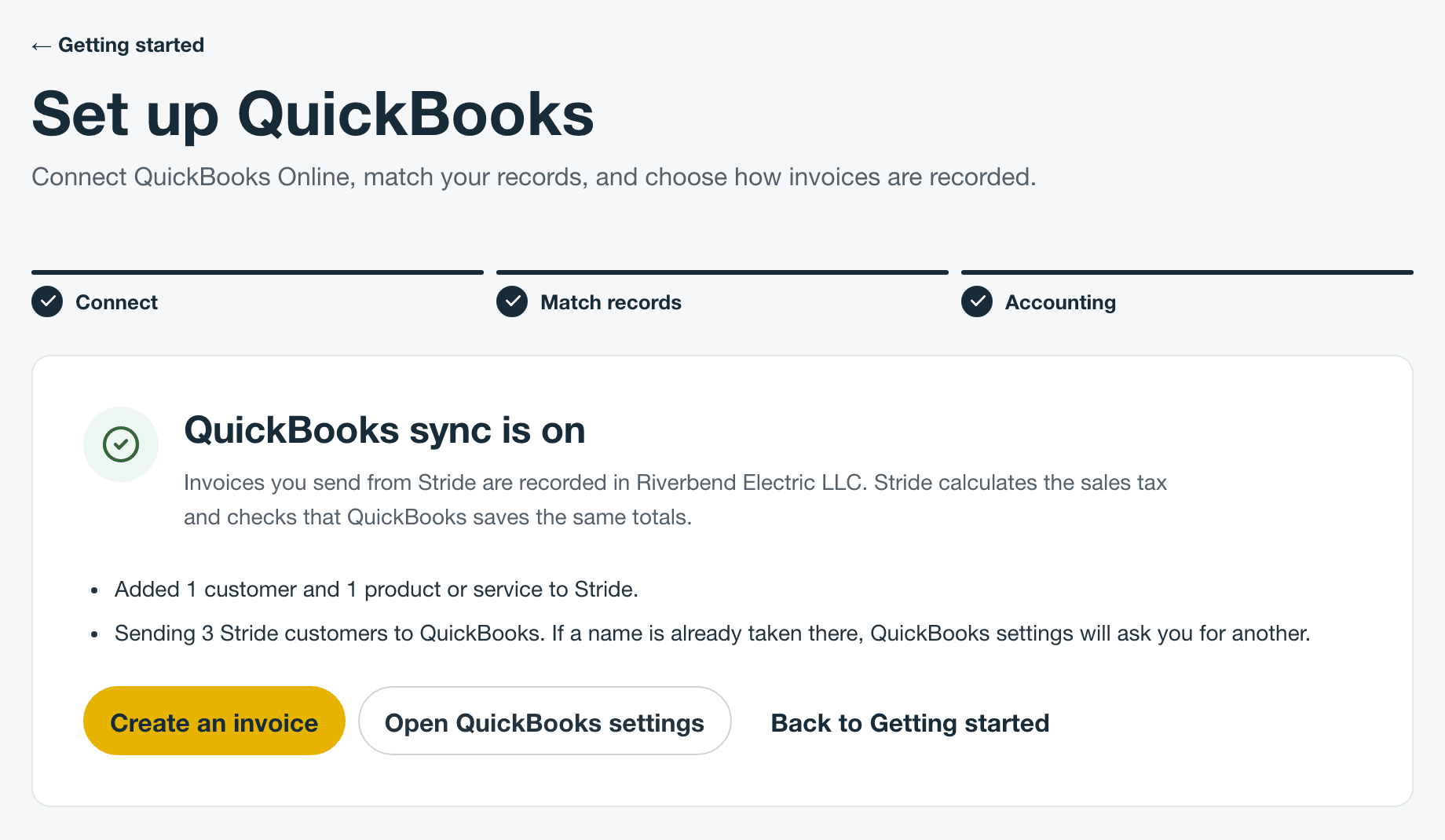
From QuickBooks sync is on, select Create an invoice, Open QuickBooks settings to see your QuickBooks page, or Back to Getting started.
Your QuickBooks page
Go to Settings, then Integrations, then QuickBooks. With sync on, the header shows Connected, the company name, and when Stride last synced.
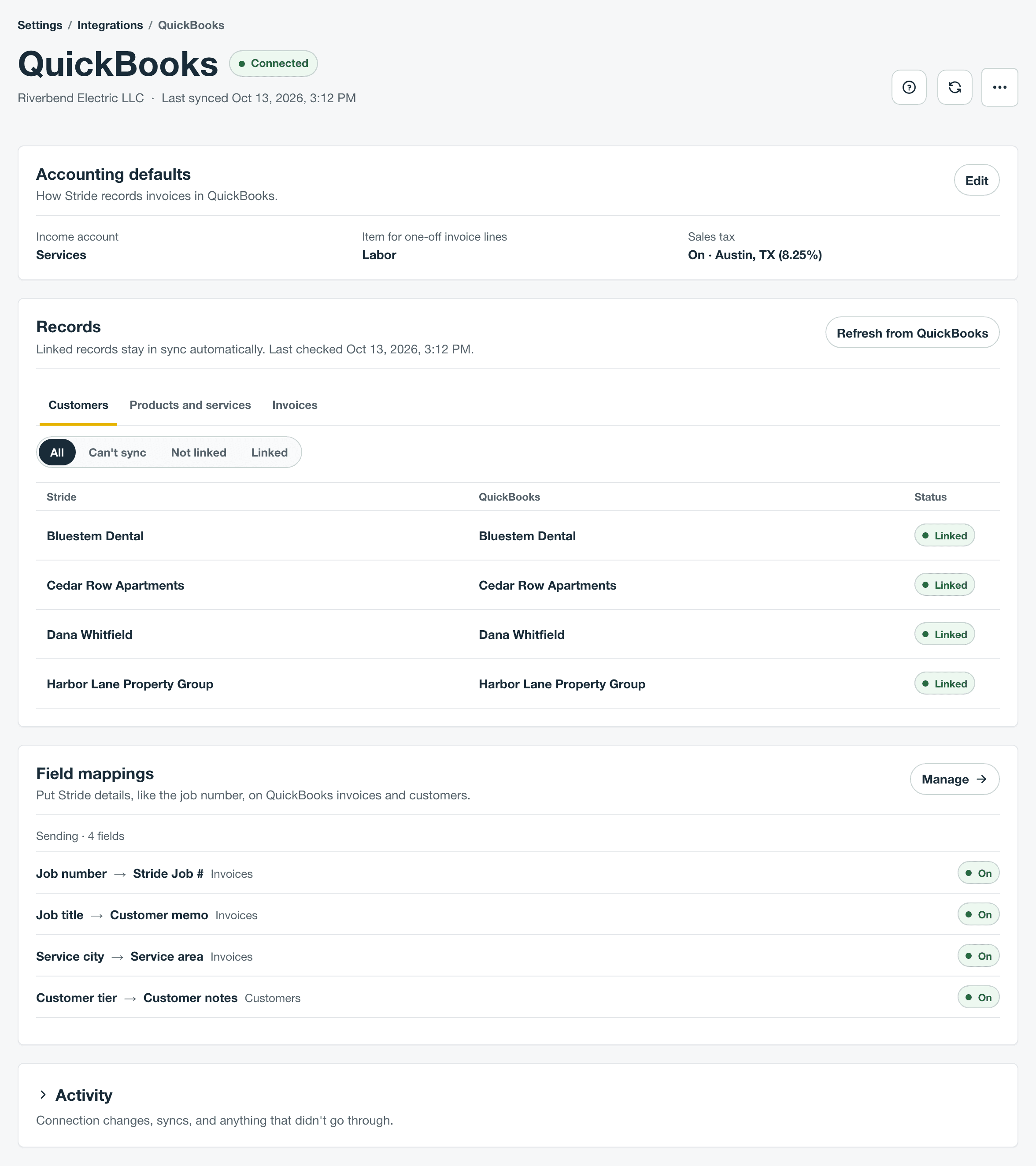
- Accounting defaults shows the income account, the item for one-off invoice lines, and sales tax. To change them, select Edit. If you change sales tax, select Save sales tax first, then Save changes. Invoices waiting on these choices sync once they’re saved. Once sync is on, you can’t turn sales tax off while a draft or open invoice has tax on it. Remove the tax from those drafts. An open invoice with tax has to be paid or voided first.
- Records lists customers, products and services, invoices, and estimates, with what’s linked and what can’t sync. See Fix sync problems, and for estimates, Use your QuickBooks estimates in Stride.
- Field mappings puts more Stride details, like the job number, on QuickBooks invoices and customers. See Set up QuickBooks field mappings.
- Activity is closed until you open it. It lists connection changes, syncs, and anything that didn’t go through. Select Show more for older entries.
Only the account owner can change anything here. Administrators can see it all, and can select Retry on an invoice that couldn’t sync.
| You see | What it means | What to do |
|---|---|---|
| Connected | Sync is on, and nothing needs you. | Nothing. |
| Needs attention | Something needs you. A notice under the header says what. | Follow the notice. The rows below cover each one. |
| Setup not finished | QuickBooks is connected, but sync isn’t on yet. | Select Continue setup. |
| Tell Stride whether your business collects sales tax | No invoices sync, and none can be finalized, until the owner answers. | Select Answer in Services and billing, and answer. |
| Finish setting up sales tax in QuickBooks or QuickBooks is not ready to keep Stride sales tax | Sales tax is on in Stride, but QuickBooks isn’t ready. No invoices sync, and none can be finalized or sent. | Select Review sales tax. Finish sales tax in QuickBooks and check again, or turn sales tax off. |
| A count, such as 1 invoice couldn’t sync | Some customers, products, or invoices didn’t reach QuickBooks. | Select Review. See Fix sync problems. |
| Paused, with Stride support paused sending to QuickBooks | Stride support paused sending to QuickBooks. QuickBooks copies wait until sending resumes. | Nothing to change. Contact support with any questions. |
| Reconnect QuickBooks | QuickBooks signed Stride out. | Select Reconnect QuickBooks. See Reconnect. |
| Finish disconnecting QuickBooks | A disconnect didn’t finish its last step. | Select Finish disconnecting. |
| Not connected | No QuickBooks company is connected. | Select Set up QuickBooks. |
How invoices reach QuickBooks
Stride sends an invoice to QuickBooks when you finalize or send it: Finalize without sending or Send to customer when you review an invoice, or Send invoice or Finalize on the invoice’s page. Saving a draft doesn’t send it, and there’s no separate button to send an invoice to QuickBooks. Stride emails your customer whether or not the QuickBooks copy is done.
The QuickBooks copy has the invoice number, invoice date, due date, customer, line items, any discount, the tax Stride calculated, the billing and service addresses, the billing email, and the PO number. Its private note holds a short Stride reference. Stride then checks that QuickBooks’ total and tax match Stride’s to the cent. To add more, such as the job number, use field mappings.
- Payments sync both ways. Mark as paid in Stride records the payment in QuickBooks, and a payment recorded in QuickBooks marks the invoice paid. See Payments.
- Voids don’t sync. Voiding an invoice in Stride doesn’t void its QuickBooks copy. Void it in QuickBooks too.
- Other changes in QuickBooks stay there. Editing or deleting the QuickBooks copy never changes the Stride invoice. Only payments come back.
- Invoices made in QuickBooks stay there. They’re listed in Records, under Invoices, as Only in QuickBooks, for reference. They don’t become Stride invoices.
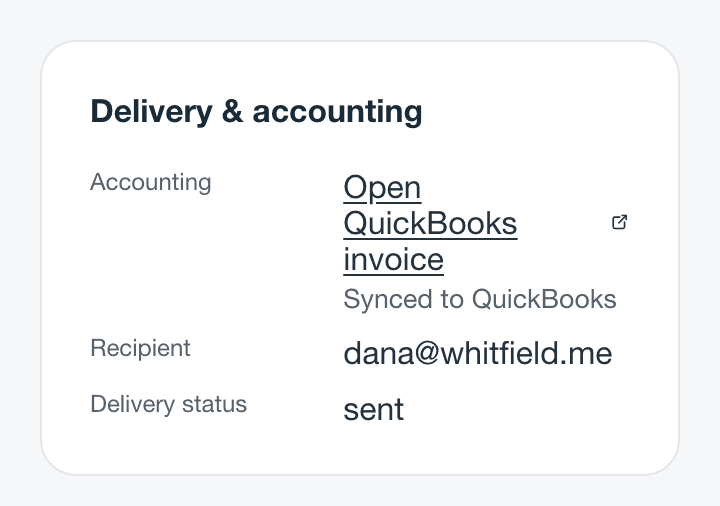
To see an invoice’s QuickBooks status, open it and look at Accounting under Delivery & accounting. On Invoices, add the Accounting column from Columns.
| Accounting | What it means | What to do |
|---|---|---|
| Stride only | This invoice isn’t going to QuickBooks. It was finalized before QuickBooks was connected, or setup was cancelled or QuickBooks disconnected before it synced. | Nothing. Enter it in QuickBooks yourself if your books need it. |
| Waiting for QuickBooks | Stride has queued the QuickBooks copy. During setup, it waits until you turn on sync. | Wait. If setup isn’t finished, finish it. The invoice syncs when you turn on sync. |
| Preparing copy | Stride is making the QuickBooks copy, or trying again after QuickBooks was briefly unavailable. | Wait. Stride tries again on its own for several minutes. |
| Synced to QuickBooks | The copy is in QuickBooks. Owners and administrators can select Open QuickBooks invoice. | Nothing. |
| Changes need review | Something changed after the copy was made, such as a new field mapping, and Stride is updating QuickBooks. | Wait for Synced to QuickBooks. If it doesn’t change, contact support. |
| Needs attention | The copy couldn’t be made. | Find the reason in Records, under Invoices and Can’t sync. Fix it, then select Retry. |
| Reconnect QuickBooks | QuickBooks signed Stride out before the copy was made. | Reconnect, then select Retry on the invoice in Records, under Invoices. |
| QuickBooks sync off | Sales tax is on, but QuickBooks isn’t ready for it, so no invoices sync. | Finish sales tax in QuickBooks, or turn sales tax off. Open invoices then sync on their own. |
Payments
Payments sync both ways. Record each payment once, in whichever one you’re working in, and the other follows. Payments reach QuickBooks only for invoices Stride sent there.
- On the invoice’s page, select Mark as paid. It’s also under More actions.
- Choose a Method, if you like. With QuickBooks connected, the list is your QuickBooks payment methods. Without it, it’s Cash, Check, Credit card, Bank transfer, or Other.
- Add a Reference, if you like, such as a check number or transaction ID. QuickBooks keeps up to 21 characters.
- Read the note above the button, then select Mark as paid. Marking paid doesn’t charge the customer, and it can’t be undone.
The invoice shows the day it was paid with the method and reference, such as “Paid Oct 27, 2026 · Check #4417”, and so does its activity. On an invoice in QuickBooks, Stride records a payment there with the same method and reference, dated the same day. It goes to Payments to deposit (Undeposited Funds), ready to deposit and reconcile as usual. Owners and administrators see Recorded in QuickBooks in the invoice’s summary once it’s there.
- A new payment method. Add it in QuickBooks. It shows up in Method after Stride’s daily check.
- Already paid in QuickBooks. If QuickBooks shows the invoice paid, Stride doesn’t record a second payment. If QuickBooks shows part of it paid, Stride records only what’s left.
- Different totals. If QuickBooks shows a different total than Stride, Stride doesn’t record the payment, and the invoice page says so. Check the invoice in QuickBooks.
- Paid in both places. If you also record the same payment in QuickBooks yourself, QuickBooks keeps the extra payment as a credit for the customer. Delete one of them in QuickBooks.
- Couldn’t record it. Owners and administrators see why on the invoice page and can select Retry.
- Marked the wrong invoice paid. It stays paid in Stride. To bill the customer again, open More actions, select Duplicate invoice, and send the copy.
- A payment Stride recorded in QuickBooks by mistake. Delete it in QuickBooks if your books need it gone. The invoice stays paid in Stride, and owners and administrators see a note that QuickBooks shows money due on it.
Keep recording payments in QuickBooks if that’s where you take them. When a payment there covers an invoice that Stride sent to QuickBooks, Stride marks the invoice paid on its own, dated the day of the payment. The invoice page says Paid in QuickBooks with that date.
- Part payments. The invoice stays open. Its page shows the Amount paid and the Balance due that’s left.
- A payment deleted or voided in QuickBooks. If QuickBooks had marked the invoice paid, Stride reopens it and notes why in its activity.
- Void and uncollectible invoices, and drafts, never change.
- Voided in QuickBooks. Stride leaves the invoice as it is and the invoice page says it was voided in QuickBooks. Void it in Stride too if no payment is due.
A paid invoice drops out of open balances, overdue lists, and reports the same way wherever it was paid. Stride usually sees a QuickBooks payment within a few minutes, and always by its daily check. Invoices already paid in QuickBooks are caught up the next time Stride reads your invoices.
When a customer changes in both places
A customer’s name, billing email, phone, and billing address sync both ways. If different fields change in each system, Stride combines them. If the same field changes in both, that customer stops syncing until the owner chooses which values to keep. The customer’s page shows Needs attention, with Review sync issue.
- On the customer’s page, select Review sync issue. Or, on the QuickBooks page, under Records, select Customers and Can’t sync. The row names the fields that differ.
- Select Keep Stride to send Stride’s values to QuickBooks, or Use QuickBooks to copy QuickBooks’ values into Stride.
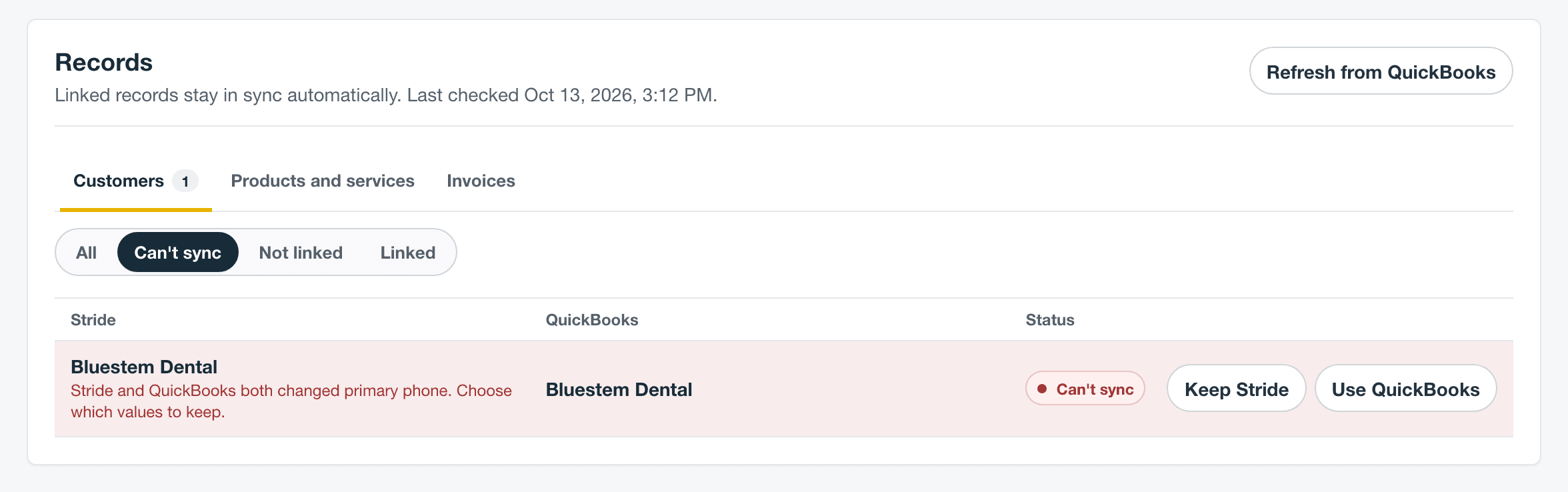
Only the fields in conflict change; changes to other fields in either system are kept. A new billing address from QuickBooks updates the customer’s billing location in Stride. Stride sends only the billing location to QuickBooks; a customer’s other locations stay in Stride.
Fix sync problems
When something can’t sync, the QuickBooks page shows Needs attention and a count, such as 2 customers couldn’t sync. Select Review to open Records with Can’t sync chosen. Each row gives the reason under the Stride name.
Records has four tabs: Customers, Products and services, Invoices, and Estimates. Only the account owner can act on customers and products. On Invoices, owners and administrators can select Retry, and Open invoice opens the Stride invoice so you can see which one it is.
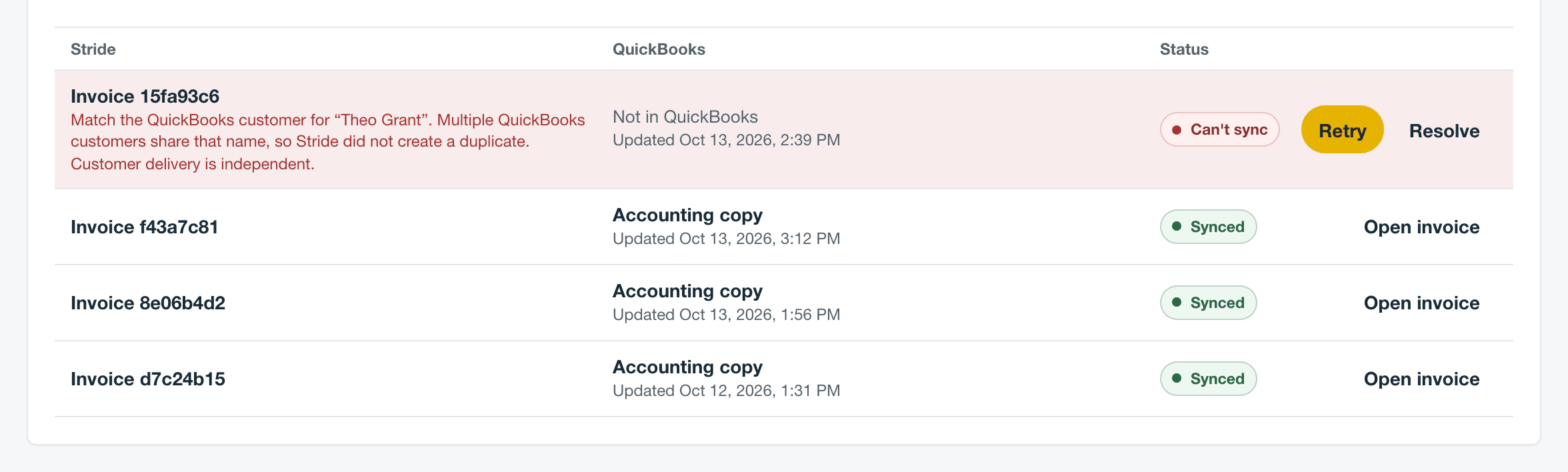
| What you see | What it means | What to do |
|---|---|---|
| A customer with “Stride and QuickBooks both changed …” | The same field changed in both systems, or a customer you linked at setup differs between them. | Select Keep Stride or Use QuickBooks. |
| A customer with “QuickBooks already uses … for …” | QuickBooks has a customer, vendor, or employee with that name, maybe an inactive one. | If it’s the same customer and Match suggested is offered, select it. Otherwise select Set QuickBooks name, enter a name to use only in QuickBooks, and select Save and retry. Stride keeps its own name. |
| Reactivate or remap it in QuickBooks | The linked customer was made inactive in QuickBooks. Stride keeps it active, but its new invoices don’t sync. | Make the customer active in QuickBooks again. |
| Keep this Stride customer linked | QuickBooks merged two customers that were linked to different Stride customers. Stride didn’t merge them. | Select Keep this Stride customer linked on the one to keep linked. |
| Any other customer with Can’t sync | QuickBooks refused the customer, or was briefly unavailable. The reason is under the Stride name. | Fix what the reason names, then select Retry sync. |
| Only in QuickBooks | A product added in QuickBooks after setup, or a new QuickBooks customer Stride didn’t add on its own. The row says why: Stride already has a customer with that name, the customer is inactive in QuickBooks, or a detail such as the billing state can’t be used in Stride. | Select Bring into Stride, Match suggested if Stride has one with the same name, or Ignore. If a detail can’t be used, fix it in QuickBooks and Stride adds the customer the next time it hears about it. |
| Only in Stride | A customer or product that isn’t in QuickBooks yet. | Select Sync now for a customer or Send to QuickBooks for a product, Match suggested if QuickBooks has one with the same name, or Ignore. |
| An invoice with “Match the QuickBooks customer …” or “Match the QuickBooks item …” | QuickBooks has more than one active record with that name, or the name is taken by an inactive record, a vendor, or an employee, so Stride didn’t create another. | In QuickBooks, merge or rename the extra records, or make the inactive one active again, so exactly one active record has that name. Then select Retry. Resolve opens the customer or product in Records. |
| An invoice with “Choose an existing QuickBooks sales item for one-off invoice lines …” | No item for one-off invoice lines is chosen, or it’s gone from QuickBooks. | Under Accounting defaults, select Edit, choose the item, and select Save changes. Waiting invoices sync on their own. |
| An invoice with “QuickBooks returned tax …” or “QuickBooks returned a total …” | QuickBooks’ tax or total didn’t match Stride’s. Stride’s totals don’t change. | Check the tax group and which items are taxable in QuickBooks, then select Retry. If it happens again, contact support. |
| An invoice with “Reconnect QuickBooks, then retry this invoice.” | QuickBooks signed Stride out. | Reconnect, then select Retry. |
| Retrying | QuickBooks was briefly unavailable. | Wait. If it turns Can’t sync, select Retry. |
| An invoice with “Stride could not create the QuickBooks accounting copy …” | QuickBooks refused the copy for another reason. | Check the invoice’s customer, items, and tax, then select Retry. If it keeps failing, contact support. |
- Match suggested links only records with the same name. To link two with different names after setup, rename one so the names match, select Refresh from QuickBooks, then Match suggested.
- Refresh from QuickBooks pulls the latest customers, or products and services, from QuickBooks. Products added in QuickBooks show up only after a refresh.
- Ignore hides a record for good. Ignored records don’t show under any filter, and there’s no undo. Ignoring doesn’t stop an invoice from linking or creating that record by name.
Reconnect, cancel setup, or disconnect
Only the account owner can do these. If QuickBooks signs Stride out, the QuickBooks page shows Needs attention and Reconnect QuickBooks, and nothing syncs until the owner reconnects.
- Select Reconnect QuickBooks, then select Reconnect QuickBooks again on the setup page.
- Sign in with Intuit and choose the same company.
- On the QuickBooks page, under Records, select Invoices and Can’t sync, and select Retry on each invoice that was waiting.
Your setup and accounting defaults stay, and customers catch up on their own. Reconnecting turns off sending field mappings; see After you reconnect QuickBooks. If you choose a different company, setup starts over and your field mappings are archived.
Cancel setup. Before sync is on, select Cancel setup on the QuickBooks page, then Cancel setup to confirm. Stride signs out of the company and forgets the choices from this setup. Nothing is deleted from Stride or QuickBooks, and customers already sent to QuickBooks stay there. Invoices Waiting for QuickBooks become Stride only. Cancel and connect again to have Stride read the company from scratch.
Disconnect. With sync on, open More QuickBooks actions, the three dots beside the refresh button, and select Disconnect QuickBooks, then Disconnect. Stride stops sending customers and invoices and signs out of the company. Invoices not yet in QuickBooks become Stride only. Nothing is deleted in either system, and links and activity are kept. To connect again, you go through setup again.
- Finish disconnecting QuickBooks means the last step didn’t finish. Select Finish disconnecting before you connect again.
- If a notice asks you to revoke Stride in QuickBooks, remove Stride from the apps connected to your QuickBooks company.
- There’s no disconnect while the page says Reconnect QuickBooks. Reconnect first, then disconnect.
- If your account loses the Operations plan, sync stops and the page shows Setup not finished. Your links, choices, and history are kept. Once Operations is back, select Continue setup, check your matches and accounting choices, and select Turn on sync. To disconnect in the meantime, select Cancel setup.
Questions
Does Stride work with QuickBooks Desktop? No. Stride connects to QuickBooks Online only.
Will my customers get two emails? No. Stride emails the invoice. QuickBooks gets an accounting copy and doesn’t send anything.
Do payments sync? Yes, both ways. Mark an invoice paid in Stride, and Stride records the payment in QuickBooks. Record a payment in QuickBooks, and Stride marks the invoice paid on its own.
Will invoices I sent before connecting go to QuickBooks? No. They stay Stride only. Only invoices finalized or sent after you connect are sent.
Can an administrator set it up? No. Only the account owner can connect QuickBooks and change its settings. Administrators can see the QuickBooks page and retry invoices that couldn’t sync.
Can I connect two QuickBooks companies? No. Each Stride account connects one QuickBooks company. To move a company to another Stride account, disconnect it from the first one.
What happens to a customer I add in QuickBooks later? Once sync is on, Stride adds it as a new customer and links the two when QuickBooks tells Stride about it, by the next daily check, or when you select Refresh from QuickBooks in Records. Activity shows Customer added from QuickBooks. It waits in Records as Only in QuickBooks instead when Stride already has a customer with the same name, it’s inactive, or a detail can’t be used in Stride. Customers you ignored stay ignored.
If I change a product’s price, does QuickBooks update? No. Product and service changes don’t sync either way after they’re linked. Change it in both places.
What about QuickBooks sub-customers? Stride reads each one as its own customer, under its own name. Link it, add it as new, or leave it out like any other customer.
Why did my invoice number skip ahead? Stride skips numbers already used by QuickBooks invoices it knows about, such as the ones listed as Only in QuickBooks in Records, so the two don’t clash.
Can I change the income account or tax group later? Yes. On the QuickBooks page, select Edit under Accounting defaults.
Need help connecting QuickBooks? Email us.