How the clock works
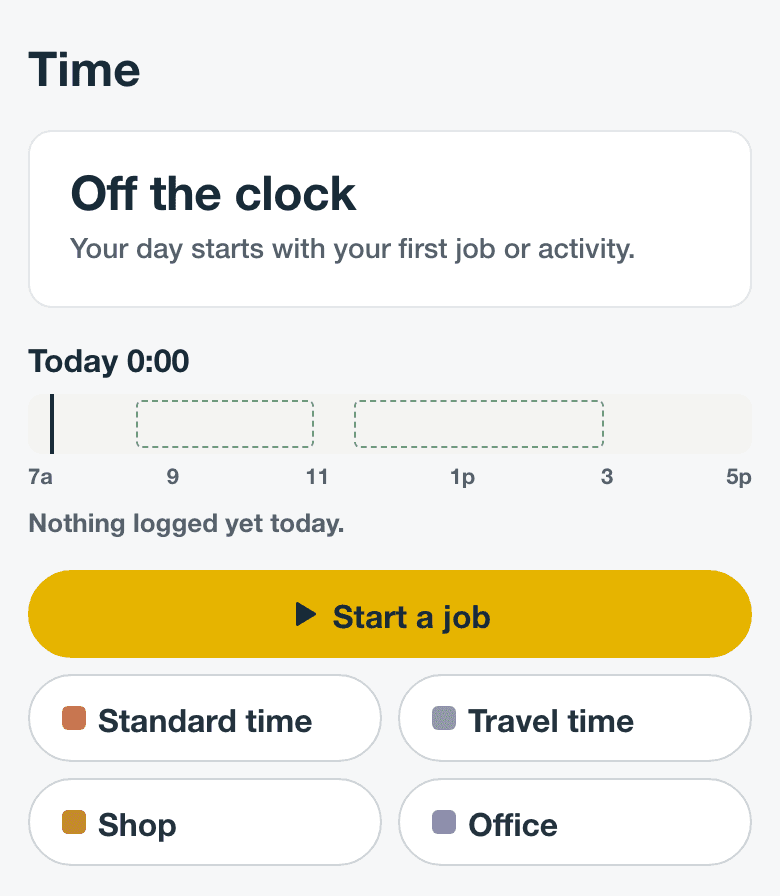
- Your day starts when you start your first job or other work, such as Shop.
- Every minute from then until End day counts toward your hours, except a break.
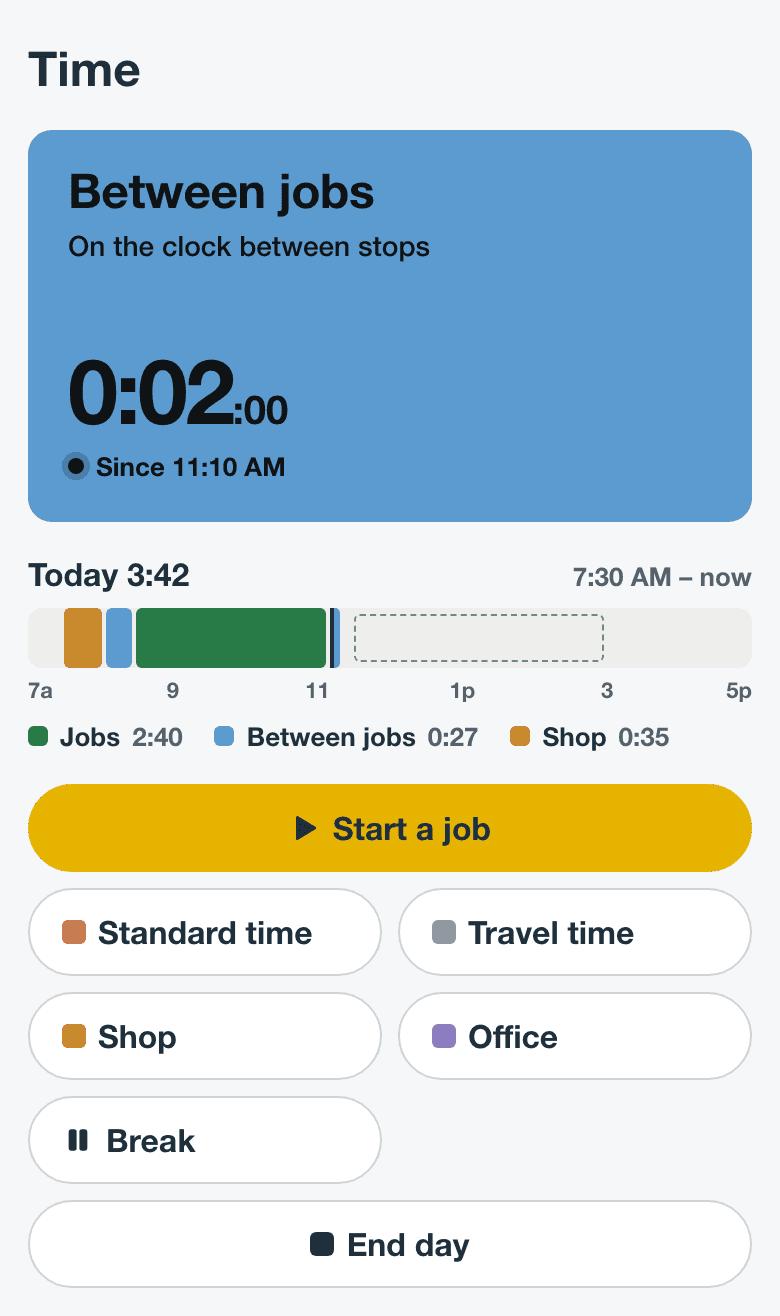
- When you stop a job, Between jobs starts on its own. You never pick a travel or drive type.
- Only one thing runs at a time. Starting something new ends what was running, with no prompt.
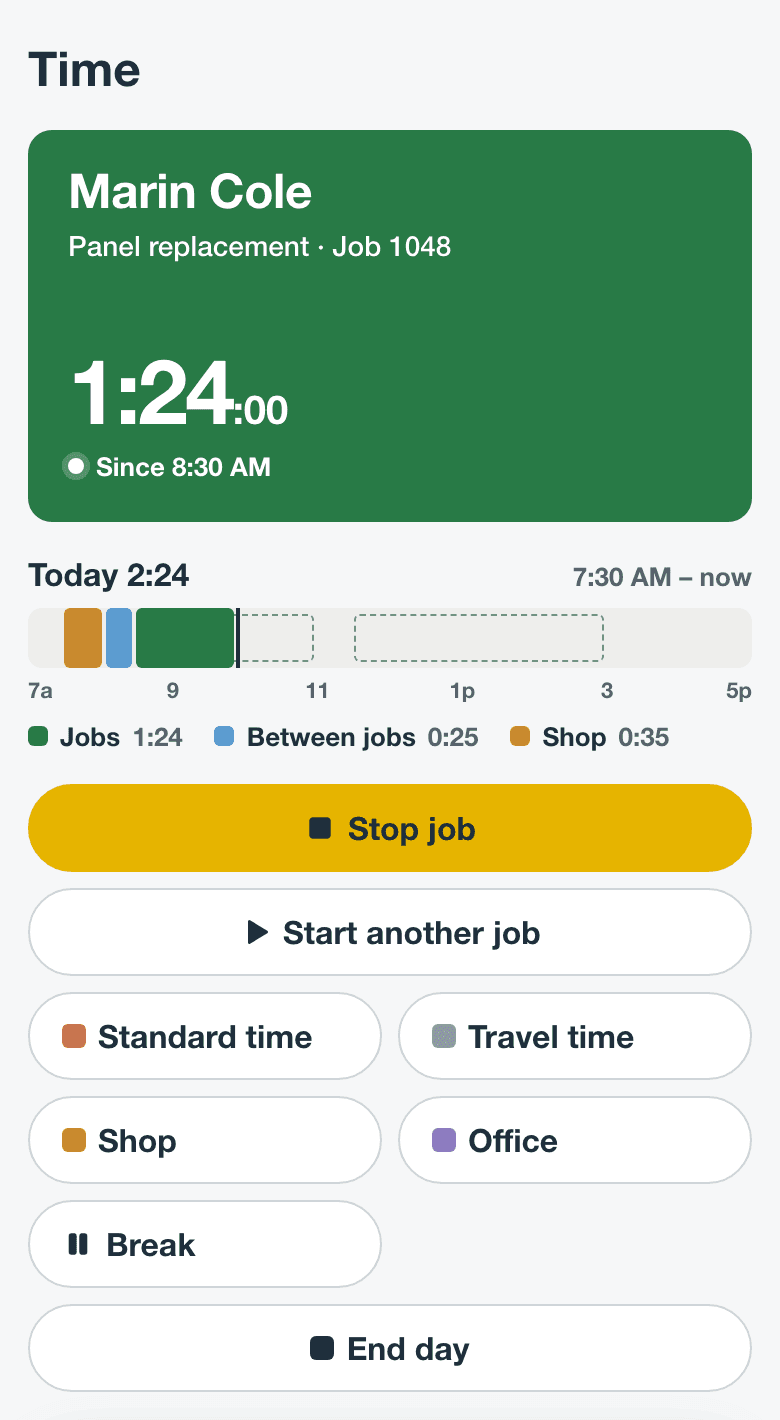
On a phone, Time is a tab beside Calendar, in the app and in the browser. The big card shows what you’re on and for how long. The bar under it shows your day so far, with your scheduled visits outlined.
On a computer, open Time from the menu. Your clock is at the top right. Select Start day, or Switch once you’re on the clock, to see the same choices.
Start your day
- On Time, select Start a job.
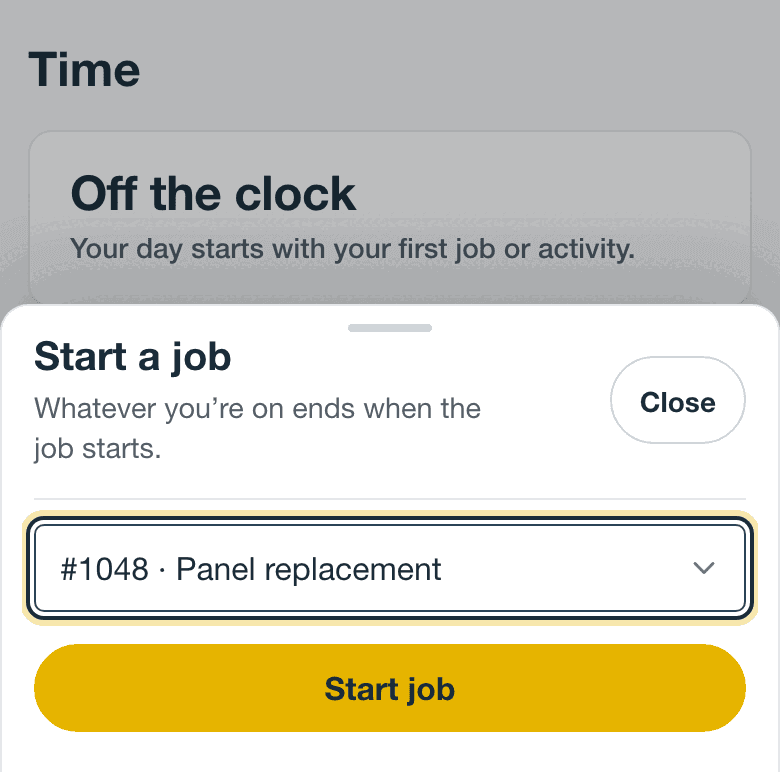
- Choose the job. Your visits for today are listed first under Visits that day, nearest to now first. To find another job, search by number, title, or customer.
- Select Start job. If you have a visit on that job today, the time goes on that visit.
You can also start from the job itself. Open the job and select Start standard time, or the arrow beside it to choose another type. If you’re already on the clock, the job says what you’re on, and starting the job switches to it.
If your day starts somewhere else, such as the shop, start that instead. See Shop, office, and other work.
Drive to the next job
- When the work is done, select Stop job. Between jobs starts at the same moment.
- Drive, load the van, or pick up parts. The clock keeps running, and it counts toward your hours.
- At the next job, select Start a job and choose it. Between jobs ends when the job starts.
If a stretch of Between jobs was really shop time or a supply run, change it once it has ended. Under Time entries, select Relabel on that stretch, then choose what it was.
Travel time bills the customer only when it’s on a job, so start it from the job. When you open directions from a job, Stride may ask Start travel time? Select Yes, start travel only if the customer pays for that drive. Otherwise select No, open map. The map doesn’t change what’s running, so when you leave a job, select Stop job before you open directions. Travel time started from Time isn’t on a job, so it counts toward your hours but isn’t billed.
Shop, office, and other work
Work that isn’t on a job has its own buttons on Time, such as Shop or Office if your account has them. Select one to switch to it. It runs until you start something else or end your day. It counts toward your hours, and it never goes on an invoice.
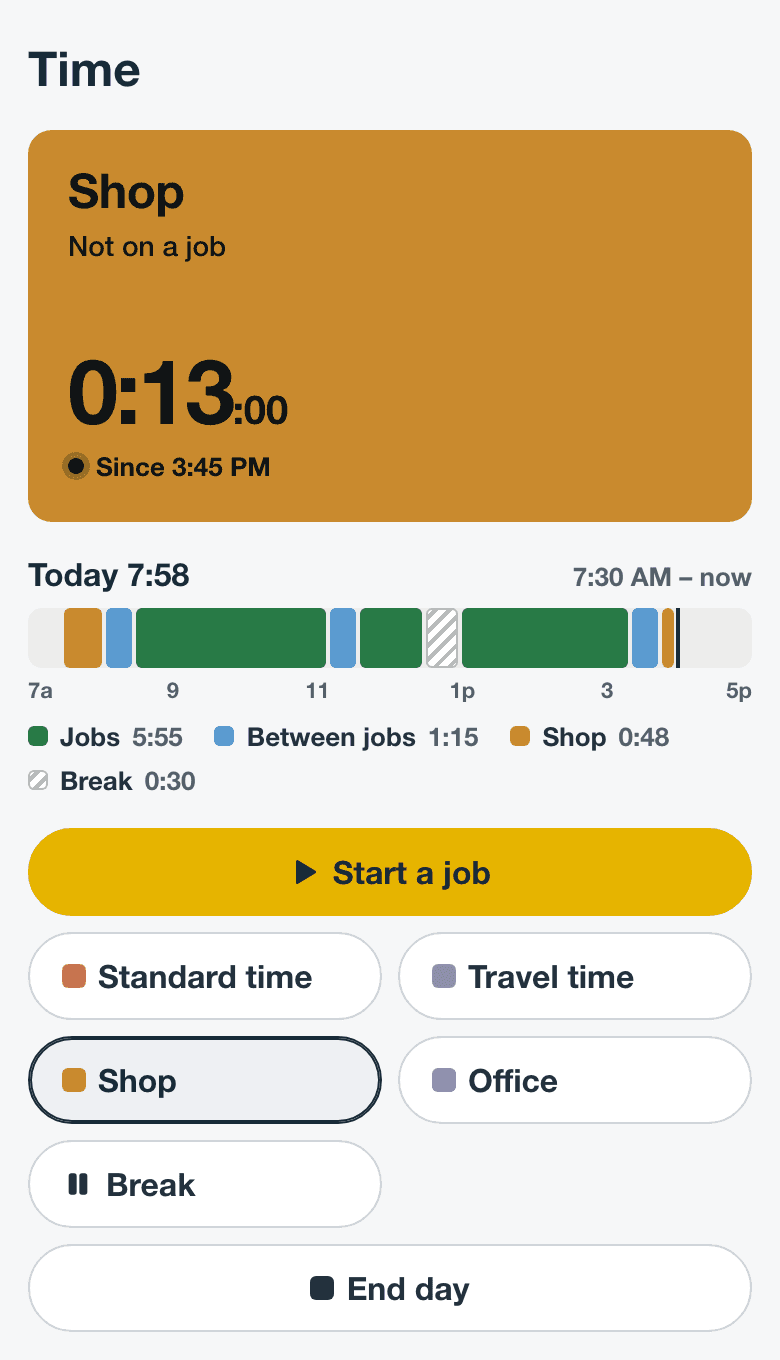
Your account can add its own types, such as Training or Warranty work. See Add your own time types.
Take a break
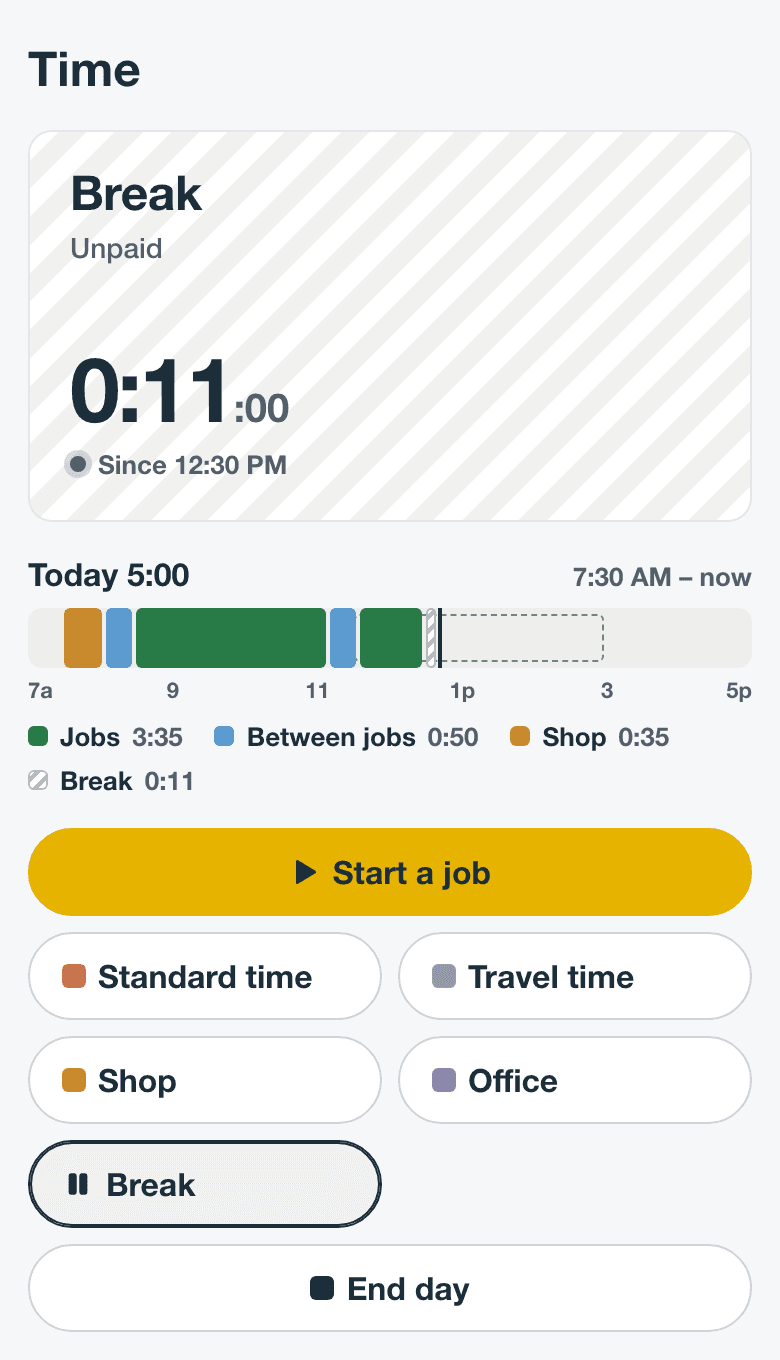
Select Break when you stop for lunch or take another break. Break is the only time left out of your hours, and Stride never takes one out on its own. When you’re back, start a job or other work and the break ends.
End your day
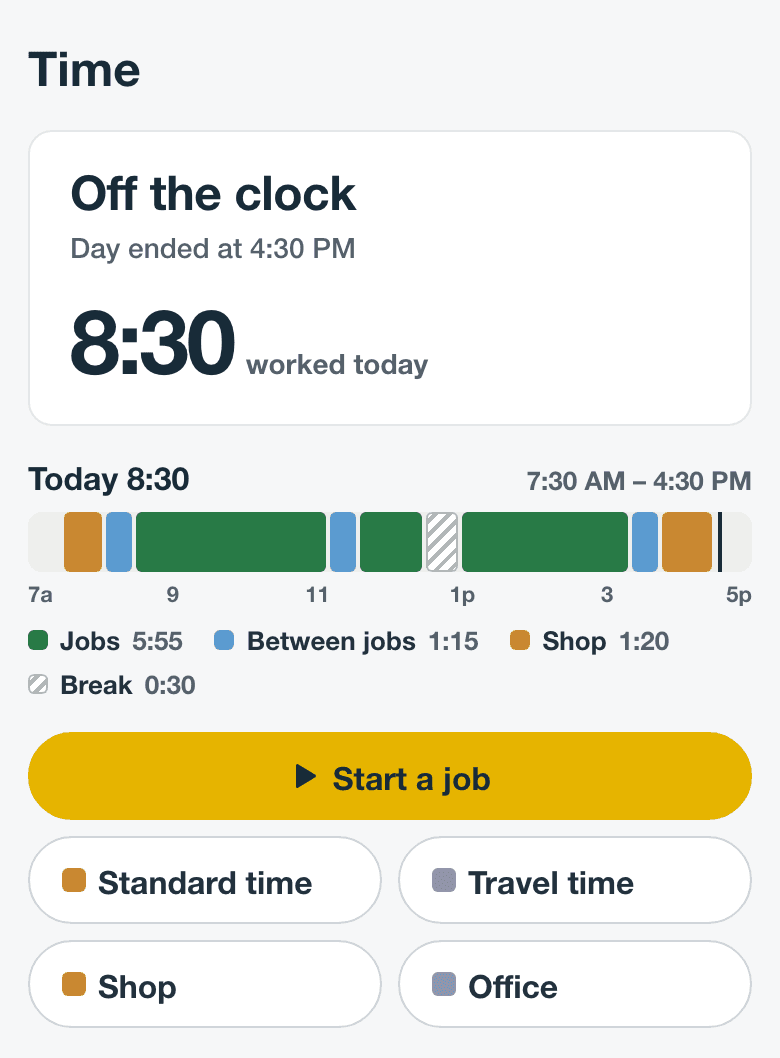
Select End day on Time. Whatever you were on stops, and nothing starts after it. The card shows when your day ended and how many hours you worked.
On other screens, the timer bar shows what you’re on. In the app, tap the bar to open On the clock, which has Stop job when you’re on a job, End day, and Open Time. In a browser, select Your day on the bar, then End day.
Ending your day doesn’t lock it. You can still fix it afterward.
If you forget to end your day
At midnight in your account’s time zone, a day that’s still running closes on its own. Stride doesn’t guess when you stopped, so whatever you were still on isn’t counted yet. Until you answer, that time isn’t in your hours and can’t go on an invoice.
The next time you open Stride, it asks “When did you stop yesterday?” and offers when your last job or activity ended and when your last visit was due to end.
- Choose one of the times, or select Another time and enter it under Stopped at.
- Select End day at that time.
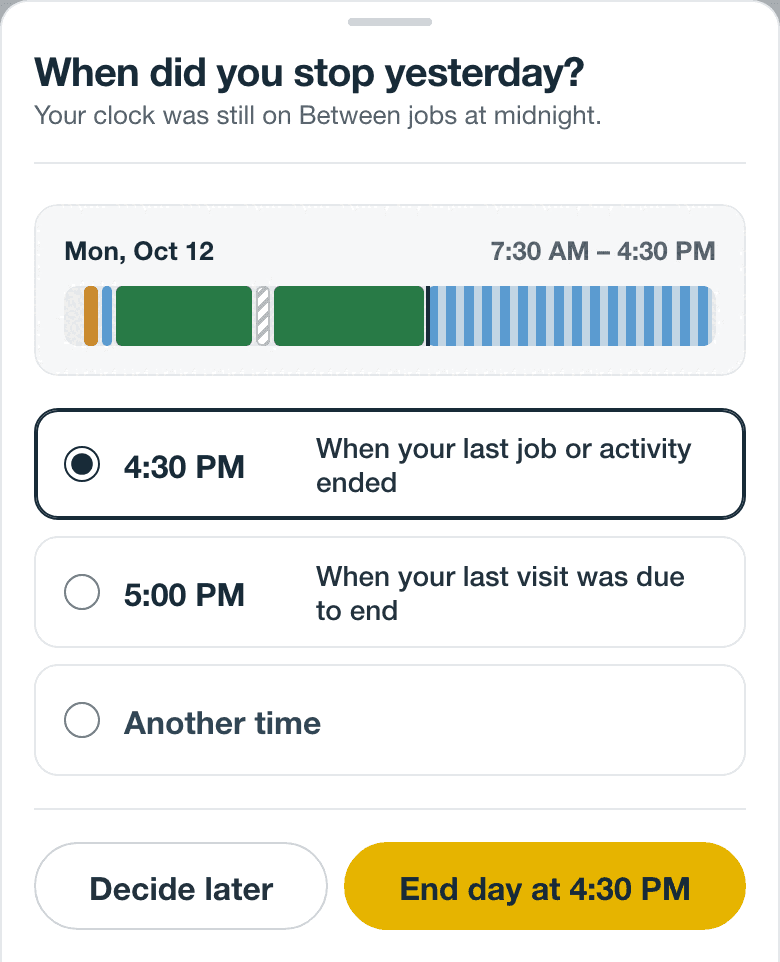
Not sure yet? Select Decide later. Time keeps a notice with Set when you stopped until you answer.
Fix your time
Started a job late, or forgot to switch when you got to the shop? Fix the day instead of adding time.
- On Time, select the day in your week. A panel opens with the day in order, each activity with the time it started.
- Select the time to change.
- Select −5 or +5, or enter the right time and select Set.
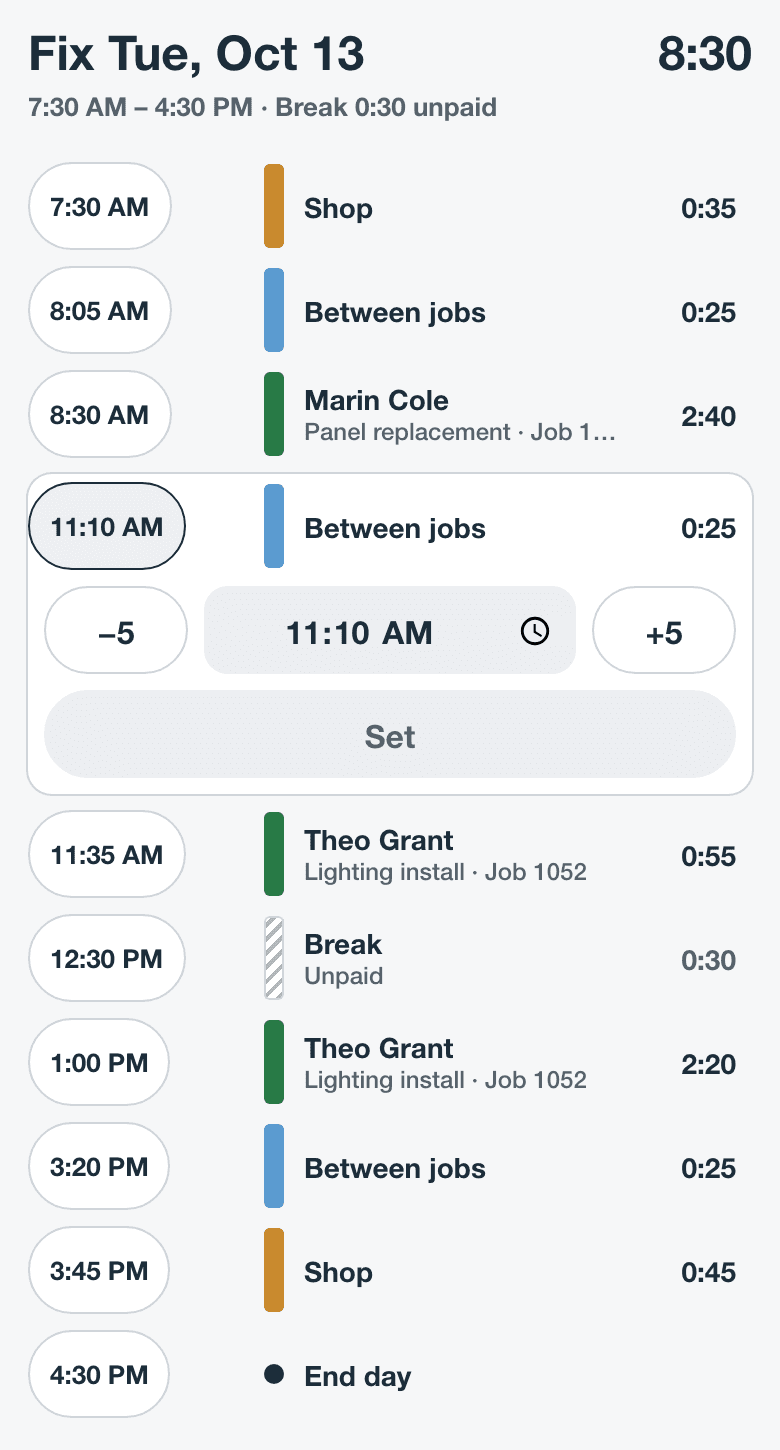
Each time is shared by the activity before it and the one after it, so moving it changes both. A fix never leaves a gap or an overlap. You can also move the time the day started and the time it ended.
- What can’t move: time on a sent invoice, until the invoice is voided, and time on a canceled or deleted job. Stride says why when a time can’t move.
- Forgot a whole stretch? Select Add past time under Time entries, choose the type and, if it was on a job, the job, and set the start and end.
- To change or remove an entry, select the pencil beside it under Time entries.
Questions
Is driving between jobs counted? Yes. It’s Between jobs, and it counts toward your hours like any other work.
Do I choose overtime? No. Stride calculates overtime on hours past 40 in your workweek on its own, so overtime, double time, and holiday time aren’t choices for new time.
Who sees my time? You, plus your account’s owners, administrators, and schedulers. They can fix your day, set when you stopped, or end your day if you forgot.
Worked past midnight? Pick 12:00 AM as when you stopped, then add the time after midnight with Add past time, next to Time entries.
Something look wrong? Email us.