How time type rates work
Without the workday, each person has a billable rate and a cost rate per hour, and a time type sets what its hours bill and cost as a percent of those rates. 100% is their regular rate, and 150% is time and a half. With the workday, a time type sets only its bill rate. See On workday accounts.
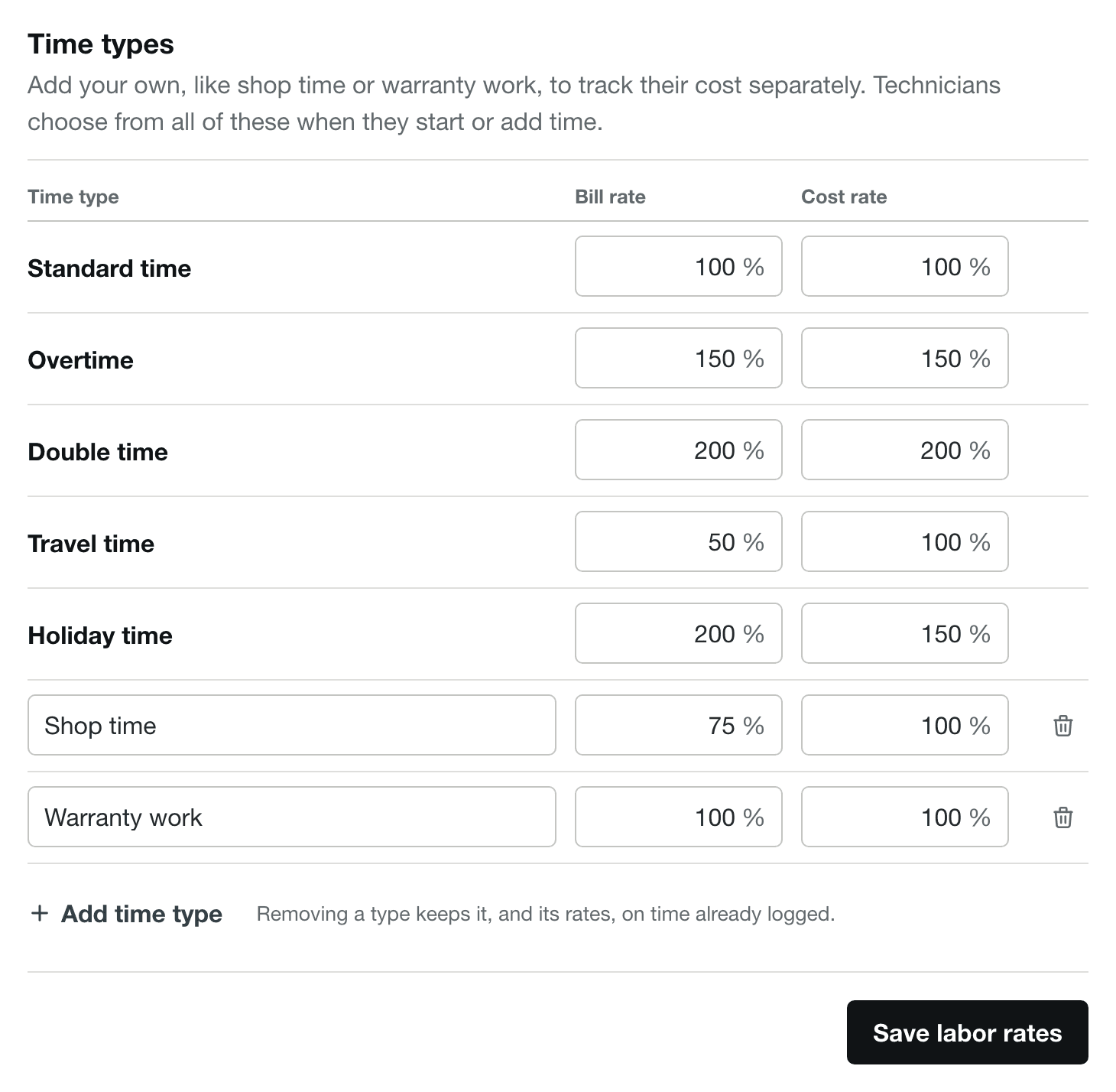
| Time type | Bill rate | Cost rate | One hour bills | One hour costs |
|---|---|---|---|---|
| Standard time | 100% | 100% | $100 | $60 |
| Overtime | 150% | 150% | $150 | $90 |
| Shop time | 75% | 100% | $75 | $60 |
Set a person’s billable and cost rates on the Team page.
Add a time type
Account owners and administrators can add time types.
- Go to Settings, then Services and billing, then Labor rate multipliers. With the workday, this page is Labor rates.
- Under Time types, select Add time type.
- Enter a name, such as “Shop time”.
- Enter its Bill rate as a percent. Without the workday, also enter its Cost rate. New types start at 100%.
- Select Save labor rates.
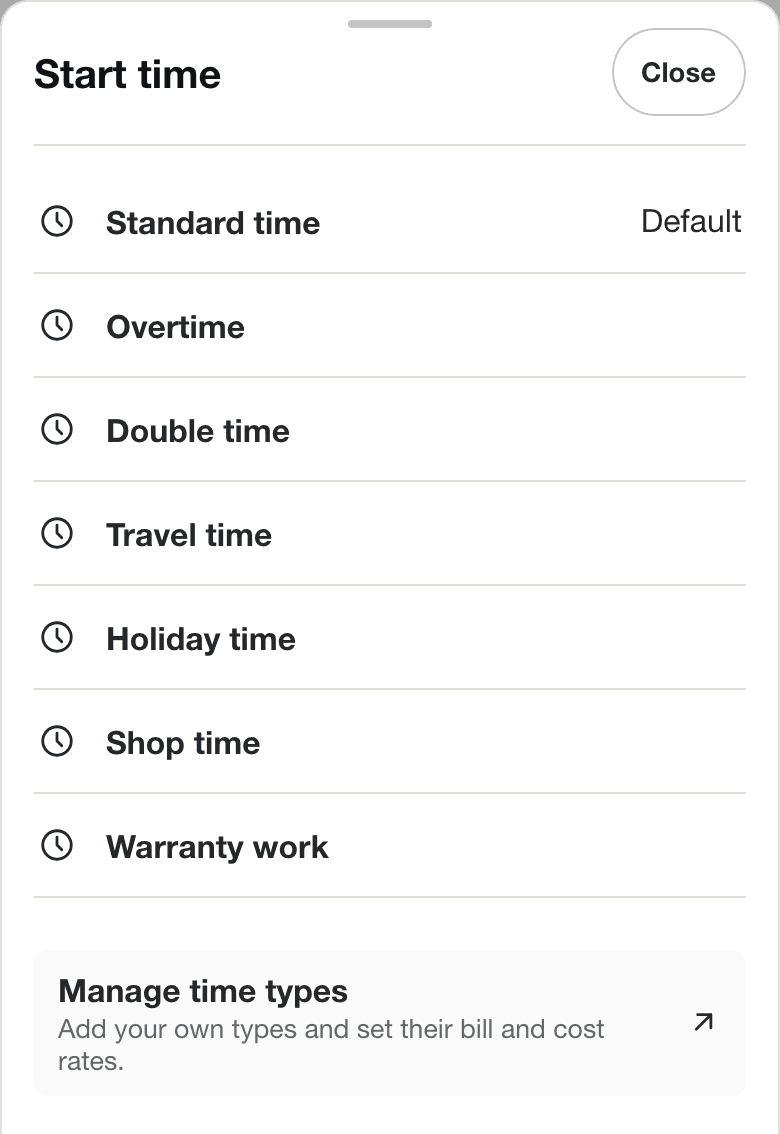
On a job, an owner or administrator can also open the time type list and select Manage time types to go straight to this page.
Log time with your time types
Your time types appear after the built-in ones wherever someone chooses a type, on a job or not.
- Start a timer: on the job, select the arrow beside Start standard time, then choose the type.
- Add or correct past time: open the job’s time, select Add past time or edit an entry, and choose the type under Type.
- Time that isn’t on a job: on accounts with the Time page, the same types work there too, so someone can clock in for shop time without picking a job. See Track your time.
The running timer and the dashboard show the type’s name. Technicians see only the names, never the rates.
On workday accounts
With the workday, Stride counts overtime from each person’s week and bills after-hours work by the clock. So time types only say what the work was.
- Overtime, double time, and holiday time aren’t offered for new time. Stride calculates overtime on hours past 40 in the week on its own. Time already logged with one of these types keeps it.
- Between jobs and Break are built in. Between jobs starts when someone stops a job, and Break is the only time left out of hours. Neither appears in the list of time types.
- Settings asks for bill rates only. The steps above still apply, except that the page is called Labor rates and it has no Cost rate column. Each type’s bill rate is the share of the person’s billable rate it bills. Every hour logged on a job costs the person’s cost rate at straight time, so a type’s cost rate doesn’t change job costs for new time.
- The after-hours and holiday rates take the place of the overtime and holiday time rows. See Set up time tracking for billing and payroll.
Your own types appear as buttons on the Time page and in the time sheets. See Track your time.
On invoices and job costs
When you add a job’s time to an invoice, labor lines are grouped by time type, service date, and bill rate. For example, a line might read “Labor - Shop time”. Without the workday, job costs use the time type’s cost rate. With the workday, every hour logged on a job costs the person’s cost rate at straight time. Time that isn’t on a job never goes on an invoice or into job costs.
Change or remove a time type
On the labor rates page, edit a type’s name or rates, or select the trash icon beside it to remove it. Then select Save labor rates.
- Changing a rate applies to time logged afterward. Time already logged keeps the rates it was logged with, and an invoice already drafted or sent keeps its prices.
- Renaming a type changes its name everywhere, including time already logged. Invoice lines you’ve already created keep their wording.
- Removing a type takes it out of the list people choose from. Time already logged keeps its name and rates and can still be corrected. You can reuse the name for a new type later.
Questions
Not sure how to set up a type for your work? Email us and we’ll help.