How each minute counts
| Activity | In hours worked | Billed to the customer |
|---|---|---|
| A job | Yes | Yes, at the time type’s rate |
| Between jobs | Yes | No |
| Shop, Office, and other time that isn’t on a job | Yes | No |
| Break | No, it’s an unpaid break | No |
| Time waiting for a stop time | Not until it’s set | Not until it’s set |
- Hours worked: every minute from a person’s first activity to End day, except Break.
- Billed: only time on a job, priced by the clock once business hours are saved. Between jobs is never spread across jobs.
- Job cost: every hour logged on a job costs the person’s cost rate, at straight time. Overtime shows on the week, not on jobs. Time logged before the workday was on keeps the job cost it had.
People start and stop jobs, and Stride does the rest. Step by step: Track your time.
Everyone’s week at a glance
Owners, administrators, and schedulers can see and change anyone’s time. Everyone else sees only their own. The Time page shows hours only, never rates or pay.
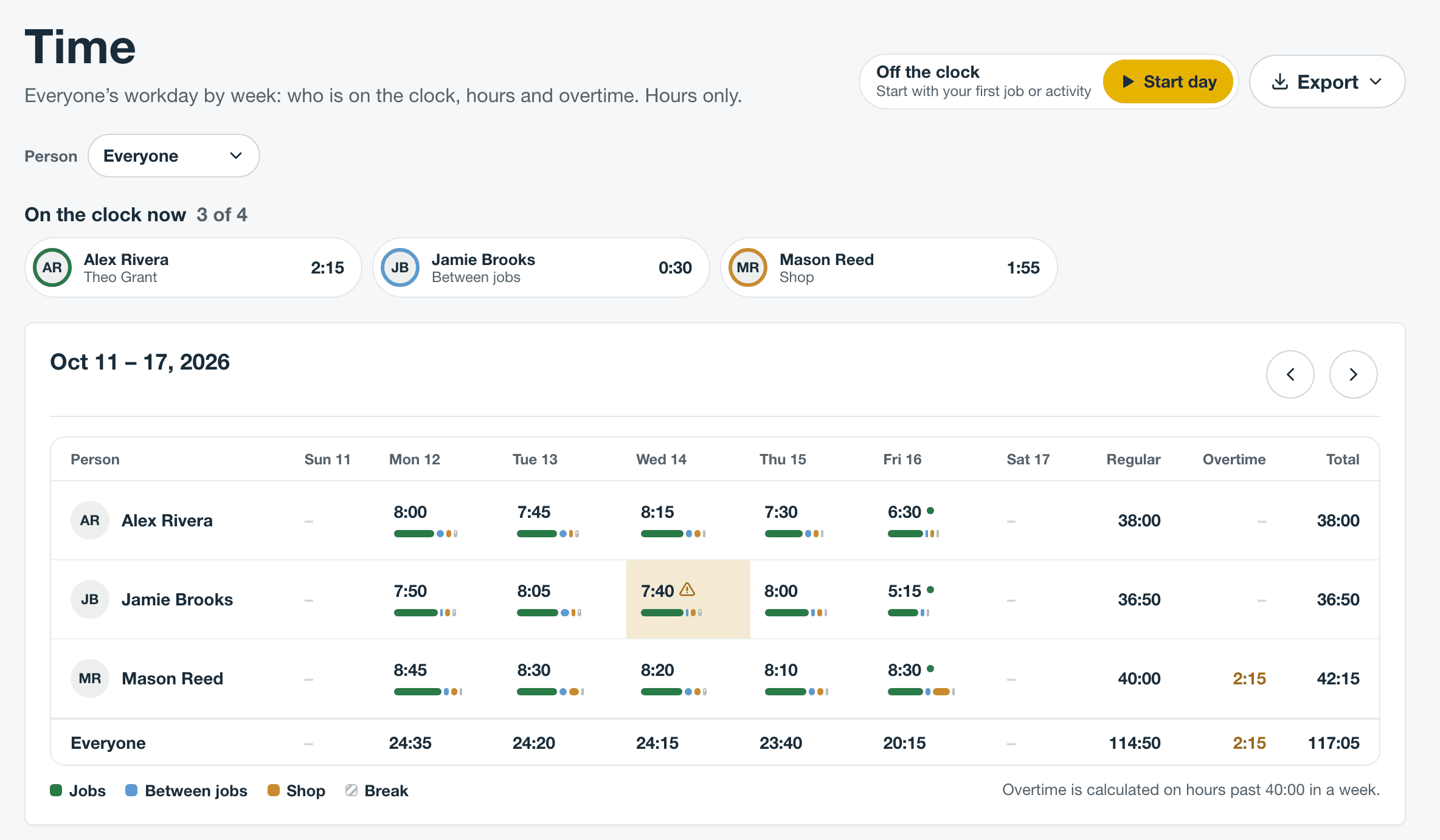
- Open Time.
- Under Person, choose Everyone, Your time, or one person.
- On the clock now lists who’s working, what they’re on, and for how long.
- With Everyone chosen, each person’s hours show by day, with Regular, Overtime, and Total for the week.
- A warning sign marks a day that still needs its end time.
- Select a day to open that person’s week with the day ready to fix.
If someone forgot to end their day, choose them under Person and select End day for and their name, such as End day for Jamie Brooks. Stride asks first, then stops their clock.
Drive time and shop time
When someone stops a job, the clock keeps running as Between jobs until they start the next thing. Driving, loading the van, and picking up parts are counted in hours without anyone choosing a type. Between jobs never goes on an invoice.
Stride doesn’t come with Shop or Office. Add them, and any other kind of work that isn’t on a job, such as Training, as your own time types; see Add your own time types. Each one gets its own button on Time. They count toward hours and are never billed. If a stretch of Between jobs was really shop time, anyone who can change that time can relabel it under Time entries.
Travel time is still a time type, and on a job it bills at its own rate. Use it only for drives you charge the customer for.
Forgotten clock-outs
A day that’s still running at midnight in your account’s time zone closes there on its own. Stride doesn’t guess when the person stopped, so what they were still on isn’t in hours or billable until someone sets the real stop. The next time they open Stride, it asks them when they stopped.
You can set it for them. Choose the person under Person and select the button with their name, such as Set when Jamie Brooks stopped. Choose a time, and select End day at that time.
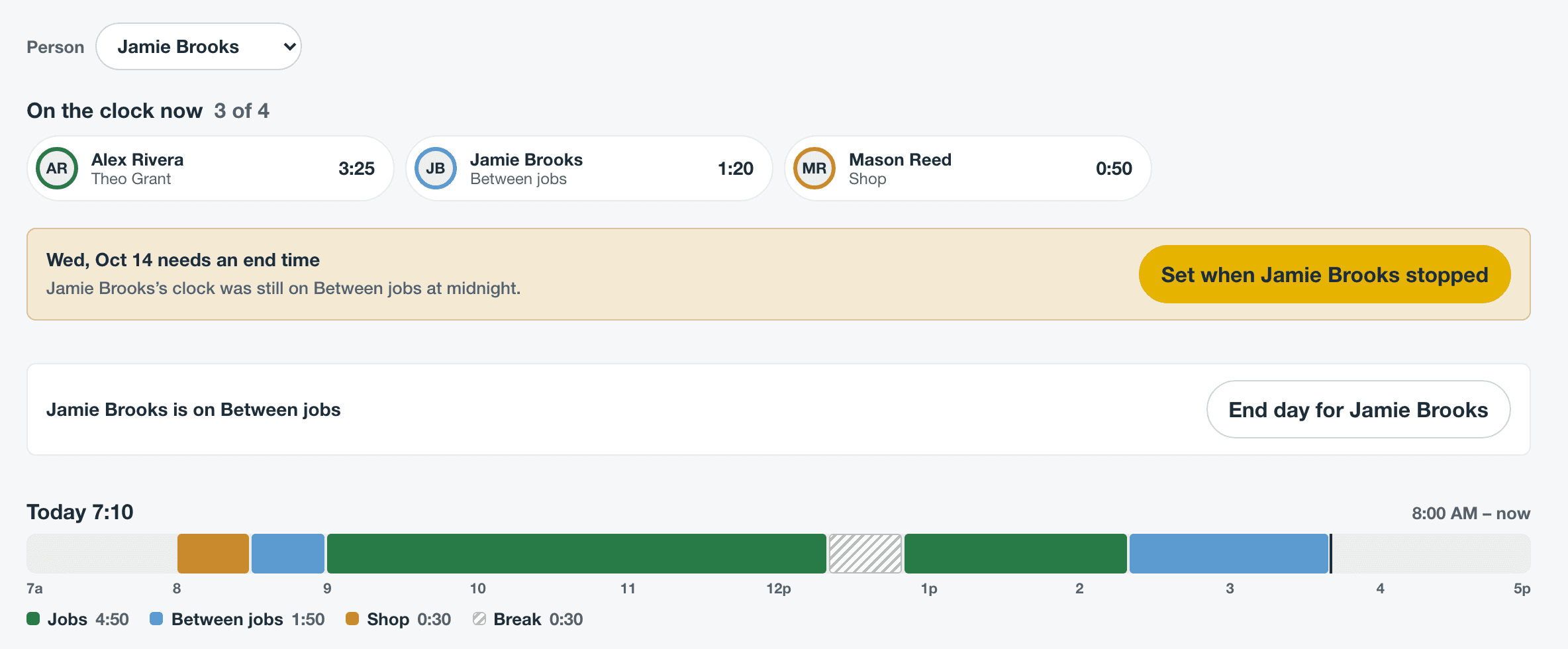
Look at Everyone each morning for days marked with a warning sign, and set them before you export or invoice.
To fix any other part of someone’s day, such as a job they started late, choose them and select the day in their week. Moving a time changes the activities on both sides of it, so the day never gets a gap or an overlap. Time on a sent invoice and time on a canceled or deleted job can’t move.
Bill evenings at evening rates
Set your business hours once. Job time outside them bills at your after-hours rate, and job time on one of your holidays bills at your holiday rate. Nobody picks a rate.
- Labor splits by the minute. A visit that runs past closing bills its first part at the standard rate and the rest at the after-hours rate.
- If both rates apply, the higher one wins. Rates never stack.
- The time type’s own bill rate still counts. Travel time that bills at 50% bills half the after-hours price after hours.
- Job costs stay at straight time. The after-hours rate changes what you bill, not what the hour costs.
| Invoice line | When | Hours | Rate | Amount |
|---|---|---|---|---|
| Labor - Standard | Thu 4:00–5:00 PM | 1 | $120.00 | $120.00 |
| Labor - Standard, after-hours rate | Thu 5:00–6:30 PM | 1.5 | $180.00 | $270.00 |
Set your rates and business hours
Account owners and administrators can change these.
- Go to Settings, then Services and billing, then Labor rates.
- Under After-hours and holiday rates, enter the After-hours rate and the Holiday rate as percents of each person’s billable rate. 150% is time and a half. 200% is double.
- Under Business hours, if no hours are set yet, select Weekdays 8–5 or Set your own hours.
- For each day, choose Open and set Opens and Closes. Choose Closed to bill the whole day at the after-hours rate, or Holiday rate to bill it at the holiday rate.
- Select Save labor rates.
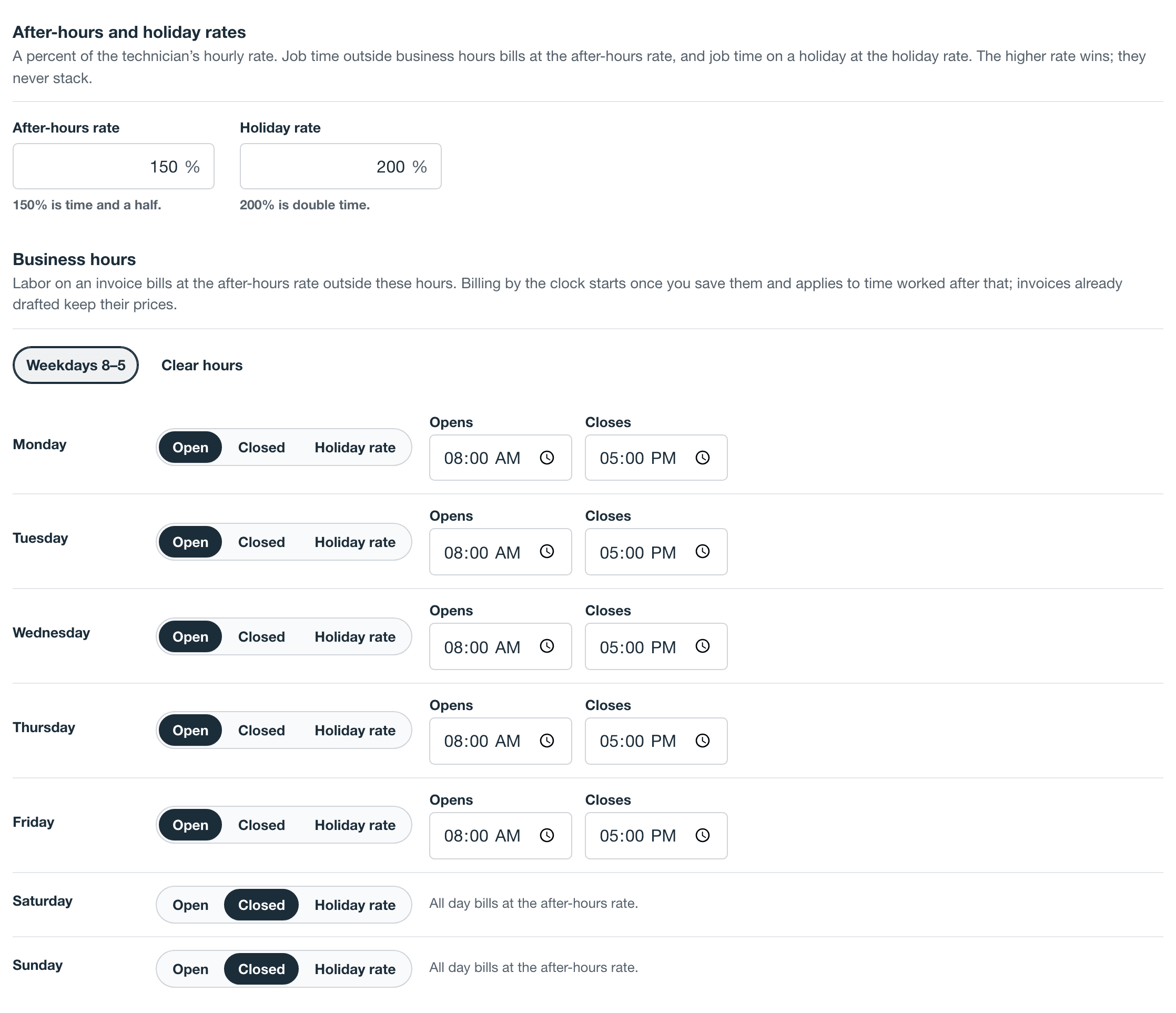
Billing by the clock starts the first time you save business hours. It applies to job time that starts after that. Changing your hours later keeps the same start. To stop billing by the clock, select Clear hours and save. Saving hours again later starts a new clock.
Add holidays
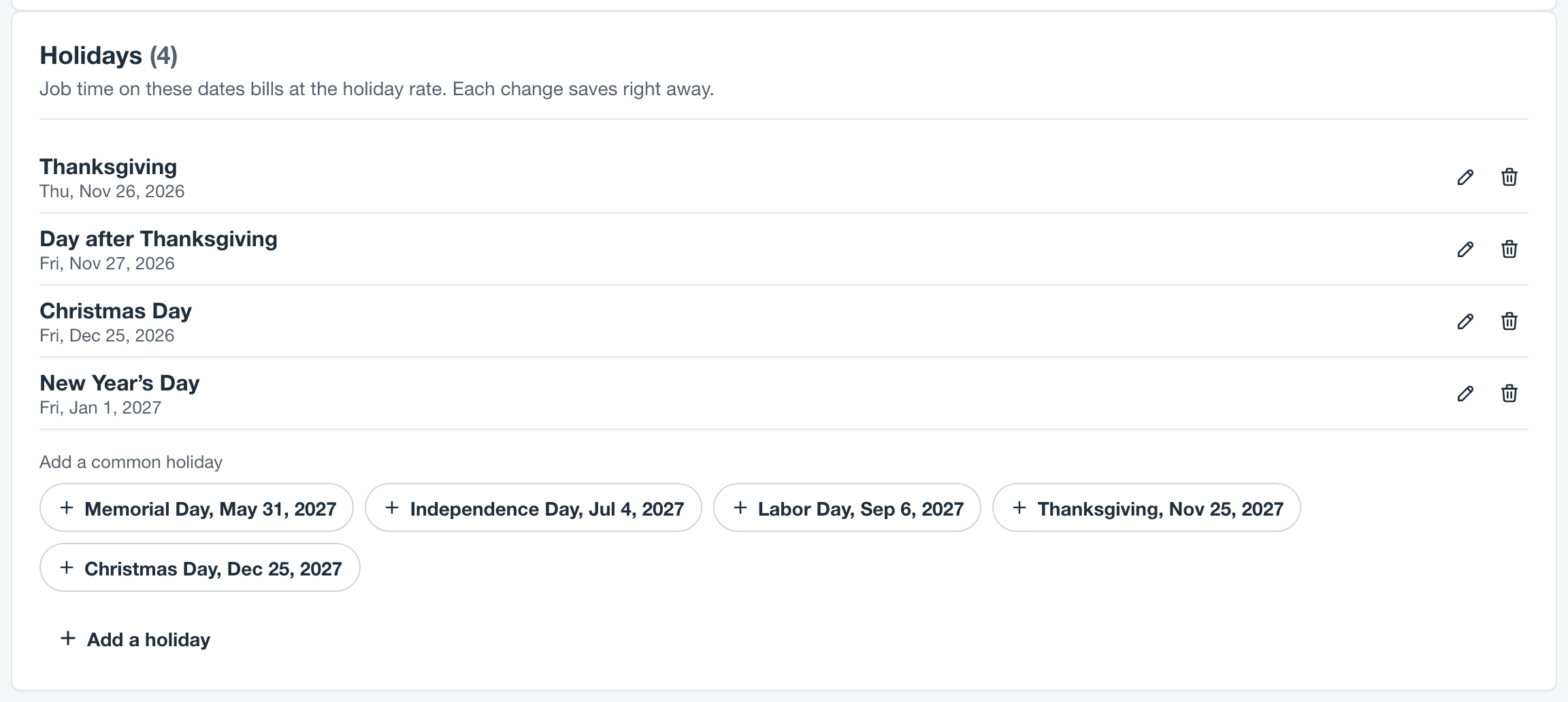
Holidays is below the rates on Labor rates. Each change saves right away.
- Common holidays: under Add a common holiday, select one to add it on its next date.
- Your own: select Add a holiday, enter the Date and Name, and select Add holiday.
- Observed days: if you close on a Friday or a Monday for a holiday, add that date yourself.
- To move a holiday, remove it and add the new date.
Read the labor lines on an invoice
When you add a job’s time to an invoice, Stride splits the labor at your business hours and at midnight. Each labor line shows a tag, Standard, After hours, or Holiday, then when the work happened and, for after-hours and holiday lines, the rate.
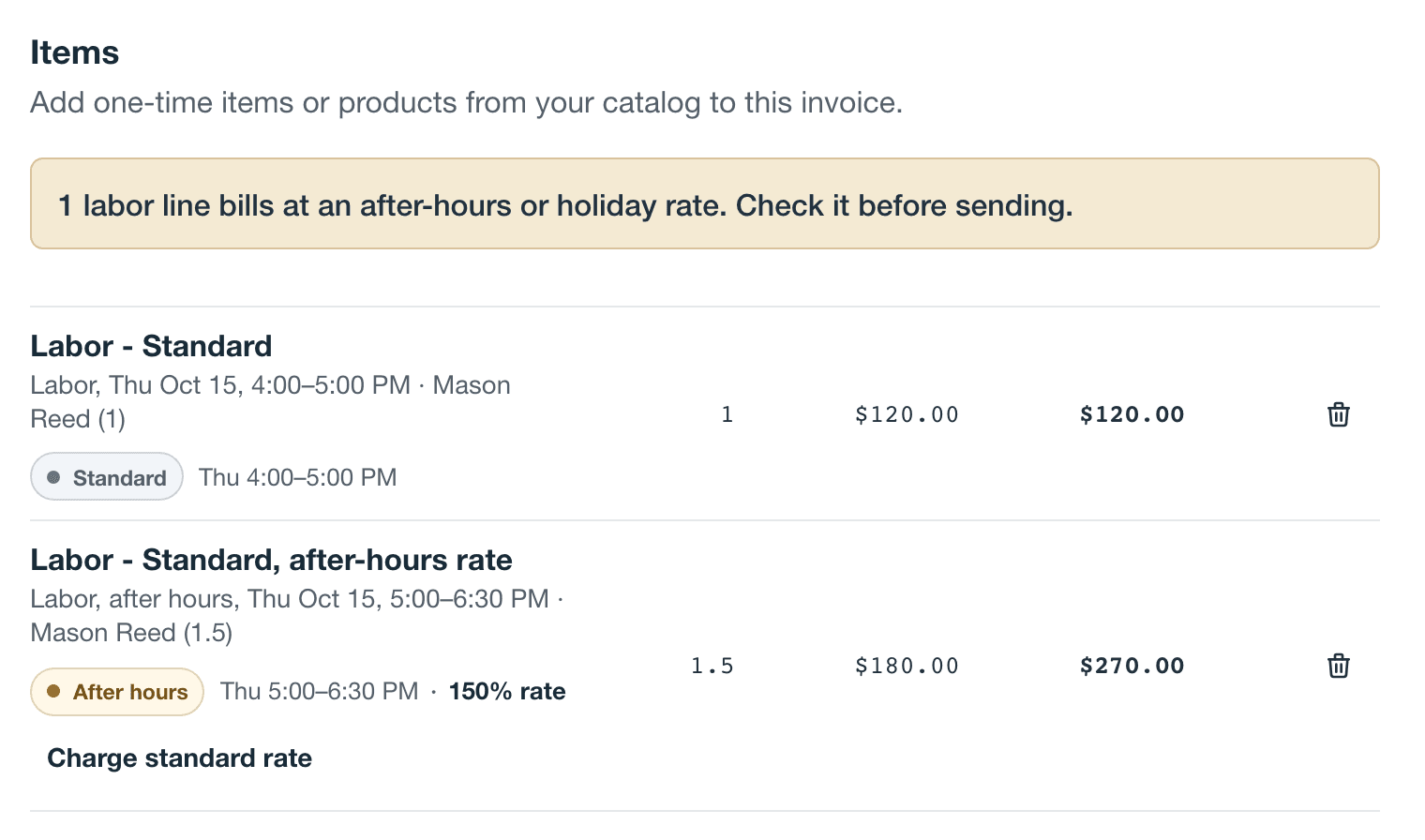
- The notice above the lines counts the lines at an after-hours or holiday rate while the invoice is a draft, so you can check them before sending.
- Priced on save marks labor you just added. Stride splits it when you save the draft.
- Before hours were saved lists job time worked before you first saved business hours. It keeps its earlier price. Add it as its own line.
- The hours on these lines come from the time on the job. To bill fewer hours, change them in Job actuals on the invoice. That changes only what’s billed, not anyone’s hours or the job’s cost. Fix the time itself only when it’s wrong.
Charge the standard rate instead
Sometimes the late finish was on your side, not the customer’s. Anyone who can edit invoices can take the extra off a draft.
- On the draft invoice, find the after-hours or holiday line.
- Select Charge standard rate.
Every after-hours and holiday line from the same hours switches with it. To put the extra back, select Charge after-hours rate or Charge holiday rate.
Customers who never pay after-hours rates
Some customers already pay for the timing, such as members or snow contracts. On the customer’s page, turn off Charge after-hours premium. Their job time priced by the clock then bills at the standard rate. Job time from before the clock started and older Overtime, Double time, and Holiday time entries keep their own prices, as What never reprices explains. It’s on for every customer until you turn it off. Owners, administrators, and schedulers can change it.
What never reprices
- Invoices already drafted or sent keep their prices. Saving business hours or changing a rate doesn’t change them.
- Job time that started before the clock started prices as before, even if it isn’t invoiced yet.
- Rate changes apply when job time goes on an invoice, so a new after-hours or holiday rate reaches job time that isn’t invoiced yet, and never an invoice already drafted or sent.
- Older Overtime, Double time, and Holiday time entries keep their own price on an invoice. Their extra is already in their type.
- Time waiting for a stop time goes on an invoice only after the stop is set.
Payroll in one export
Stride calculates overtime on hours past 40 in a workweek. It counts hours, not pay. Wages and your state’s rules are set in your payroll tool.
- The workweek starts on the day set under Workweek starts on on Labor rates. When it isn’t set, weeks start on Sunday. Match it to your payroll provider’s week.
- Holiday hours are hours worked on one of your holidays. They’re already in Regular or Overtime, and they’re listed so payroll can apply your holiday policy.
- Other overtime rules, such as daily overtime in some states, aren’t applied. Apply them in payroll, using the days on the entry rows.
- Make sure everyone’s day has ended. For anyone still on the clock, choose them under Person and select End day for them. Then set any missing stop times. Time waiting for one isn’t in hours yet.
- On Time, choose the week, and under Person, choose Everyone or one person.
- Select Export, then Time entries (CSV). On a phone, Export is the download button beside the page title. Only owners, administrators, and schedulers see it.
The file has a row for each stopped entry, then a Week total row for each person. Use the Week total rows in payroll. If someone is still on the clock, their Week total counts that running time up to the export, but no entry row shows it until they stop, so end their day first. Hours are decimals, such as 1.50 for an hour and a half.
To see the week’s hours by job instead, choose Weekly report by job (CSV) or Weekly report by job (PDF) under Export. Each customer’s jobs are listed with their hours for each day, split by time type, and the week’s total. The PDF has your company logo and colour, like your invoices and estimates.
| Column | Entry rows | Week total row |
|---|---|---|
| Person | Whose time it is | The person |
| Date | The day the entry started | The first day of the workweek |
| Start and End | Clock times, such as 08:30 and 11:10 | Empty |
| Hours | The entry’s length | Empty, so adding up the column never counts a week twice |
| Time type | Such as Standard time, Between jobs, Shop, or Break | Week total |
| Job number and Customer | For time on a job | Empty |
| Note | Unpaid break, Waiting for stop time — not in hours yet, and the person’s own note | The workweek’s dates and notes, such as a running timer counted up to the export or hours still waiting for a stop time |
| Regular hours | Empty | Hours up to 40 |
| Overtime hours | Empty | Hours past 40 |
| Holiday hours | Empty | Hours on your holidays, already in Regular or Overtime |
Questions
Does Stride run payroll? No. Export the week and pay in the payroll tool you already use.
Can I charge more for evenings and weekends? Yes. Set your business hours, and job time outside them bills at your after-hours rate. Mark Saturday and Sunday Closed to bill weekends that way.
Do I still need the Overtime time type? No. New time doesn’t offer Overtime, Double time, or Holiday time. The week counts overtime, and the clock prices after-hours and holiday work.
Will people actually use it? It’s a few taps on the phone they already carry: start a job, stop it, end the day.
Is drive time counted? Yes. Driving between jobs is Between jobs, so it’s in each person’s hours. How it’s paid is up to your policy and your state’s rules. See Drive time and shop time.
What if someone forgets to clock out? The day closes at midnight, and Stride asks them when they stopped. You can set it for them.
Want help setting up hours and rates for your business? Email us.